
How a staff join link works
Adding a team member creates a personal join link. You send it, they sign in with the phone or email you entered, and get access to your business in the app.
Where to start
The menu at the top of the screen, then "Staff" in the "Business page" group
Tap "Add Staff Member"
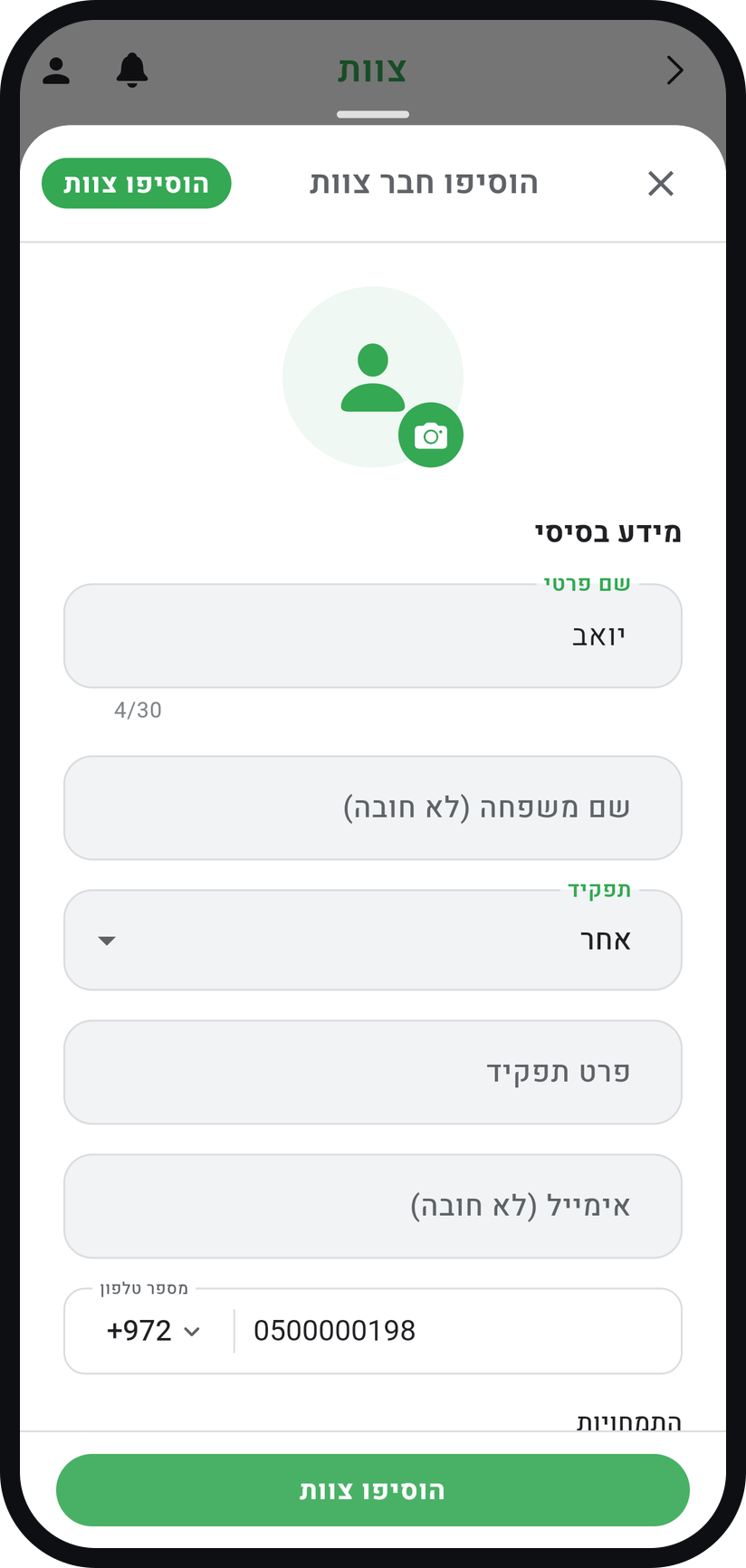
On the "Staff" screen tap "Add Staff Member", fill in a name and pick a "Role": "Owner", "Manager" or "Other". A "Phone Number" or an email is required, because that is what identifies them when they join.
Zoom
The add team member form, with the role and phone number. Share the link
After saving, "Invitation ready to share" opens, and the link is not sent automatically: tap "Send via WhatsApp" (when you entered a phone), "Share invitation" or "Copy link". The link is valid for 14 days.
They open it and sign in
They see your business name and their role, tap "Approve & continue" and sign in. Important: they must sign in with the same phone (by SMS code) or the same email you entered.
Check they are active
Until they join, their card is marked "Pending". Once they join it reads "Active", and they get into your business in the app with the permissions you gave them.

Tips from the field
Tapping a pending card offers "Resend invitation", which refreshes the invitation for another 14 days, and "Revoke invitation", which cancels the link and removes the team member from the list.
Instead of the link, they can simply sign in to the app with the phone number you entered, and the app offers them to join.
The role sets the default permissions, and you can change any of them in the "Permissions" section. Changing roles and permissions stays with the owner.
A team member appears to customers on your booking page as long as "Open for Bookings" is on in their card.
Common questions
They are signed in with a different account than the one on the invitation. They tap "Sign out and try again" and sign in with the phone or email you entered. If you entered the wrong detail, revoke the invitation and add them again with the right one.
A join link is single-use and valid for 14 days. If it expired, tap the pending card, choose "Resend invitation" and send the link it shows again. If you revoked the invitation, add the team member again.
Professional allows up to 2 team members, Premium up to 5, and on Free and Basic it is just you. The owner counts as one.
More on this topic: Team & Staff Management
Related guides
Not using Timing yet?
Setting up in Timing takes a few minutes, and you can start free.