
How to block time in your calendar
Blocking time marks hours in your calendar as taken without booking anyone: a lunch break, errands or a day off. Customers cannot book during those hours.
Where to start
The "Block time" button on the "Home" tab, or "Add appointment" on the "Calendar" tab
Watch the video
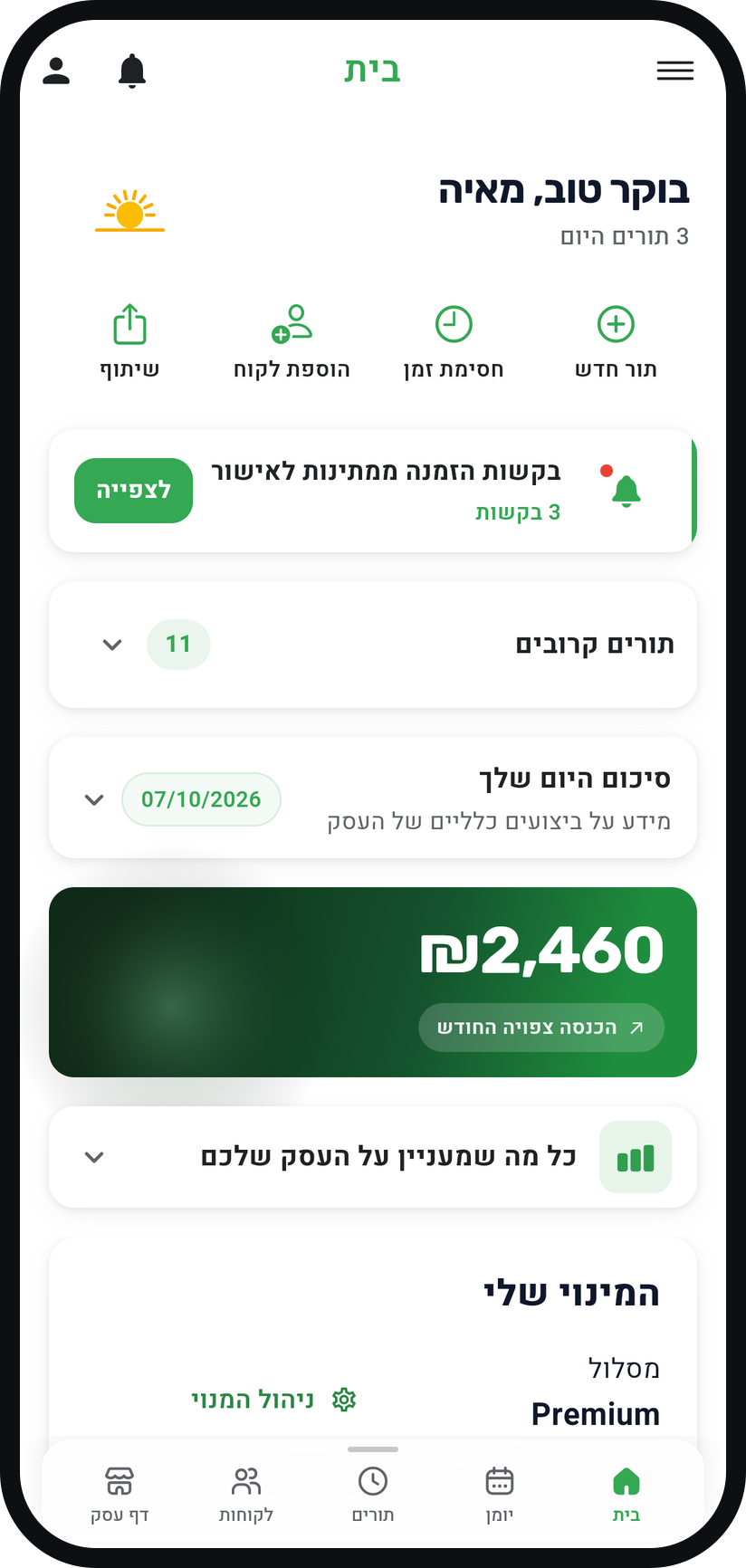
Tap "Block time" on the "Home" tab
In the quick actions row at the top of the "Home" tab, tap "Block time". The calendar opens with the "Create New Appointment" window, already set up as a block.
Zoom
The "Block time" button in the quick actions row. Or open "Add appointment" in the calendar
On the "Calendar" tab, tap "Add appointment", or tap an empty slot at the time you want to block. Tapping a slot fills in the date and time for you.
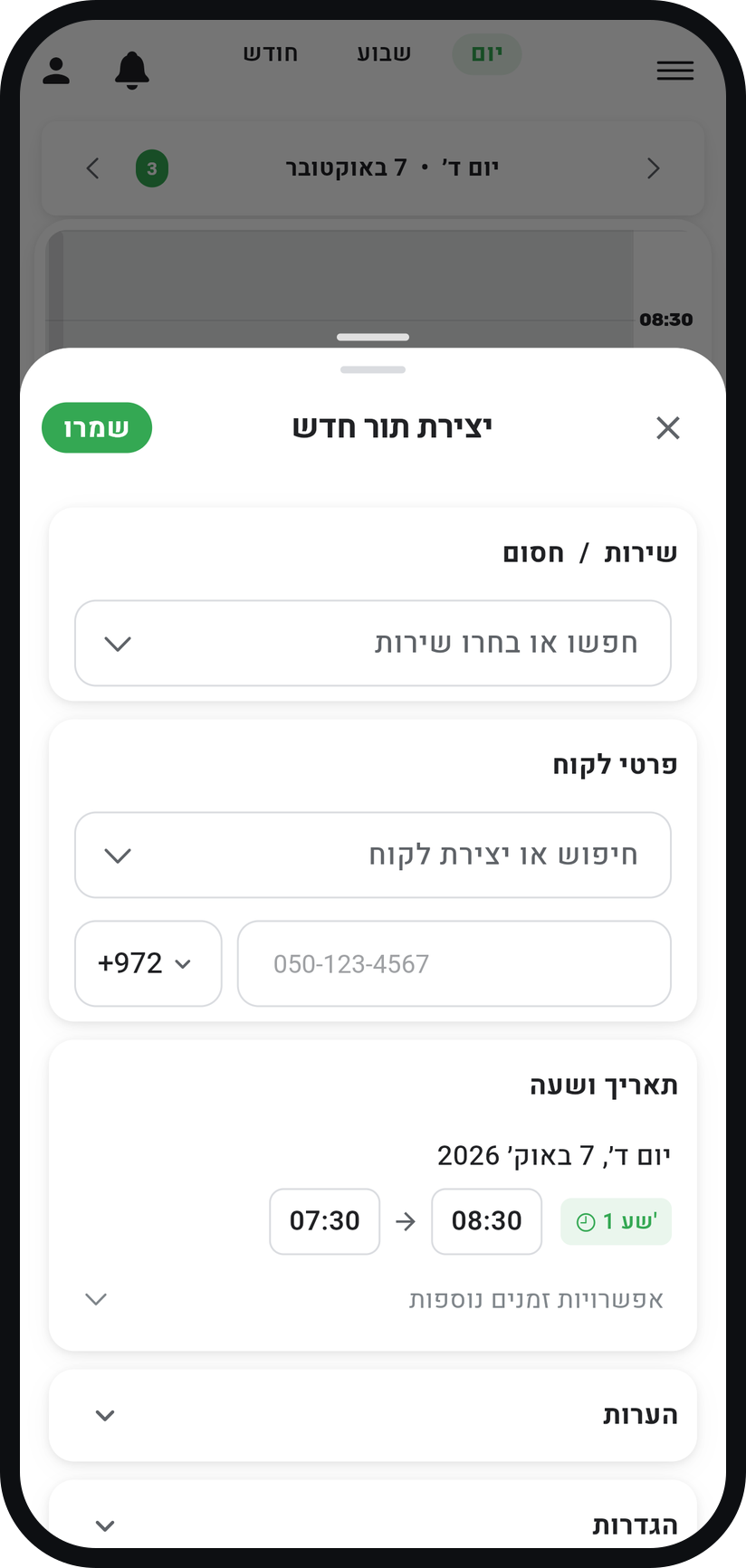
Choose "Blocked"
If you started in the calendar, tap the word "Blocked" in the "Service / Blocked" heading, before you fill anything in. The first row of the service list, "Blocked / Private Time", does the same.
Zoom
The word "Blocked" in the "Service / Blocked" heading. Name it (optional)
Type a title in the field that appears, for example "Lunch" or "Personal". The line under it reads "This information will only be visible to you": customers never see the title.
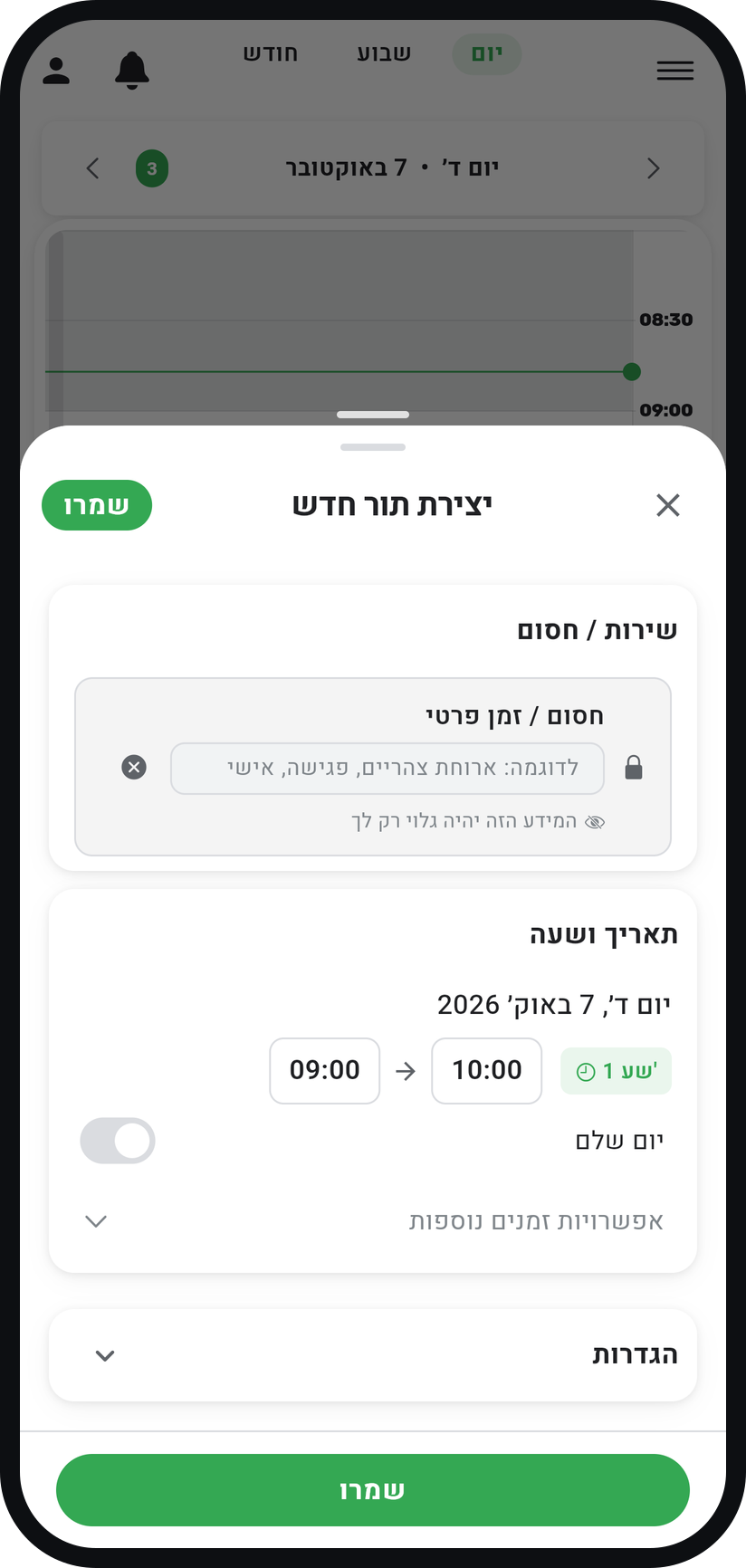
Zoom
The block title field. Set the date and time
In the "Date & Time" card, pick the day and the start and end times. To block a whole day turn on "All day", and for several days in a row also tap "Add end date".
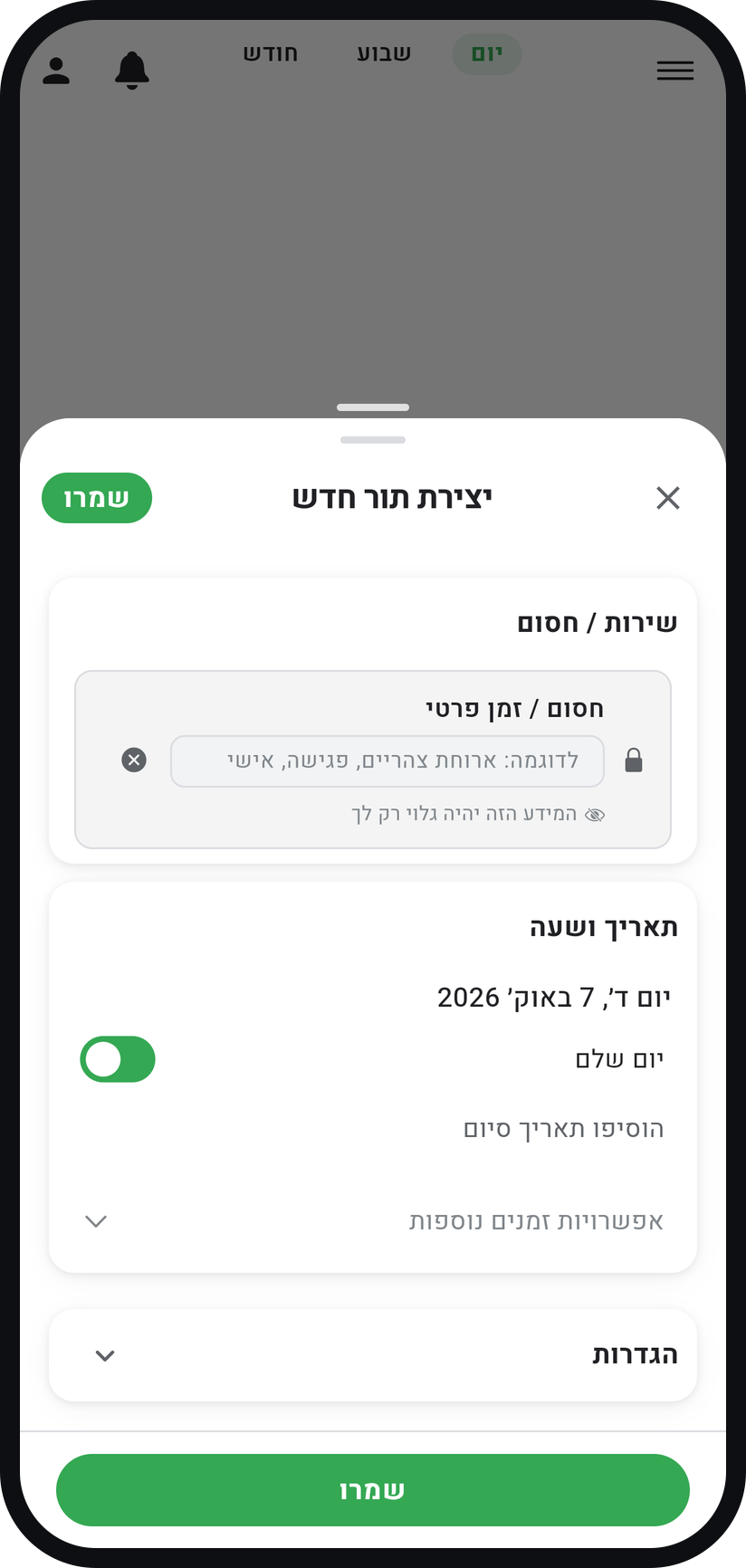
Zoom
The "All day" switch and the "Add end date" row. Choose who is blocked
When your business has more than one team member, an "Assigned staff member" card appears. Open it and pick a person, or "All staff members" to block the whole business.
Save the block
Tap "Save". The block appears in your calendar, and on your booking page those hours close for whoever you blocked.
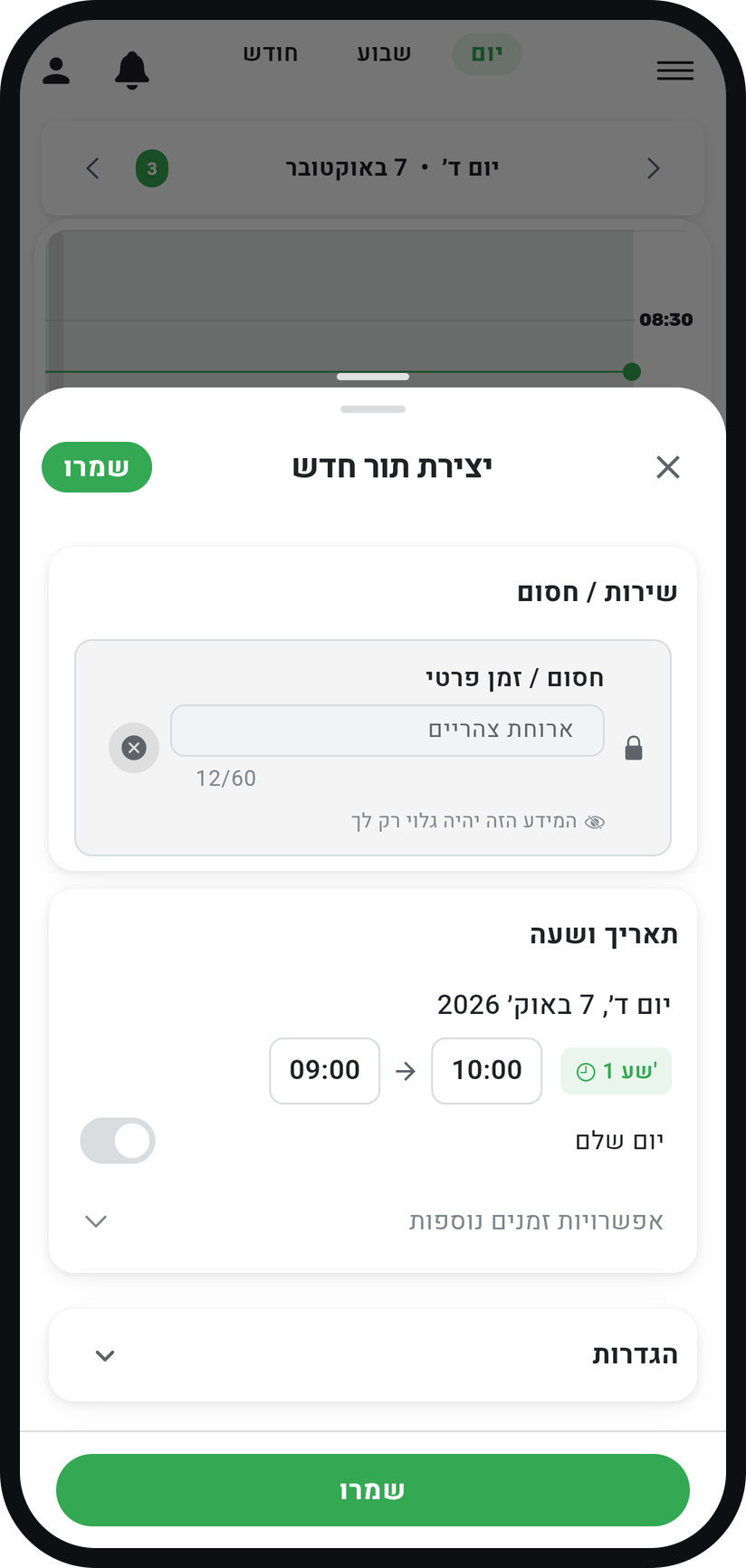
Zoom
The block ready to go, just before "Save".


Tips from the field
For a holiday of several days, create one block: turn on "All day" and then "Add end date", rather than one block per day.
For a break that always falls at the same time, you can split your business hours instead: in the menu, "Business page" group, choose "Business hours" and tap the + ("Add hours") next to the day. A block suits a break that moves around or applies to one team member only.
A block does not cancel appointments already booked in those hours. If something is already there, handle it separately.
Customers still booking during a block? Open it and check that "Keep time slot open" is off in the "Settings" card, and that you did not pick "No assignment (personal note)": that one is only a reminder in your calendar and does not block bookings.
Common questions
Because to the calendar a block is an appointment with no customer. That is why you create it from the same window, and why you can drag and edit it exactly like an appointment.
No. On your booking page those hours are simply not offered, with no detail.
Tap it in the calendar, then the trash icon at the top of the window, then "Delete Permanently". For a repeating block you are asked first which dates to delete.
Not if you are on Professional or higher and import that calendar: an imported event holds the time while "Block appointment slots" is on, which is the default. All-day events come in only if you turned on "Import full-day events (holidays, days off)". On other plans, block it here.
More on this topic: Google Calendar Sync · Appointment Calendar
Related guides
Not using Timing yet?
Setting up in Timing takes a few minutes, and you can start free.