
How to connect Google Calendar
Your Timing appointments go into your Google Calendar on every plan. From Professional, your own Google events can also block time in Timing.
Where to start
Your profile picture at the top of the screen, the "Google Calendar" card under "Integrations"
Tap "Profile"
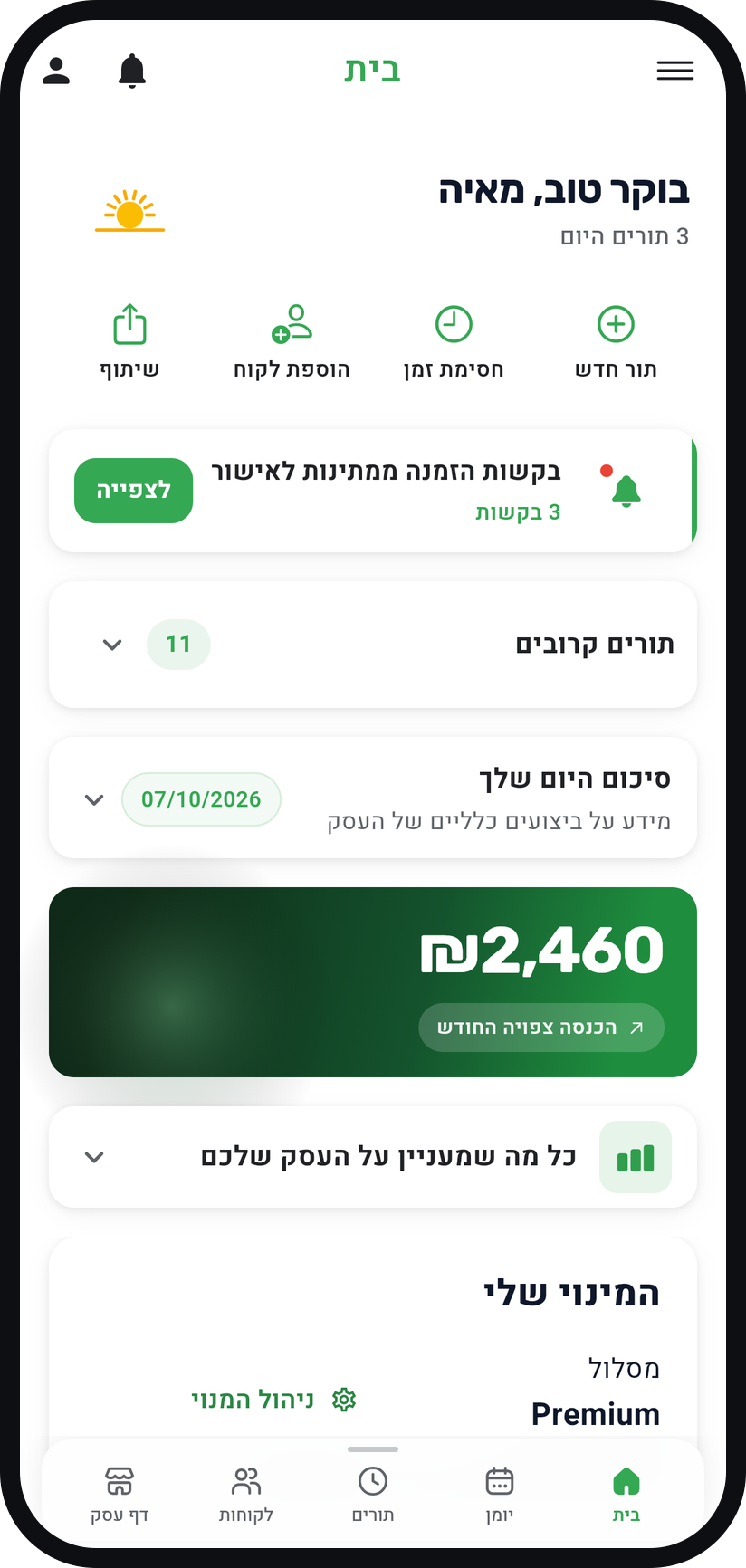
Tap your profile picture (or the person icon) at the top of the screen. The "Profile" screen opens.
Zoom
The profile picture at the top of the screen. Find "Google Calendar"
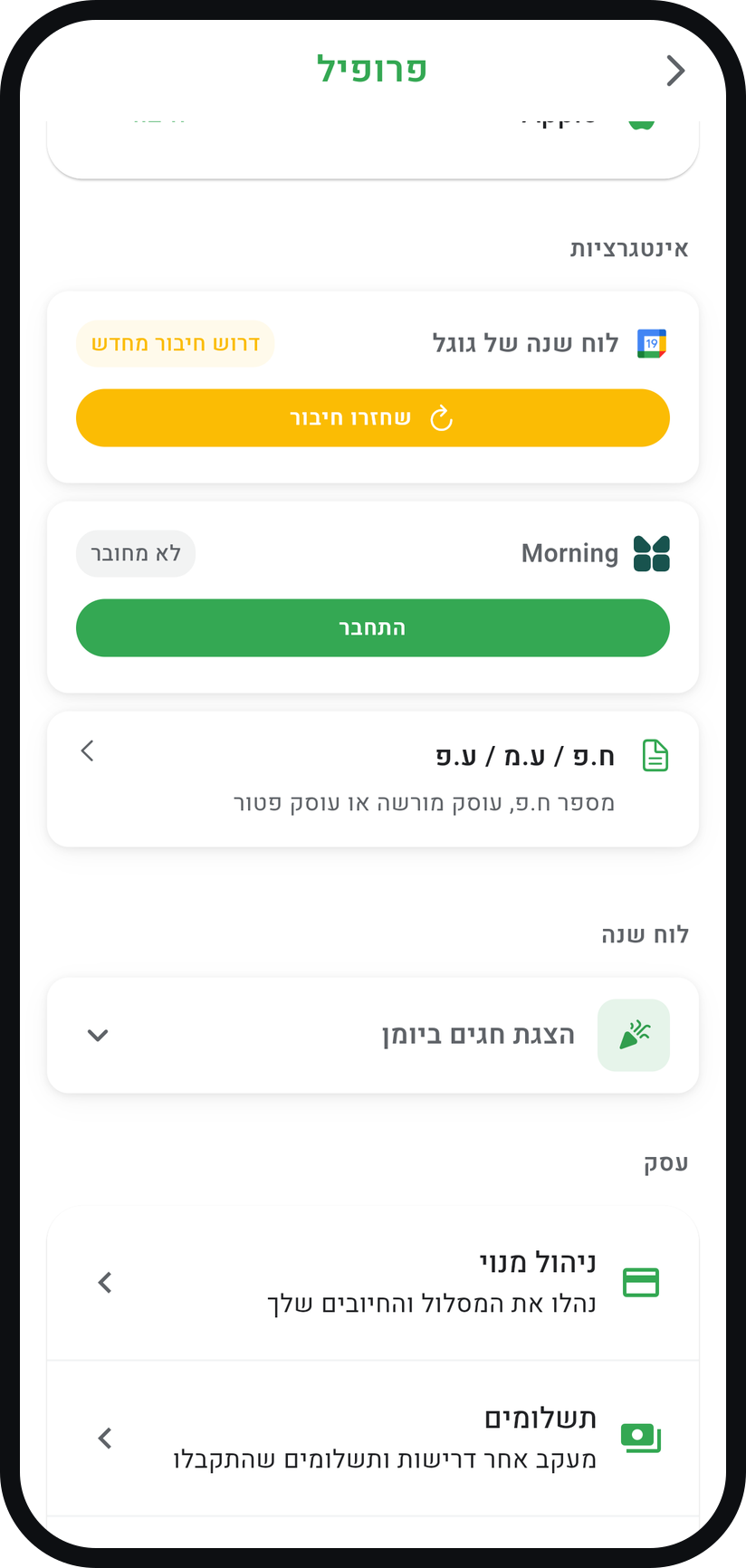
Scroll to the "Integrations" section. The "Google Calendar" card shows whether it is "Connected" or "Not Connected". If the connection dropped, it reads "Needs Reconnection", and "Restore Connection" connects it again.
Zoom
The "Google Calendar" card under "Integrations", here in the "Needs Reconnection" state. Sign in with Google
Tap "Connect", choose the Google account that holds your calendar and approve the permissions on Google's screen. If "Select Calendar" opens, pick the one marked "Primary Calendar".
Turn on "Background sync"
Tap "Manage Calendar" and switch on "Background sync", so your calendars stay in sync even when the app is closed. Google may ask you to approve again, and then the row reads "Syncing in the background".
Tap "Import from my calendars"
In "Manage Calendar" tap "Import from my calendars" and switch on each calendar whose events should block time in Timing. A holidays calendar, for instance, usually should not.
Check each calendar's options
For a calendar you switched on, "Block appointment slots" is already on, and that is what stops customers booking those hours, while "Import full-day events (holidays, days off)" is off. When you are done, tap "Save Settings".


Tips from the field
Syncing appointments to Google Calendar works on every plan, and importing your own Google events to block time starts at Professional.
"Test Sync" in "Manage Calendar" creates a short test event in your Google Calendar. If it shows up everything works, and you can delete it.
Google marks all-day events "Free" on its own, so by default Timing ignores that mark and every imported event blocks time. If you use "Free" on purpose, switch on "Events marked "Free" don't block" for that calendar.
An event that does not really take your time? Open it in your Timing calendar and switch on "Keep time slot open".
If the card says "Needs Reconnection", or options in "Manage Calendar" are greyed out, tap "Restore Connection".
Common questions
Customers cannot: on your booking page the hour simply is not offered. In your Timing calendar the event shows as a block with its title.
Yes, in "Manage Calendar". To stop syncing completely, switch off "Background sync" first and then tap "Disconnect". Events that were already imported are not removed on their own.
Yes. Syncing your appointments to Google Calendar works on every plan, including Free. Only importing your own events to block time needs Professional or above.
More on this topic: Google Calendar Sync · Appointment Calendar
Related guides
Not using Timing yet?
Setting up in Timing takes a few minutes, and you can start free.