
How to turn on WhatsApp reminders
A reminder sent before the appointment is the cheapest way to cut no shows. Turn it on once and it runs by itself.
Where to start
The menu at the top of the screen, then "Business settings"
Tap "Business settings"
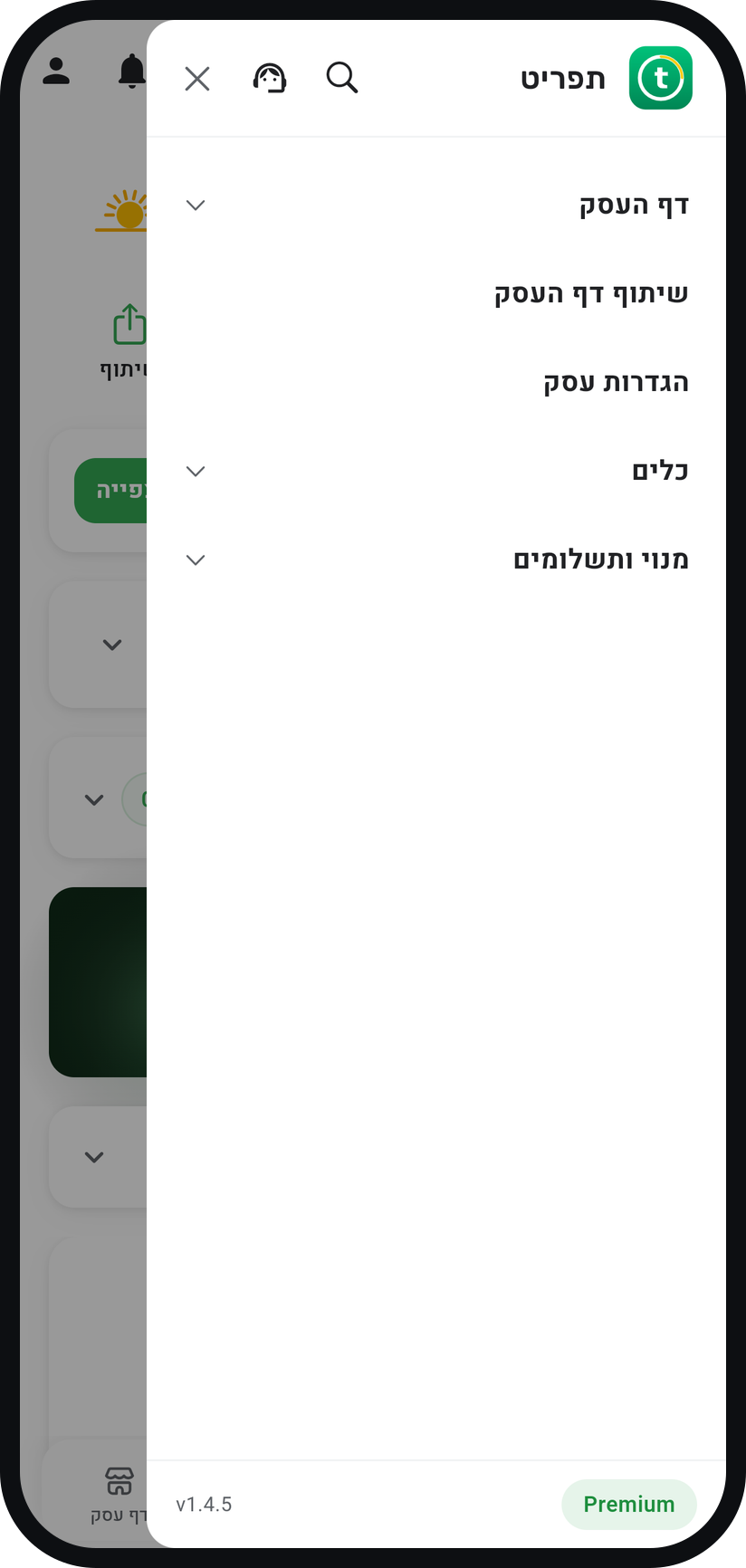
Tap the menu icon (three lines) at the top of the screen and tap "Business settings". The "Your business settings" window opens.
Zoom
The "Business settings" row in the menu. Turn on "Send WhatsApp reminders to customers"
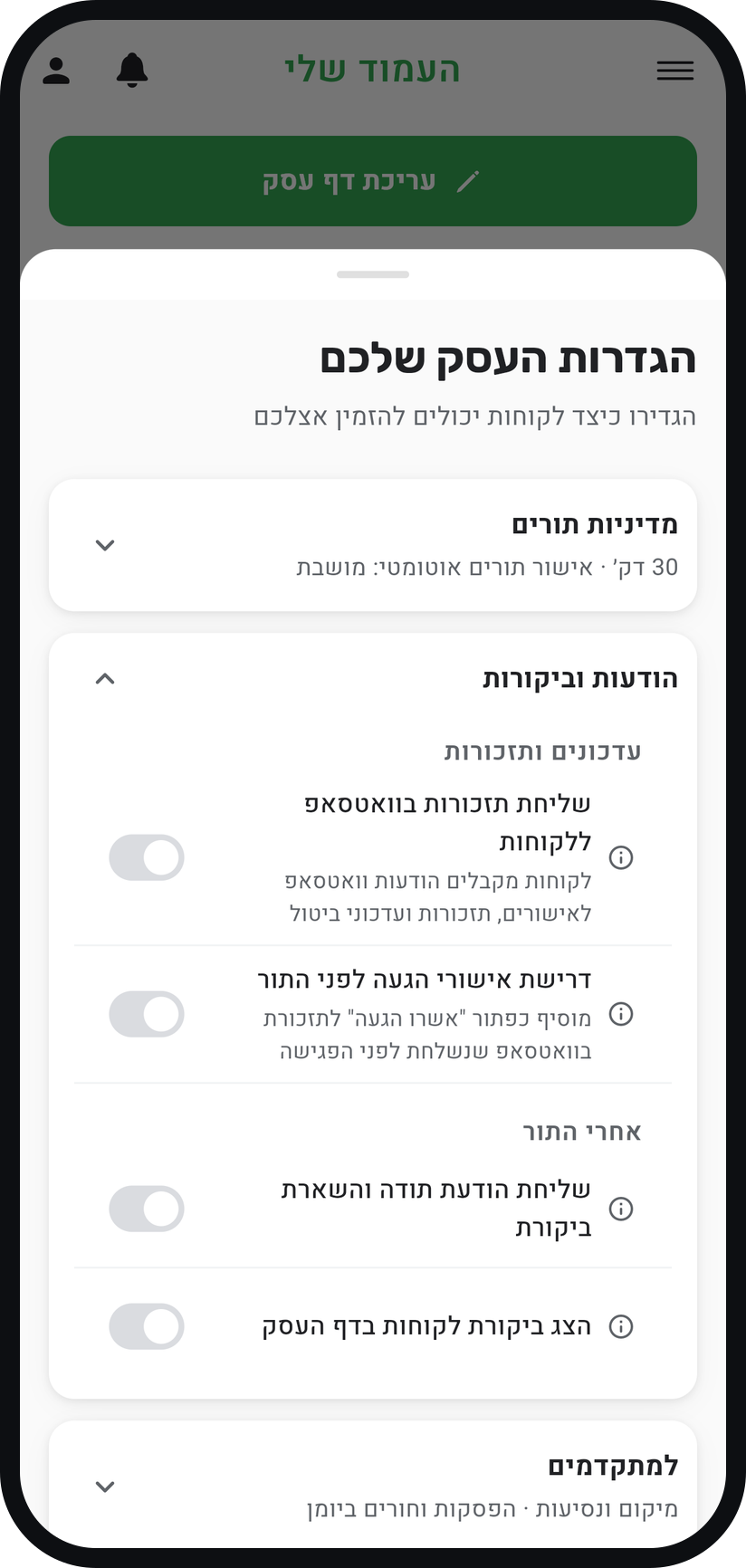
Tap the "Messages & reviews" card to open it, and check that the switch under "Updates & reminders" is on. It decides whether customers get WhatsApp reminders, booking confirmations and cancellation updates from you.
Zoom
The switch in the "Messages & reviews" card. Pick "When to send the reminder"
With the switch on, a "When to send the reminder" row appears under it. Pick anything from 15 minutes to 72 hours before the appointment; the default is 30 minutes, and for most businesses a reminder the day before works well.
Add a "Second reminder"
Under that row sits "Second reminder", available on Premium: switch it on and set an extra time under "When to send it", for example 48 hours and 12 hours before the appointment. A customer who already confirmed does not get the later reminder.
Test it on yourself
Book a test appointment for a customer with your own phone number and wait for the reminder. The appointment card in the "Bookings" tab shows a counter of the messages sent to the customer, and tapping it shows what went out and when.


Tips from the field
WhatsApp reminders are available on Basic and above, and "Second reminder" on Premium only.
With the "Ask customers to confirm arrival" switch, on Professional and above, the reminder carries confirm buttons, so the customer confirms or cancels with one tap inside the chat.
"Send a thank-you & review request", in the "Messages & reviews" card under "After the visit", sends the customer a thank-you about two hours after the appointment, as long as "Send WhatsApp reminders to customers" is on too. It is available on Professional and above.
A reminder goes out only for an approved appointment. A request waiting for your approval gets no reminder until you approve it.
A customer without a valid phone number will not get reminders. Worth one pass through your customer list.
Common questions
No. Messages go out from the Timing WhatsApp number, and your business name appears in the message.
The reminder is sent on WhatsApp, so a customer without WhatsApp will not get it. Confirm the appointment with them by phone.
They are available from Basic, and "Second reminder" on Premium only. When your plan does not include them, the name of the plan you need appears where the switch would be, and tapping it shows the upgrade option.
Under "When to send the reminder", pick "No reminder". Booking confirmations and cancellation updates still go out. Switching off "Send WhatsApp reminders to customers" stops every WhatsApp message to customers, not only the reminders.
More on this topic: WhatsApp Reminders · Attendance Confirmation
Related guides
Not using Timing yet?
Setting up in Timing takes a few minutes, and you can start free.