
How to control notifications
Two kinds: WhatsApp messages customers get from you, and alerts you get about your business. The first are in "Business settings", the second on your profile.
Where to start
The menu at the top of the screen, "Business settings", and your profile picture at the top of the screen
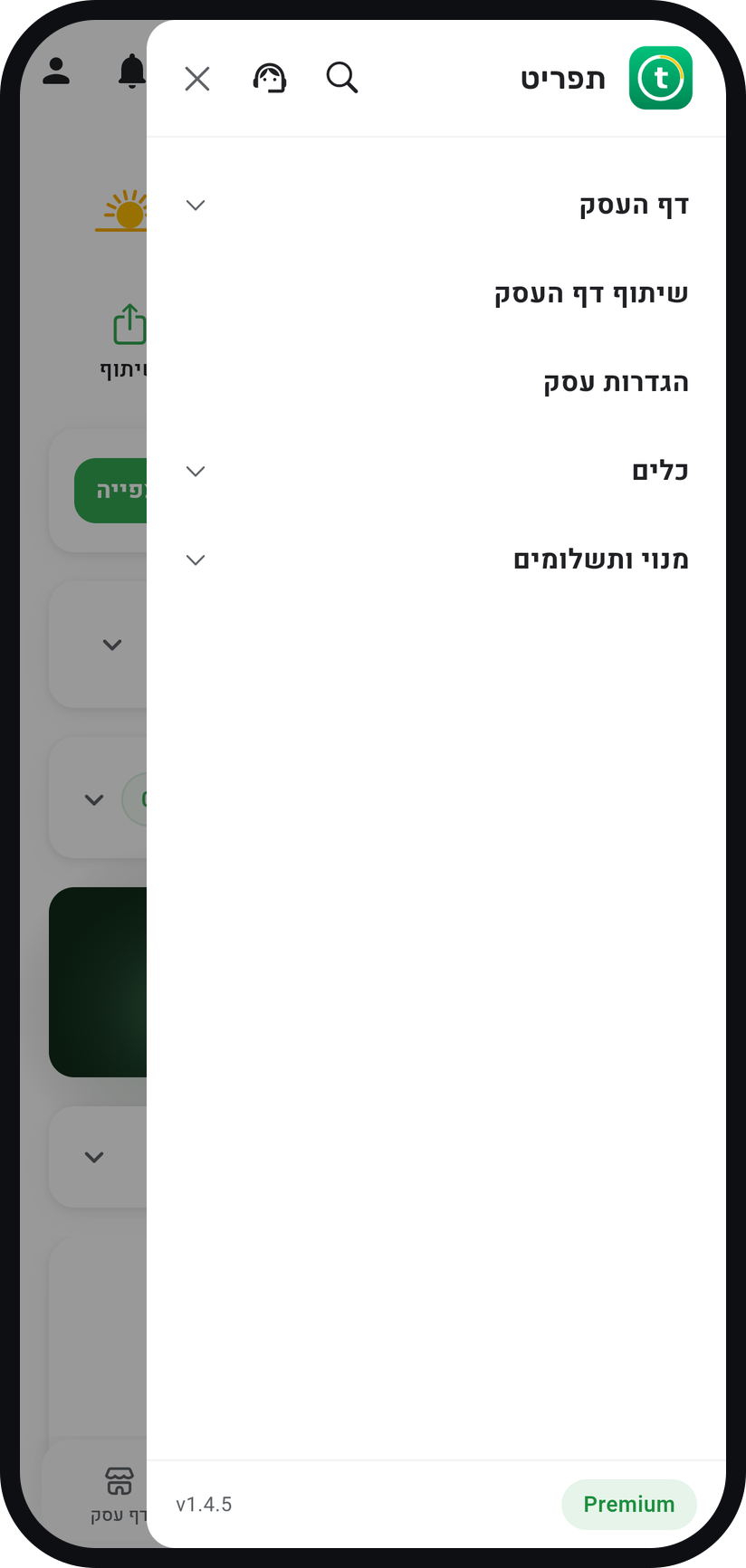
Tap "Business settings"
Tap the menu icon (three lines) at the top of the screen and tap "Business settings". The "Your business settings" window opens.
Zoom
The "Business settings" row in the menu. Customer messages
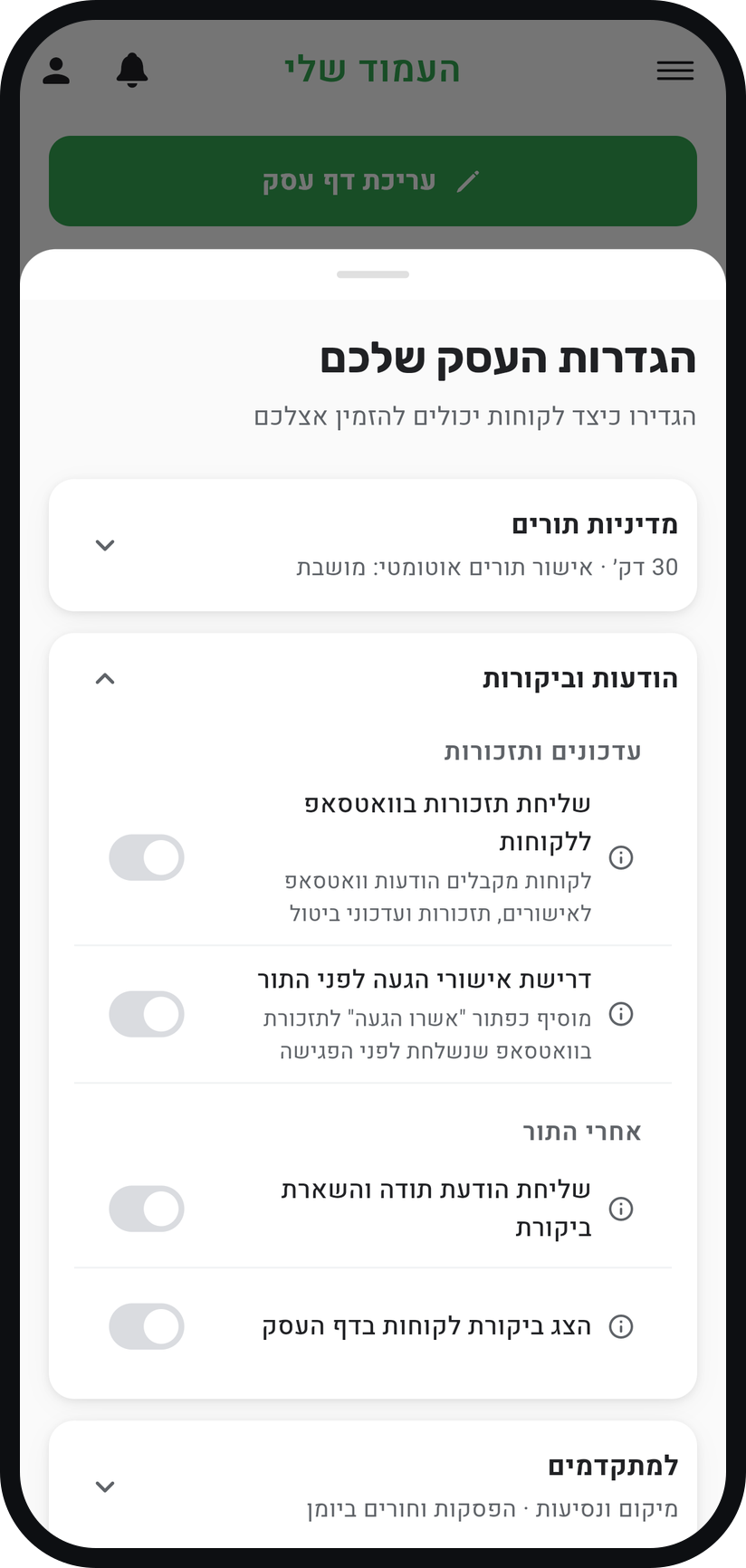
Open the "Messages & reviews" card. Under "Updates & reminders", the "Send WhatsApp reminders to customers" switch decides whether customers get booking confirmations, reminders and cancellation updates from you over WhatsApp.
Zoom
The "Send WhatsApp reminders to customers" switch. Reminder timing
With the switch on, a "When to send the reminder" row appears under it. Pick anything from 15 minutes to 72 hours before the appointment, or "No reminder"; the default is 30 minutes.
Open "Notification Settings"
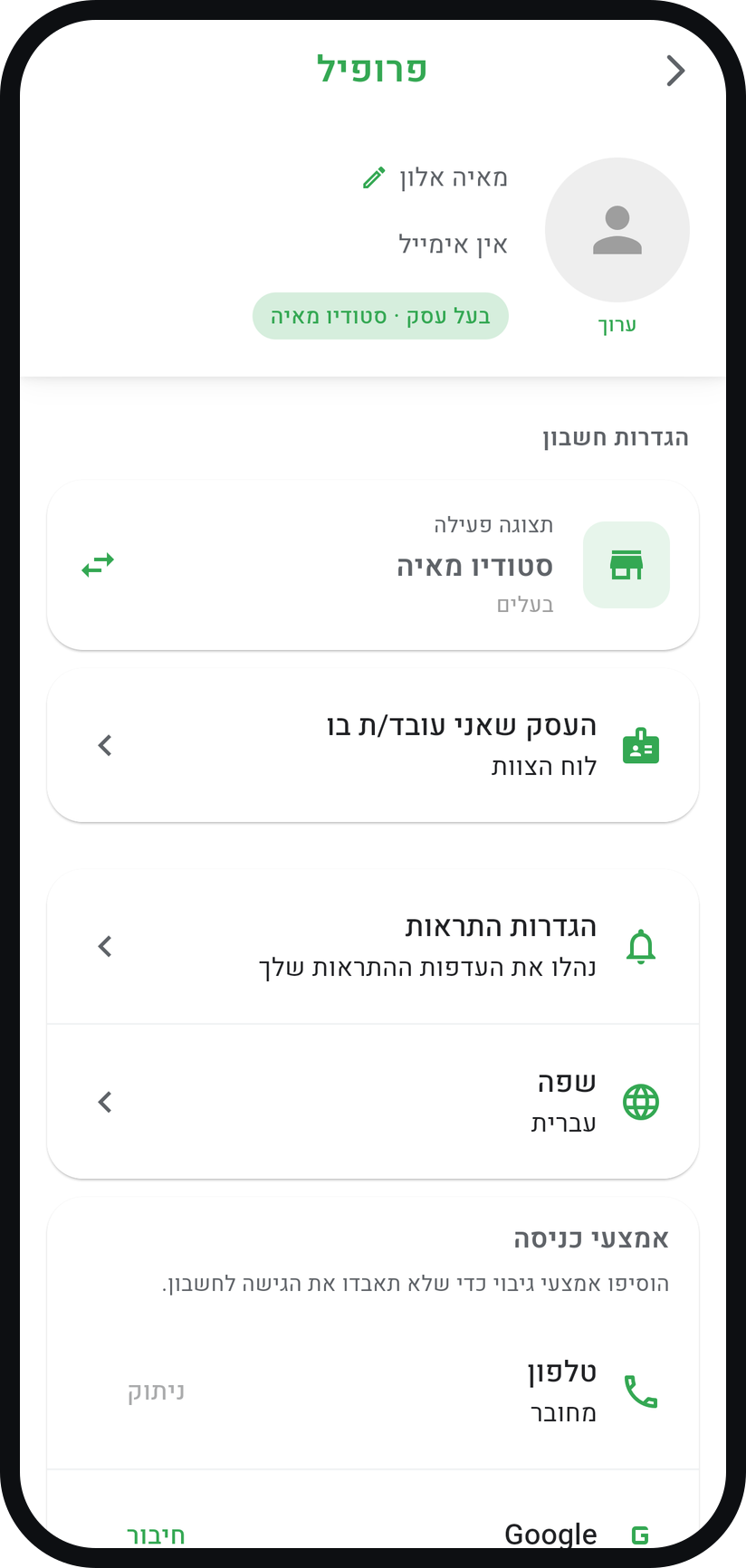
Tap your profile picture at the top of the screen, and on the "Profile" screen tap "Notification Settings".
Zoom
The "Notification Settings" row on the profile screen. Choose what you receive
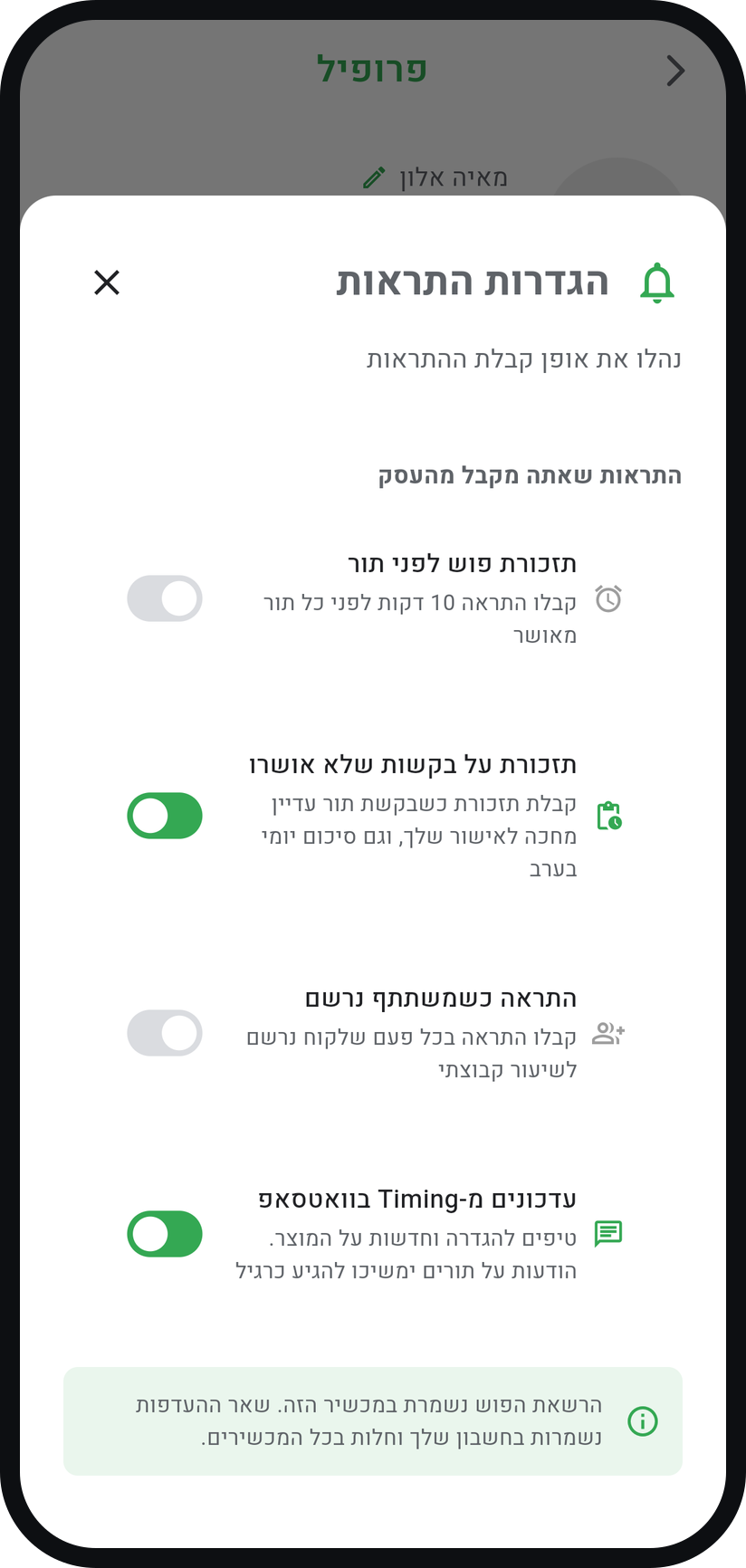
Under "Alerts you get from your business" there are switches for "Pre-appointment push reminders" (10 minutes before each confirmed appointment), "Remind me about unapproved requests", "Notify when participant joins" a group session, and "WhatsApp updates from Timing".
Zoom
The "Alerts you get from your business" section. Device permission
In the phone app, the "Push Notifications" row in the same window shows whether notifications are on and opens your phone settings. If you declined notifications before, turn them back on there, not from inside the app.


Tips from the field
WhatsApp messages to customers and your own reminders are available from Basic, the after-visit thank-you from Professional, and "Second reminder" on Premium only.
The bell at the top of the screen opens the "Notifications" screen, which collects your alerts even when you missed the push.
Shortcut: type "notification settings" in "Quick navigation" and the window opens directly.
Under "After the visit", the "Send a thank-you & review request" switch sends the customer a WhatsApp thank-you about two hours after the appointment ends.
If the reminder goes out after your cancellation window has closed, the customer cannot cancel from it. A warning about this appears under "Cancellations" in the "Booking policy" card.
The switches on the profile screen are saved to your account and apply on every device. Only the push permission is kept on each device separately.
Common questions
On a phone, check the "Push Notifications" row in "Notification Settings". In a browser, the permission lives in the site settings of the browser. Meanwhile, anything you missed waits on the "Notifications" screen behind the bell.
It has no switch of its own. You can silence all Timing push notifications in your phone settings, and new bookings still appear on the "Notifications" screen.
Check that "Send WhatsApp reminders to customers" is on, that "When to send the reminder" is not set to "No reminder", that the appointment is approved and that the phone number of the customer is correct. On the appointment card in the "Bookings" tab, the message counter shows what was sent to the customer and what did not arrive.
More on this topic: WhatsApp Reminders
Related guides
Not using Timing yet?
Setting up in Timing takes a few minutes, and you can start free.