
How to add a service
A service is anything a customer can book with you: a haircut, a treatment, a class, or a consultation. Without at least one service, nobody can book.
Where to start
The menu at the top of the screen, "Business page" group, "Services"
Watch the video
Open the menu
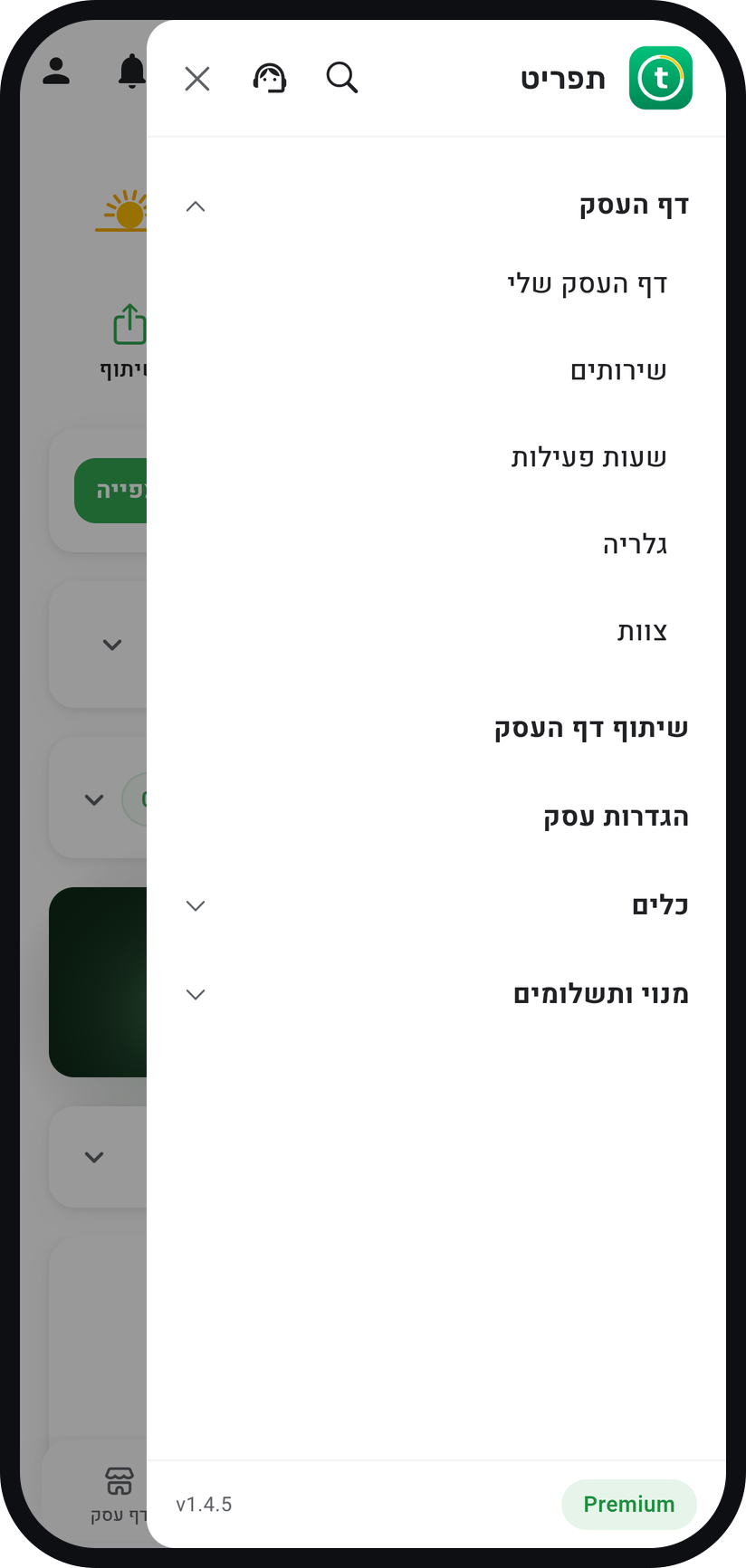
Tap the menu icon (three lines) at the top of the screen, then the "Business page" group to unfold it. Its first row is "My business page", followed by "Services", "Business hours", "Gallery" and "Staff".
Zoom
The menu with its "Business page" group open. Tap "Services"
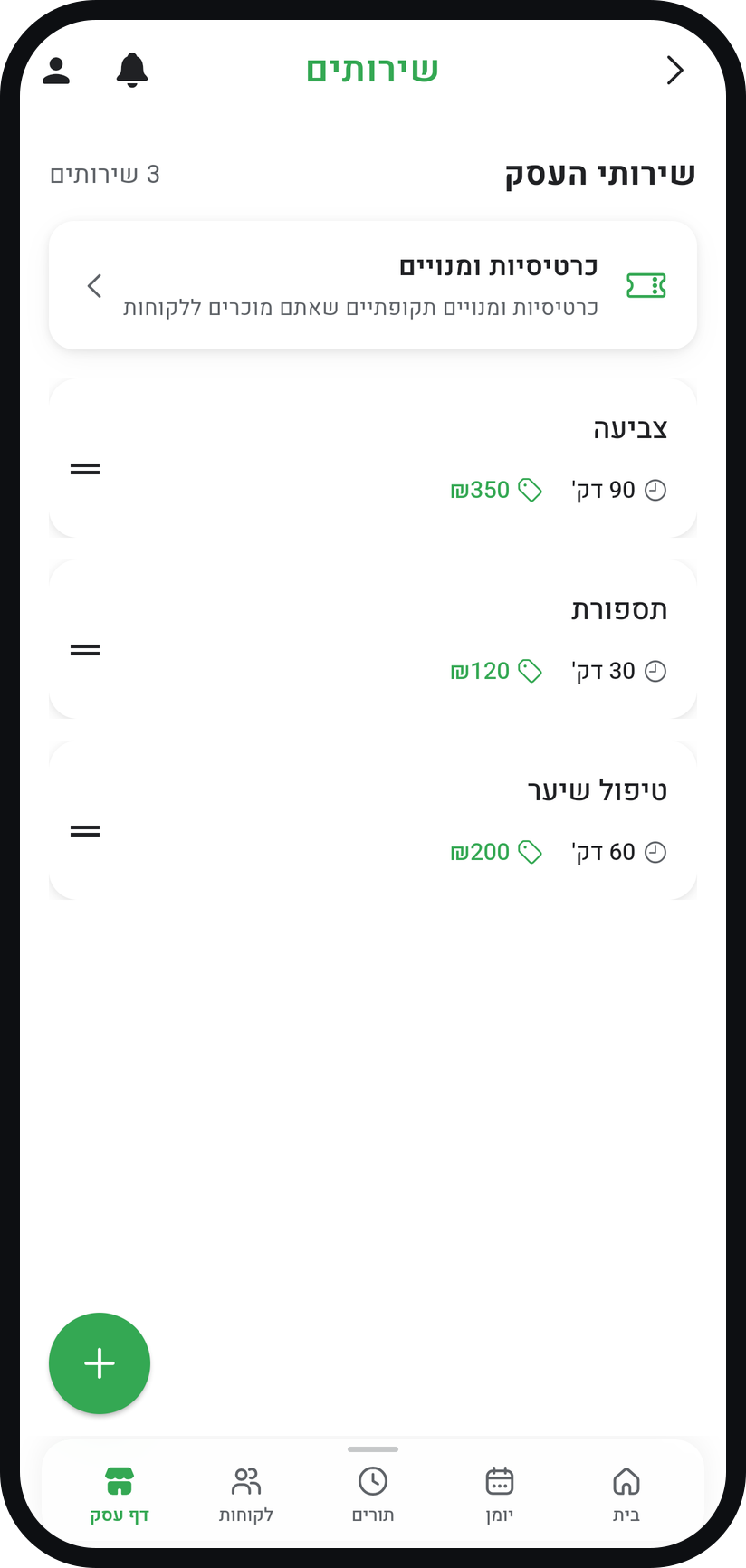
Your current list of services opens, under the heading "Business Services".
Tap "Add Service"
It is the round plus button in the bottom corner of the list. With an empty list, an "Add Service" button sits in the middle of the screen instead.
Zoom
The plus button at the bottom of the service list. Fill in name, price, and duration
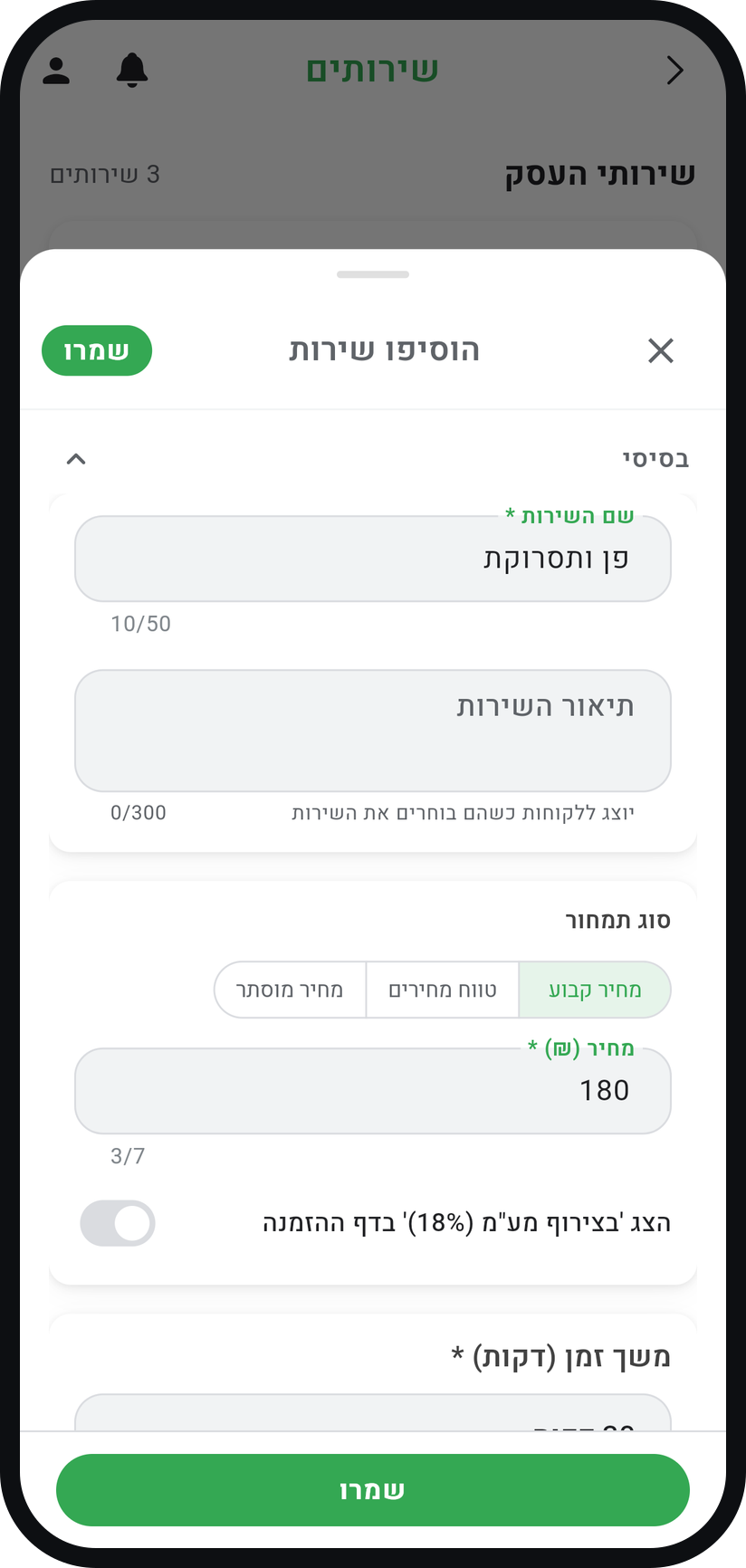
The name is what customers see, so write it the way you say it on the phone. Under "Pricing type" choose "Fixed", "Range" or "Hidden" (a price of 0 suits a free service), and pick a duration from the list: it decides how long the service takes in your calendar and which times customers are offered.
Zoom
The service name, pricing type, price, and duration. Pick a calendar color (optional)
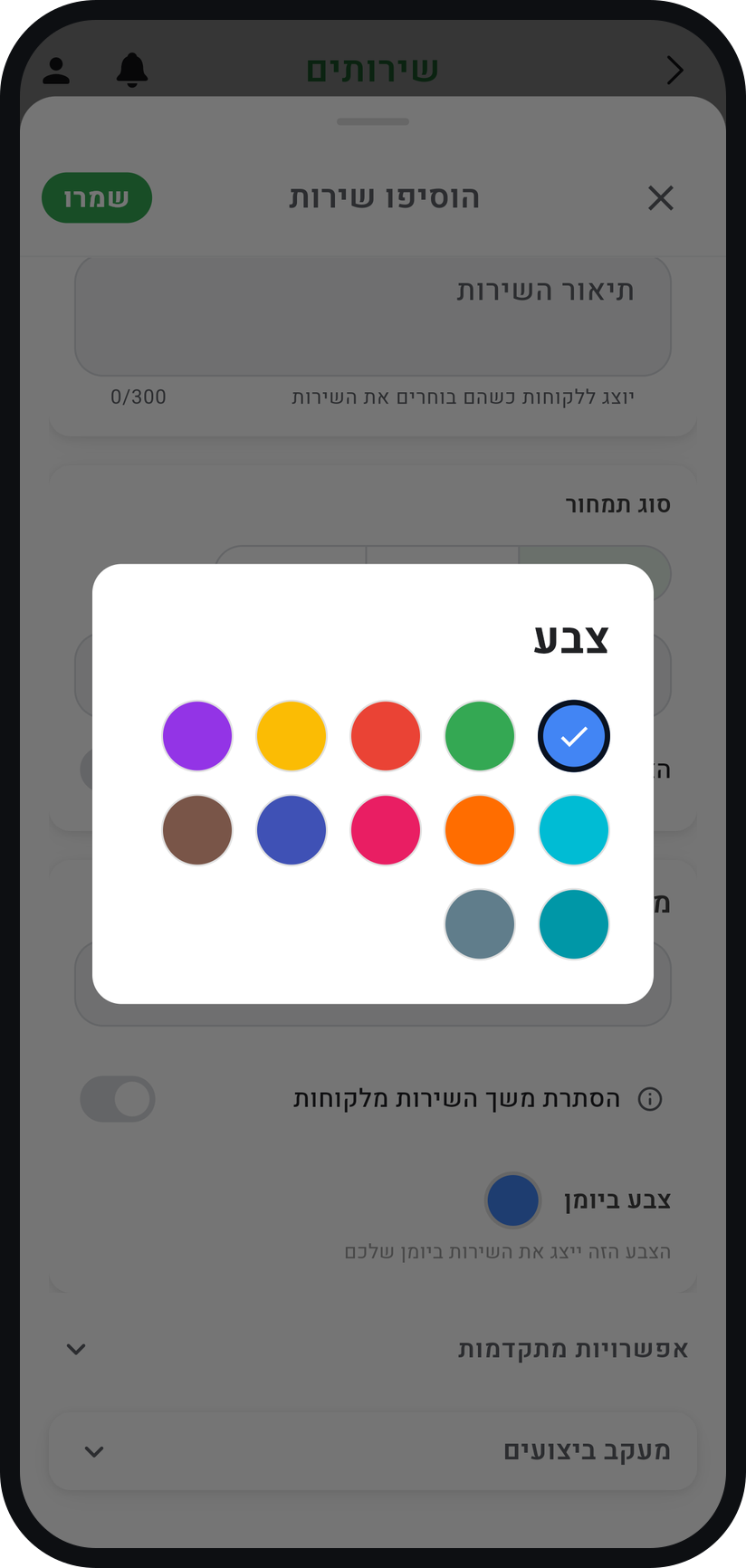
Tap the colored circle next to "Calendar color" and choose one. On a busy day you will read your calendar at a glance.
Zoom
Choosing the color that marks the service in your calendar. Save the service
Tap "Save" at the top of the form. "Service created successfully" appears, and the service joins your list and your business page, with no separate publish step.


Tips from the field
Start with three to five core services. A short, clear list converts better than a long one people have to wade through.
If a service takes a different amount of time per customer, enter the average. You can change the length of a single appointment when you approve it or when you edit it in the calendar.
A service several customers attend together, like a class or a workshop, is set up under "Advanced options" with "Allow multiple participants" (Premium plan). Customers can only sign up for sessions you open in the calendar.
Common questions
Not the whole service: every service in your list shows on your business page. You can hide just the price ("Hidden" under "Pricing type") or the duration ("Hide duration from customers"). To stop offering a service, open it and delete it with the trash icon at the top of the form.
As many as you need: services are unlimited on every plan, with fair use of up to 200 per business. Need more? Write to us at support@timingapps.com and we'll sort it out.
Existing appointments keep the price they were booked at. The new price applies only to new bookings.
More on this topic: Appointment Management Software · Small Business Scheduling
Related guides
Not using Timing yet?
Setting up in Timing takes a few minutes, and you can start free.