
How to add a team member
When more than one person sees customers, the team shares one calendar you can filter by person, each has their own hours, and customers pick who to book with.
Where to start
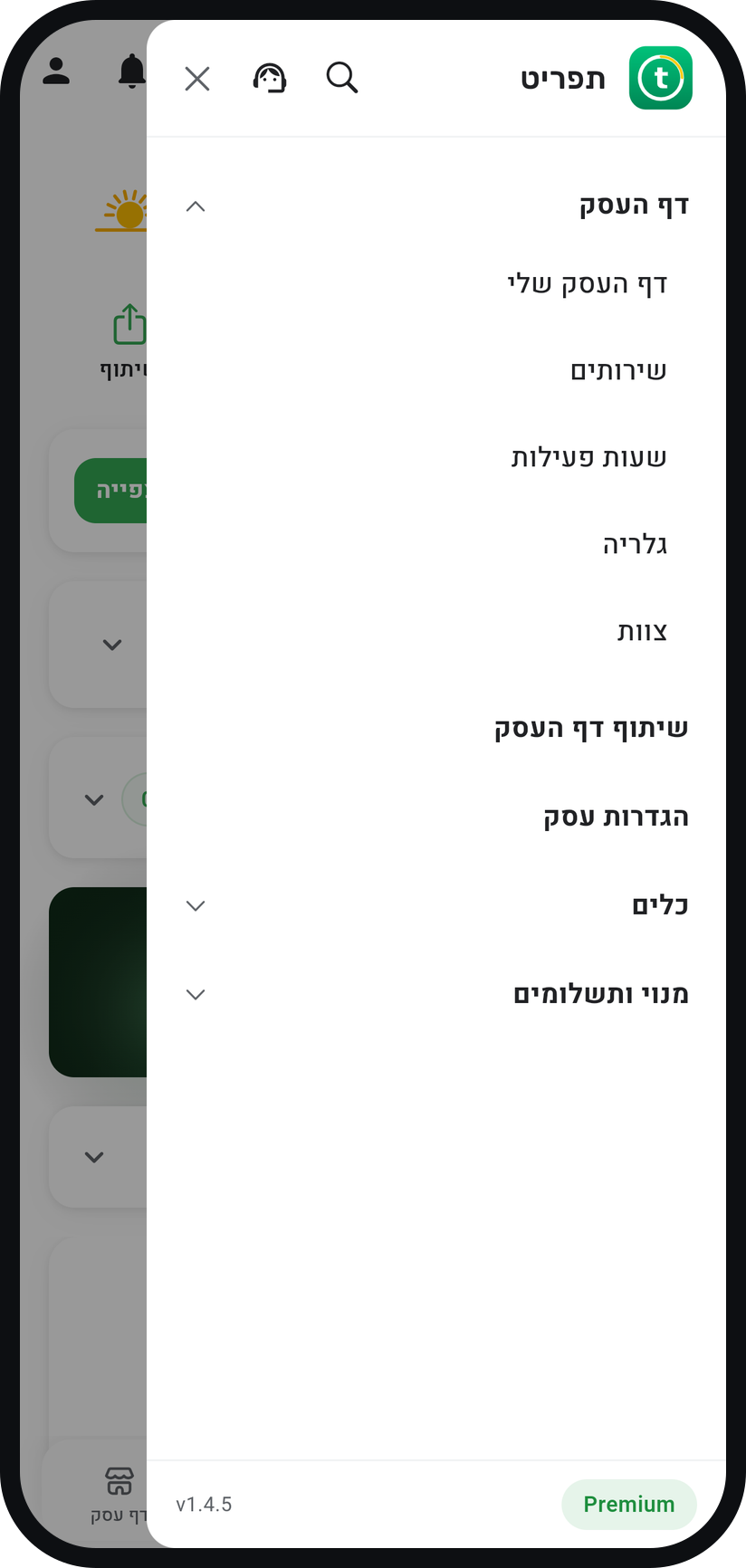
The menu at the top of the screen, "Business page" group, "Staff"
Open the staff screen
Tap the menu icon (three lines) at the top of the screen, open the "Business page" group, then tap "Staff". The list shows everyone on your team, you included.
Zoom
The "Staff" row in the menu. Tap "Add Staff Member"
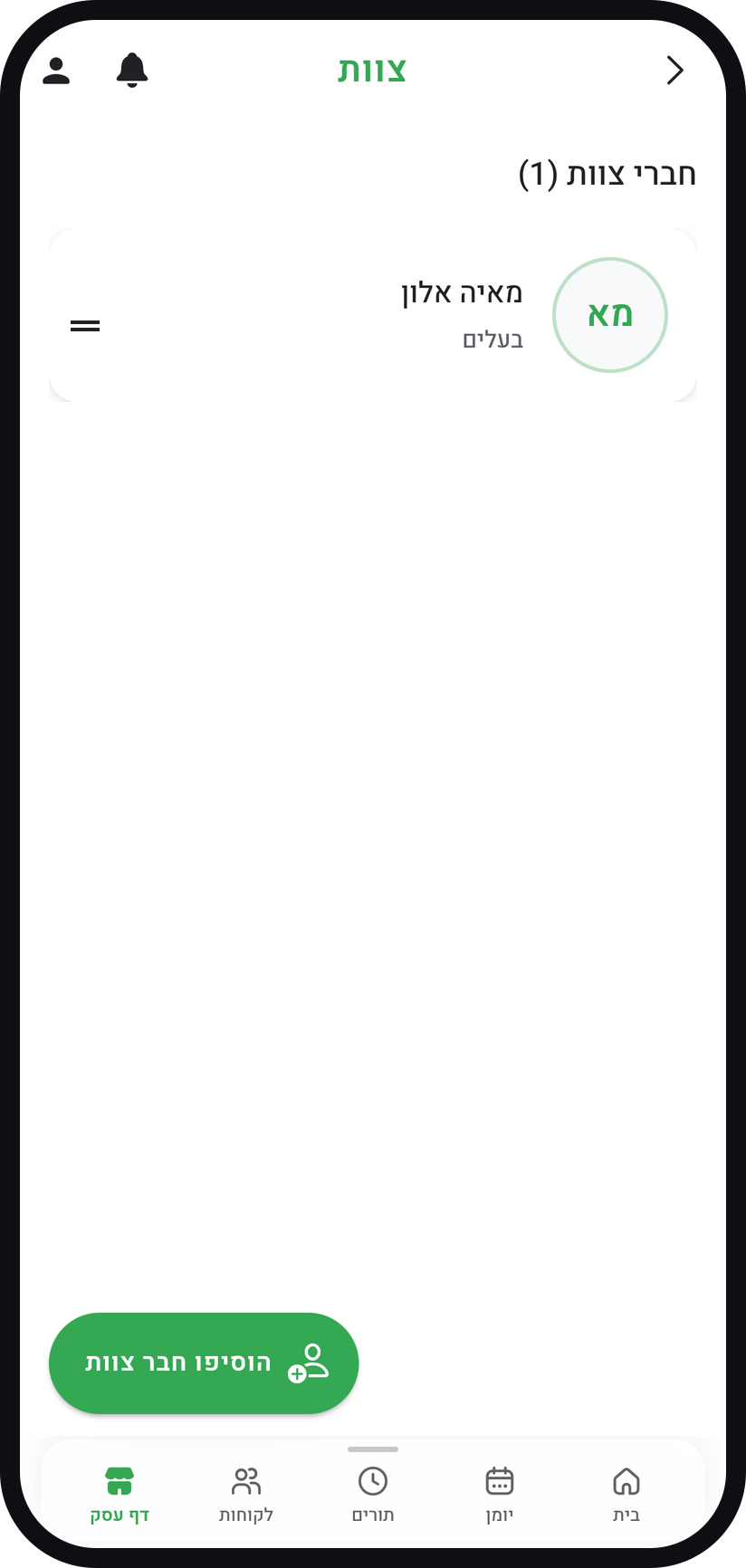
The button at the bottom of the screen opens the "Add Staff Member" form. If your plan is already full, a window that explains the limit opens instead.
Zoom
The "Add Staff Member" button. Fill in a name and a phone or email
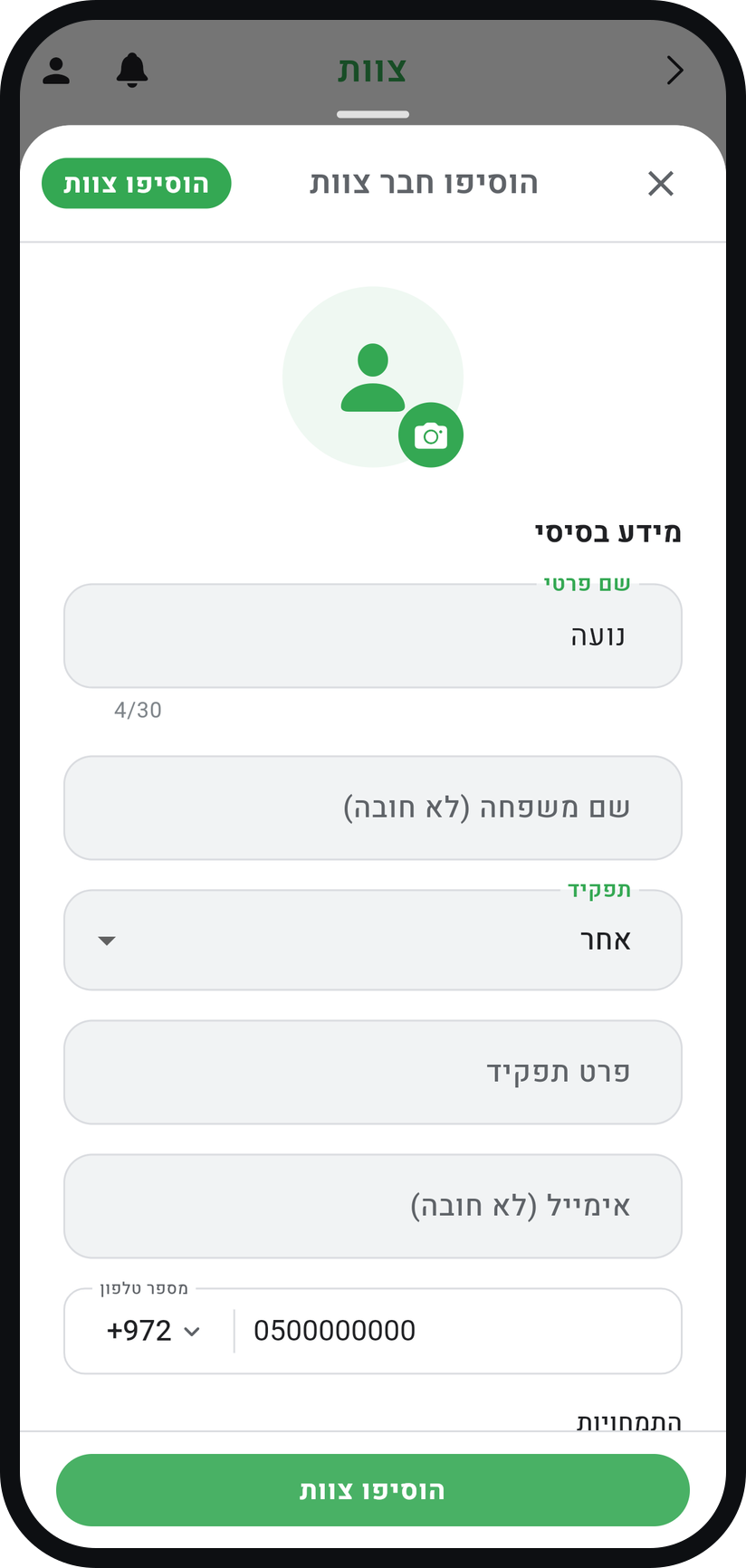
"First Name" is required, plus at least one of the two: "Phone Number" or email. They will sign in with exactly that to join, so enter the number or address they really use.
Zoom
The name, email, and phone number fields. Choose a role and permissions
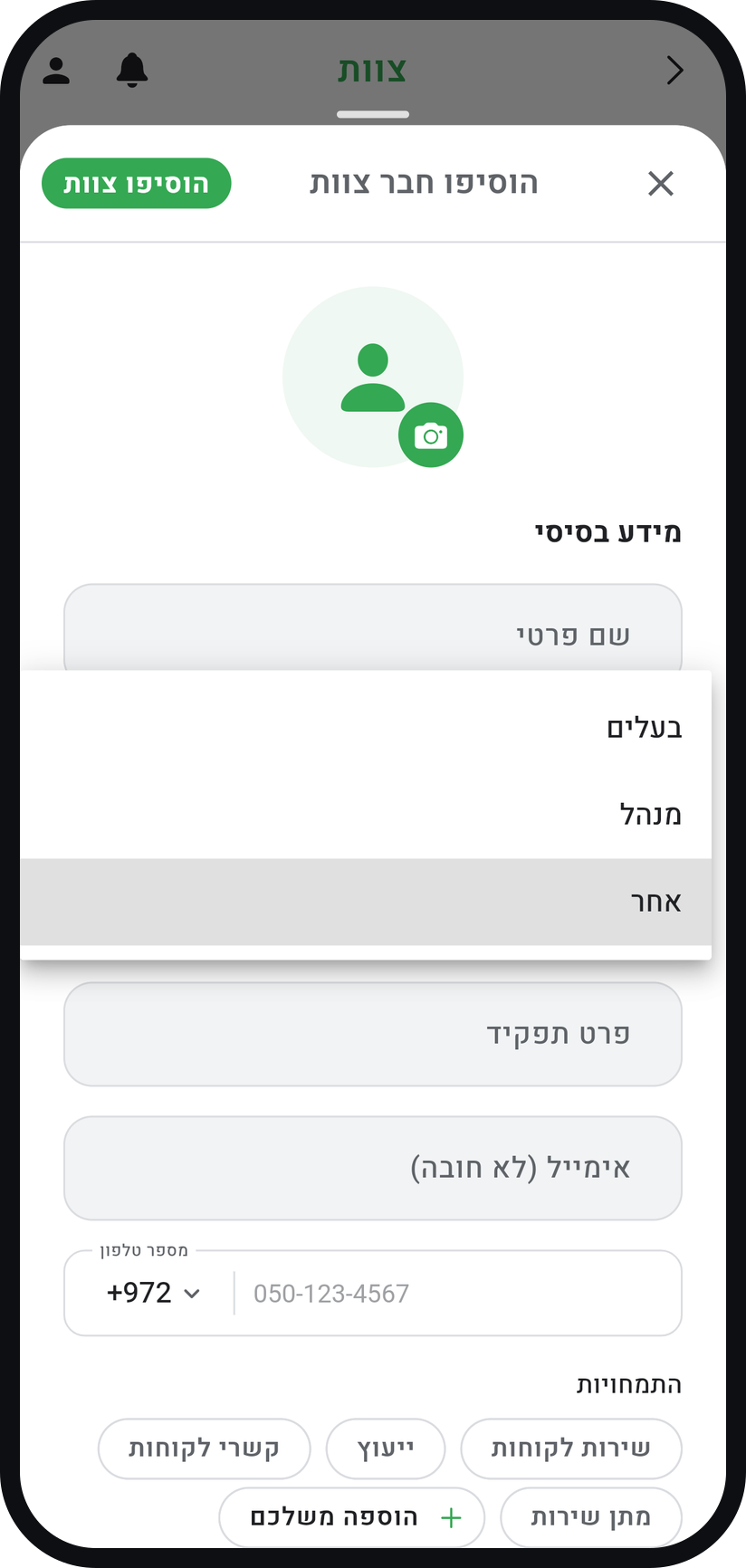
The "Role" list offers "Owner", "Manager" and "Other", and for "Other" you can type a job title under "Specify role". The role sets default permissions, and the "Permissions" section below lets you change any of them for this person.
Zoom
Picking a role from the list. Check that "Open for Bookings" is on
It starts switched on. Only a team member who is open for bookings appears to customers on your business page, so switch it off only if this person does not see customers.
Save and share the invitation
Tap "Add Staff", and in the "Invitation ready to share" window send the join link with "Send via WhatsApp" (when you entered a phone) or copy it: the link is not sent automatically. Until they join, their card in the list is marked "Pending".


Tips from the field
Adding team members needs the Professional plan (up to 2 team members, you included) or Premium (up to 5).
Joining is checked against the phone or email you entered, and anyone who signs in with different details cannot join. In that case tap their card, choose "Revoke invitation", and add them again with the right details.
A new team member works your business hours. For days and hours of their own, open their card and tap "Working hours", and they can still only be booked inside your business hours.
You can add a team member who will not use the app, just so customers can book with them and you manage their appointments: simply do not share the link. You still need to enter a phone or email.
Common questions
Timing does not send the link by itself. Tap their card (marked "Pending"), choose "Resend invitation", and send the link from the window that opens. If you entered a phone, they can also simply sign in to the app with that number and will be offered to join.
Deleting cancels their upcoming appointments and notifies the customers, and permanently removes their availability and performance records. If you only want customers to stop seeing them, switch off their "Open for Bookings", but they still count toward your plan's team limit.
The Free plan and Basic have room for one person: you. Professional allows up to 2 team members, Premium up to 5, and you count as one. When your plan is full, "Add Staff Member" opens a window that explains the limit instead of the form.
More on this topic: Team & Staff Management
Related guides
Not using Timing yet?
Setting up in Timing takes a few minutes, and you can start free.