
How to set your business hours
Business hours decide when customers can book at all. Anything outside them is simply never offered.
Where to start
The menu at the top of the screen, "Business page" group, "Business hours"
Watch the video
Open "Business hours"
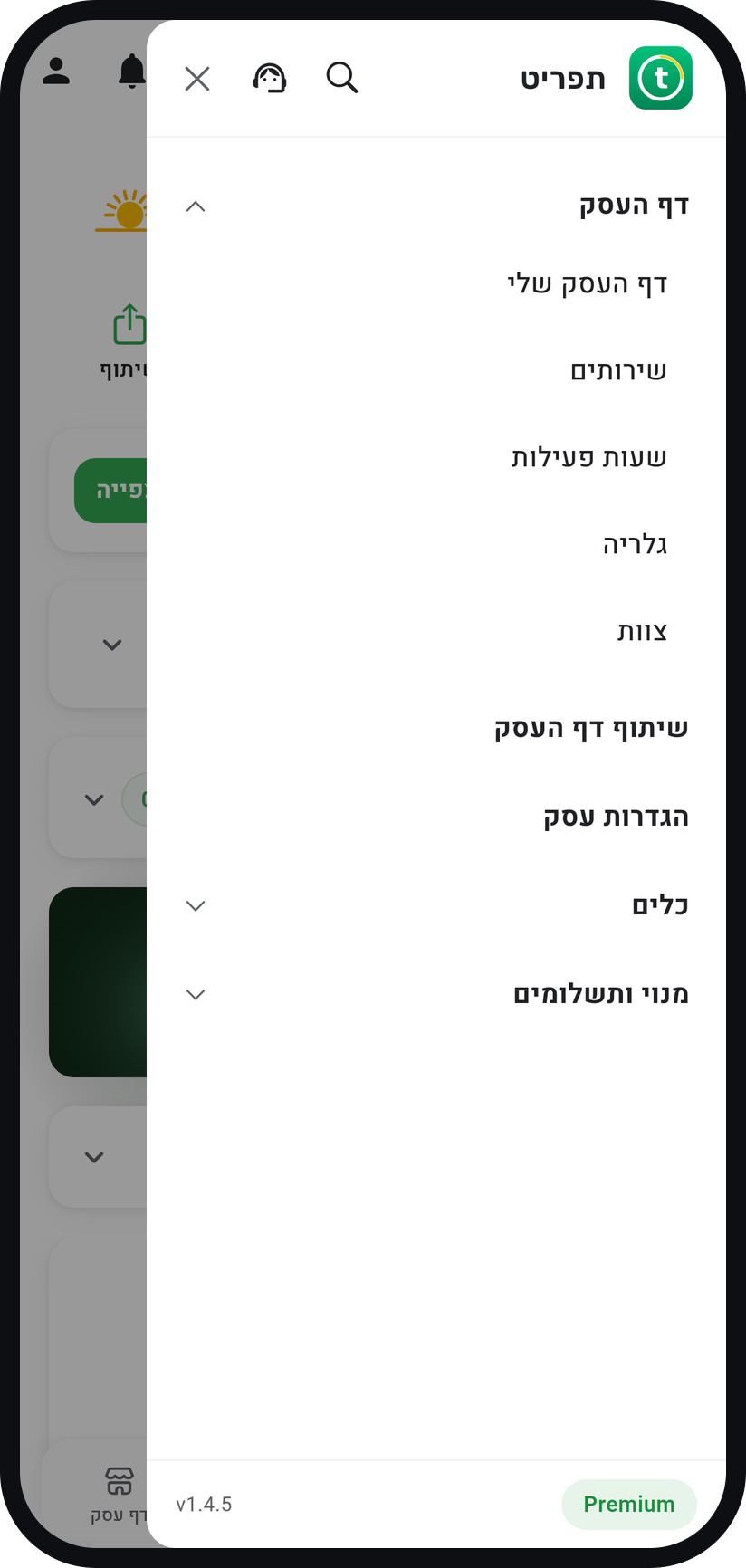
Tap the menu icon (three lines) at the top of the screen, open the "Business page" group, then tap "Business hours". The "Business Hours" window opens over your business page.
Zoom
The "Business hours" row in the menu. Find your week
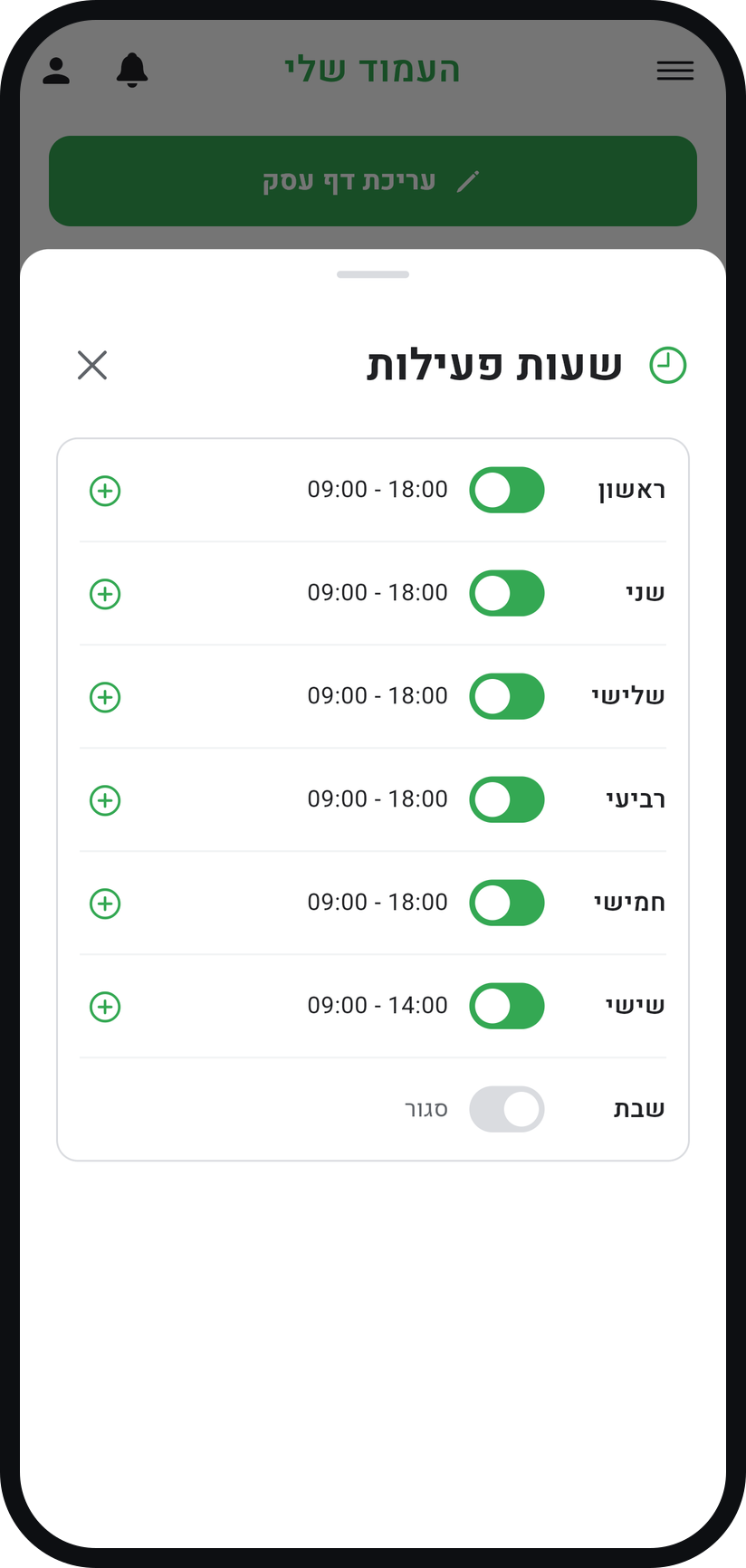
The window lists all seven days of the week, one under the other. Each day has a switch that says whether it is open, and its hours.
Zoom
The business hours window with every day of the week. Set an opening and closing time for each day
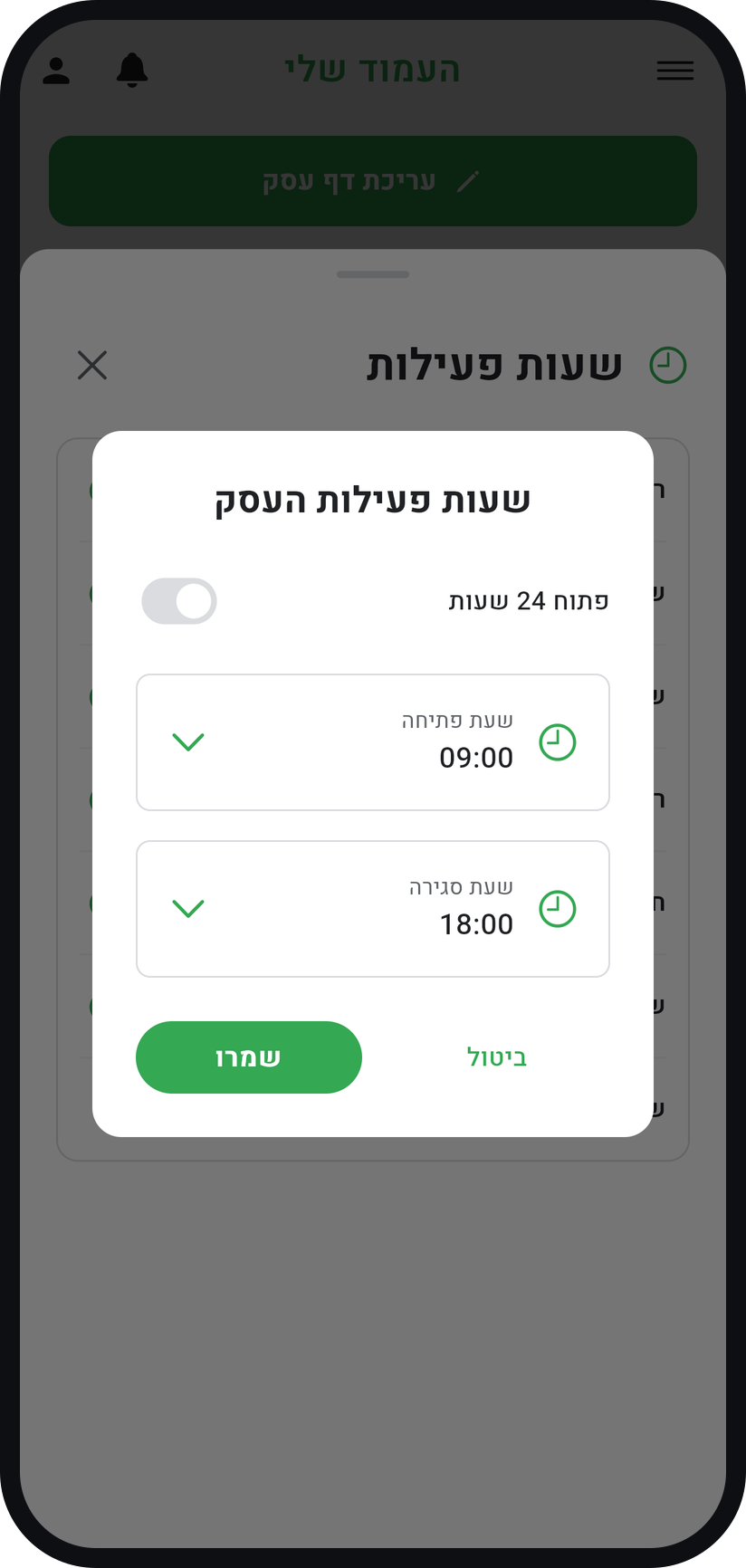
Tap a day's hours, and in the "Set Business Hours" window tap "Opening Time" and "Closing Time" to pick a time on a scroll wheel, then tap "Save". For a day you are open around the clock, turn on "Open 24 hours".
Zoom
The "Set Business Hours" window with the opening and closing times. Copy the hours to other days
After you save hours for one day, two buttons appear under it: "Copy to open days" copies them to the days that are open, and "Copy to whole week" opens every day with the same hours.
Mark your closed days
Switch off the day you do not work. It is marked "Closed" and customers cannot book that day.
Changes save on their own
There is no save button for the whole week: each change saves at once, and "Business hours updated! Customers can now book according to your new schedule" appears. When you are done, just close the window.


Tips from the field
Business hours belong to the business. A team member can have days and hours of their own on their card, in the "Working hours" row, but customers can only book them inside the business hours.
For a holiday or a single day off, do not change your business hours. Block the day instead, so every other week stays as it is.
For a fixed lunch break, add a second range to that day with the + next to the hours instead of blocking time. A time block suits a one-off break or one that moves from week to week.
Common questions
They stay in your calendar. Changing business hours only changes the times offered for new bookings, and does not cancel appointments already booked.
Yes. Set opening and closing times to exactly the window you want, for example 16:00 to 20:00. If the day comes in two parts, say morning and evening, add a second range with the + next to the hours.
Tap the + next to that day's hours ("Add hours") and a second range appears right under it. Tap each range to set it and save, for example 09:00 to 13:00 and then 15:00 to 19:00. A day can hold up to four ranges, they cannot overlap, and the minus button next to an extra range removes it. The break itself is never offered to customers.
A service must fit inside one range from start to finish. An appointment never stretches across the gap between two ranges, so a two-hour service is not offered in a ninety-minute range. Widen the range or shorten the service.
That is called "How far ahead customers can book" and it lives in "Business settings", in the "Booking policy" card, not here.
More on this topic: Smart Scheduling · Appointment Management Software
Related guides
Not using Timing yet?
Setting up in Timing takes a few minutes, and you can start free.