
Group appointments: a class or workshop with several participants
Create a group service with multiple spots, open a session in the calendar and register several customers, including customer self-registration.
Where to start
The menu at the top of the screen, "Business page" group, "Services"
Watch the video
Create a new service
In the "Business page" group of the menu, tap "Services", then the plus button. Fill in name, price and duration like any service, for example "Morning yoga".
Turn on "Allow multiple participants"
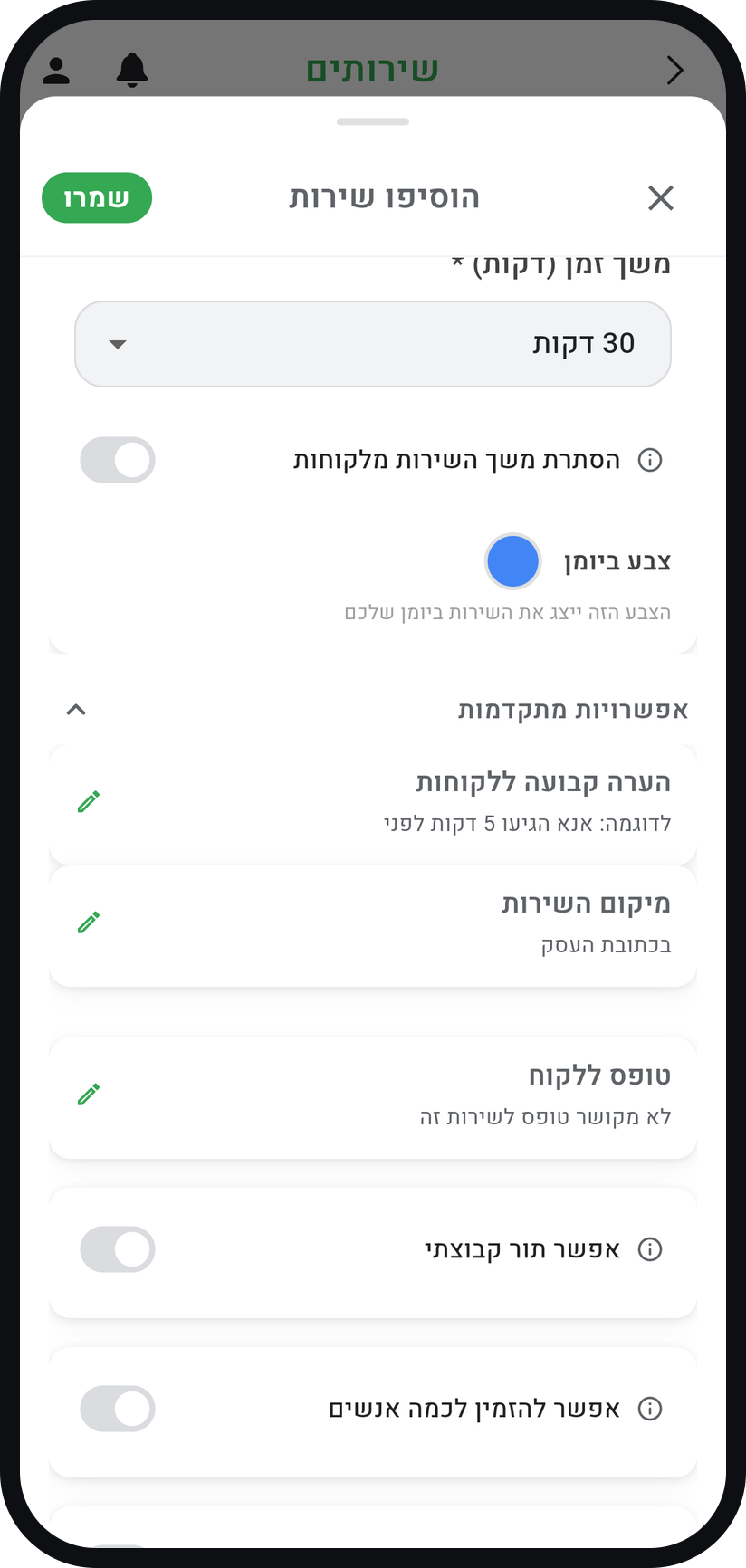
At the bottom of the form, open "Advanced options" and switch on "Allow multiple participants". A group service is always marked "Special availability" too: customers register only for sessions you create in the calendar.
Zoom
The "Allow multiple participants" switch inside "Advanced options". Set the maximum participants
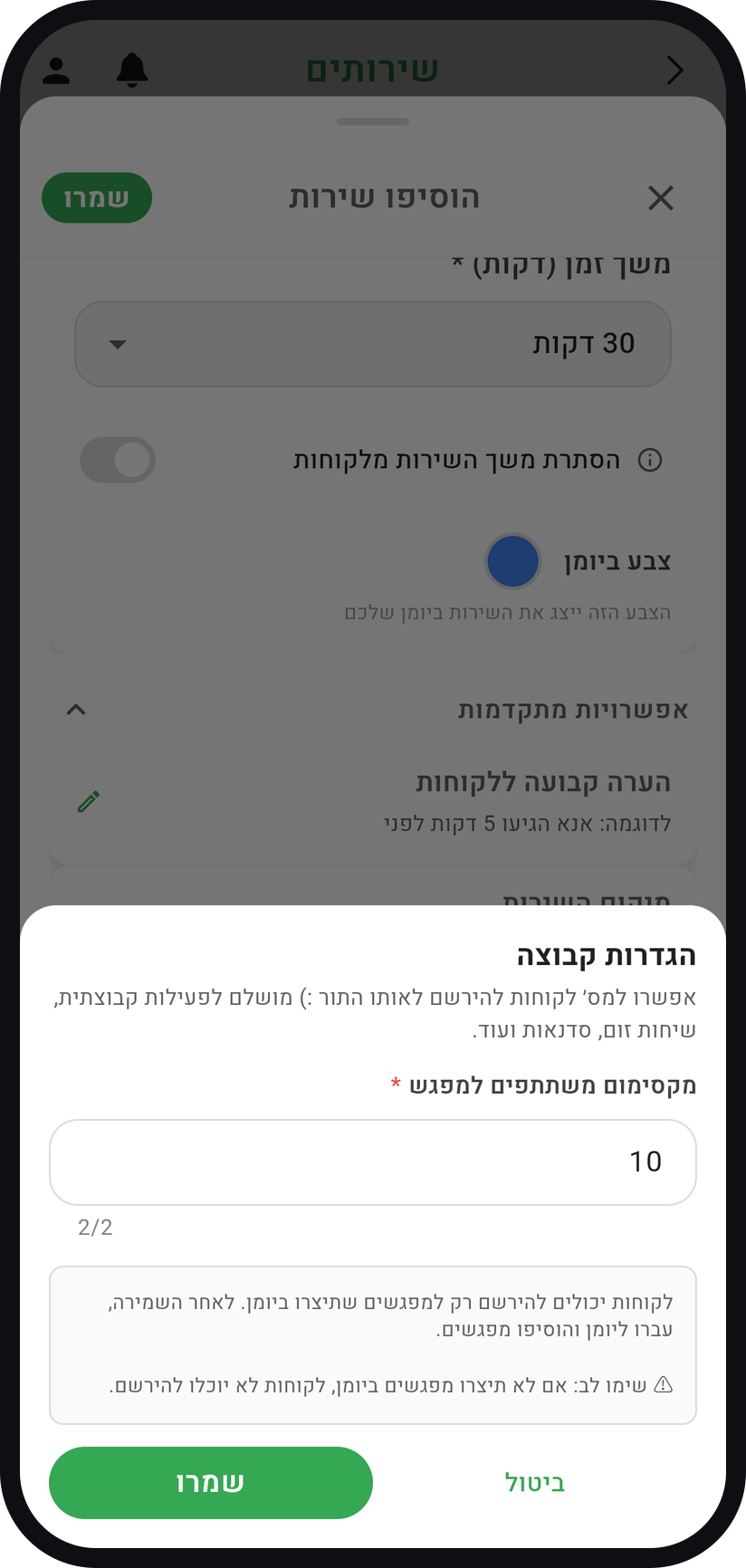
In the "Heads up" window tap "Got it", and "Group settings" opens. In "Max participants per session", enter how many spots a session has (at least 2), tap "Save", then "Save" on the service form too.
Zoom
The "Group settings" window with the maximum field. Create a session in the calendar
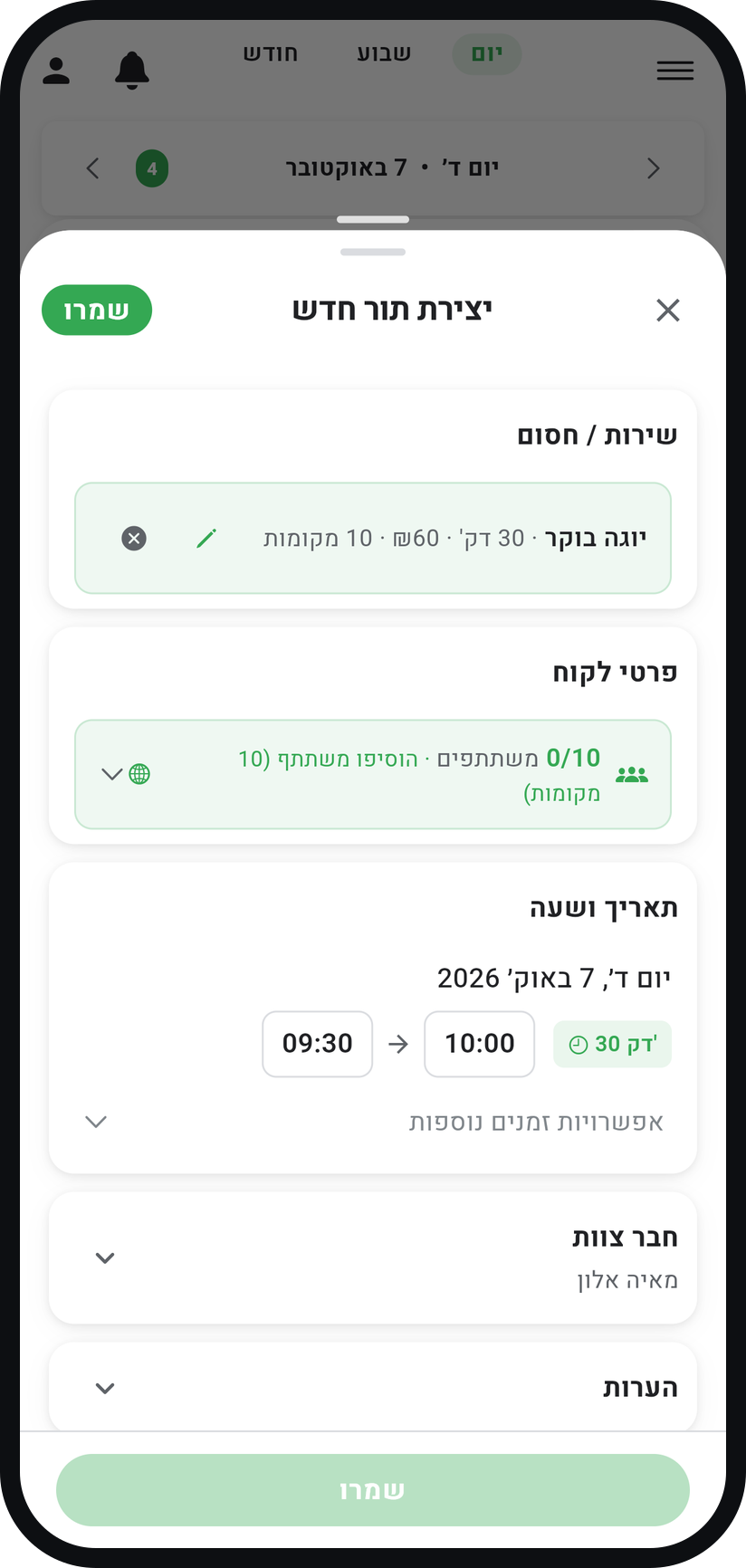
In the "Calendar" tab tap "Add appointment", pick the group service, a date and a time. Without a session in the calendar, customers cannot register.
Zoom
A new session with a group service and its participant counter. Add participants
Tap the participants row inside the appointment and add customers, existing or new, with "Add Participant". The counter shows how many have joined out of how many spots.
Leave registration open
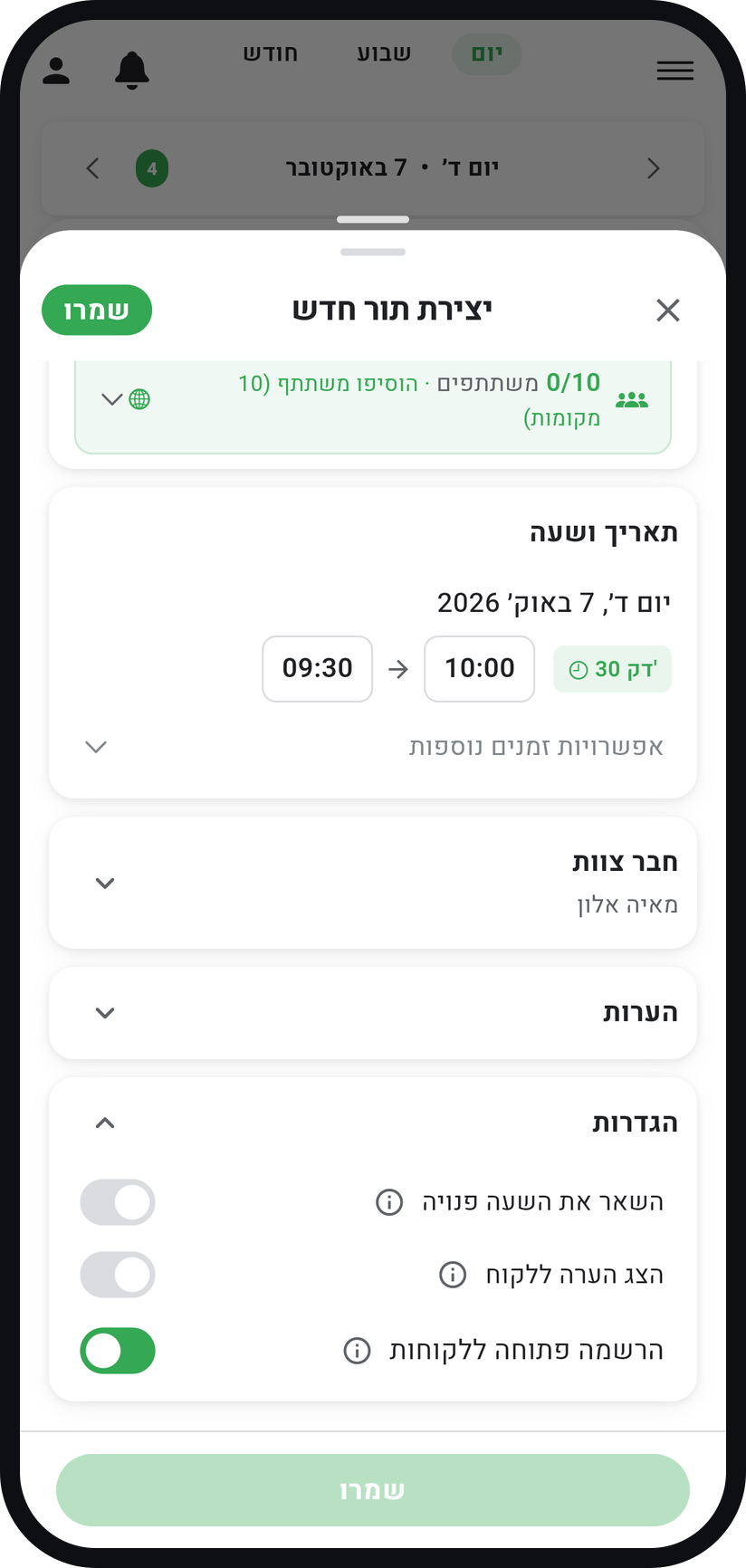
In the session's "Settings" card, "Public booking" is already on, so anyone visiting your booking page can take a free spot. On the calendar the session shows, for example, 2/8 with a sparkle mark.
Zoom
The "Public booking" switch in the "Settings" card.


Tips from the field
Group sessions are available on the Premium plan.
You can change the capacity of one session only with the button next to "Add Participant", without changing the service default.
Switch "Public booking" off for a private session: customers will not see it, and only you can add participants.
In "Business settings", "Advanced" card, under "Group sessions", the "Participants see each other" switch decides whether customers in a session see the other participants' names (first name and last initial).
Common questions
Customers register only for sessions you created in the calendar. Create a session with the service and make sure "Public booking" is on.
Yes. Every session is a separate appointment with its own participant list.
Yes. On your booking page, in the "How many people?" row, the customer picks how many spots to take in the same session and fills in a name for each. Up to 10 fit in one booking, and only if there are enough free spots for all of them.
It is no longer offered for registration. If "Allow waiting list" is on in "Business settings", more customers can join a waiting list, and when a participant cancels or is removed, the next in line takes the spot, right away or after your approval, following "Auto-approve from the waiting list".
Related guides
Not using Timing yet?
Setting up in Timing takes a few minutes, and you can start free.