
How to turn on the waiting list
When nothing is free, the customer joins a waiting list instead of giving up. When a booking is cancelled, the next in line gets it, now or after you approve.
Where to start
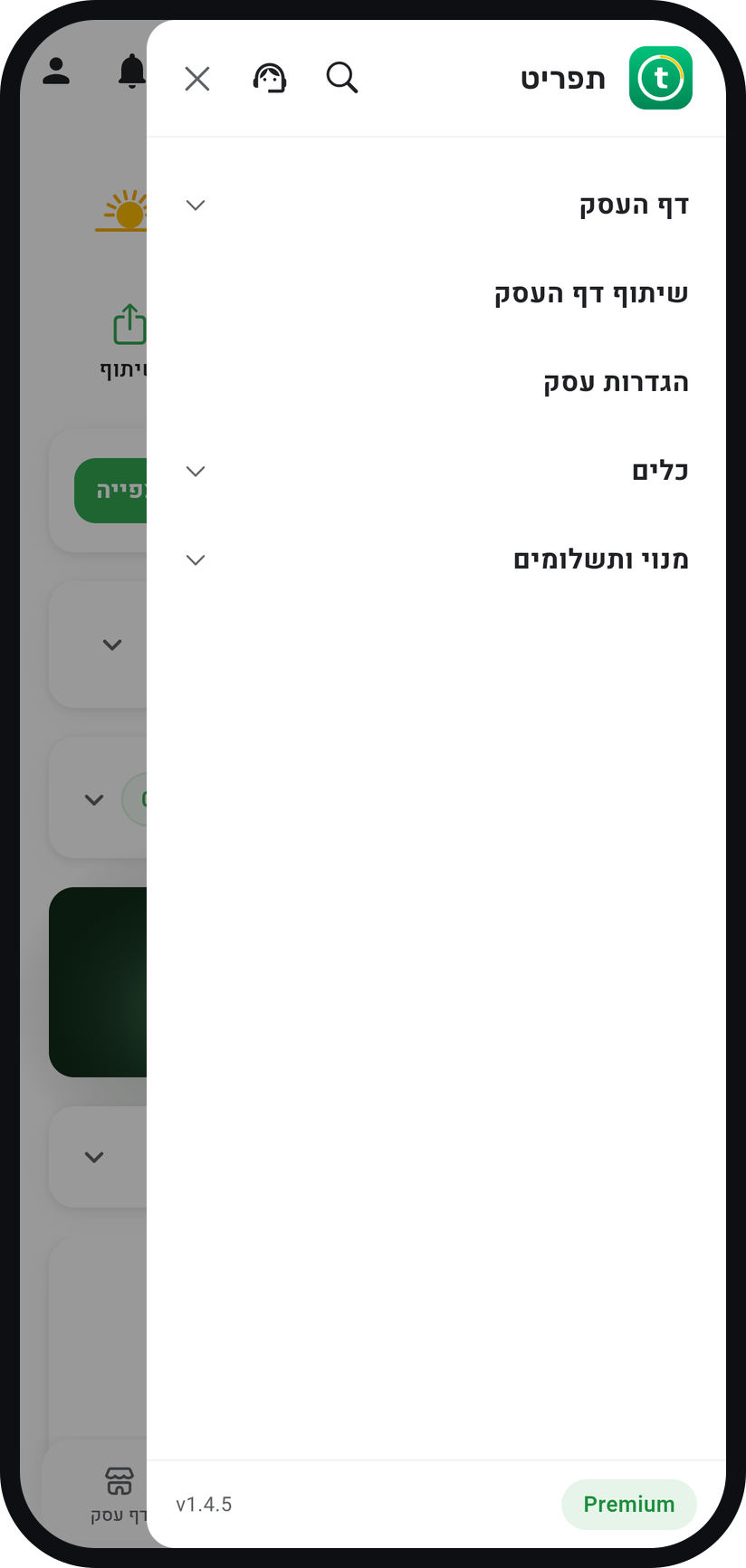
The menu at the top of the screen, then "Business settings"
Tap "Business settings"
Tap the menu icon (three lines) at the top of the screen, then "Business settings".
Zoom
The "Business settings" row in the menu. Turn on the waiting list
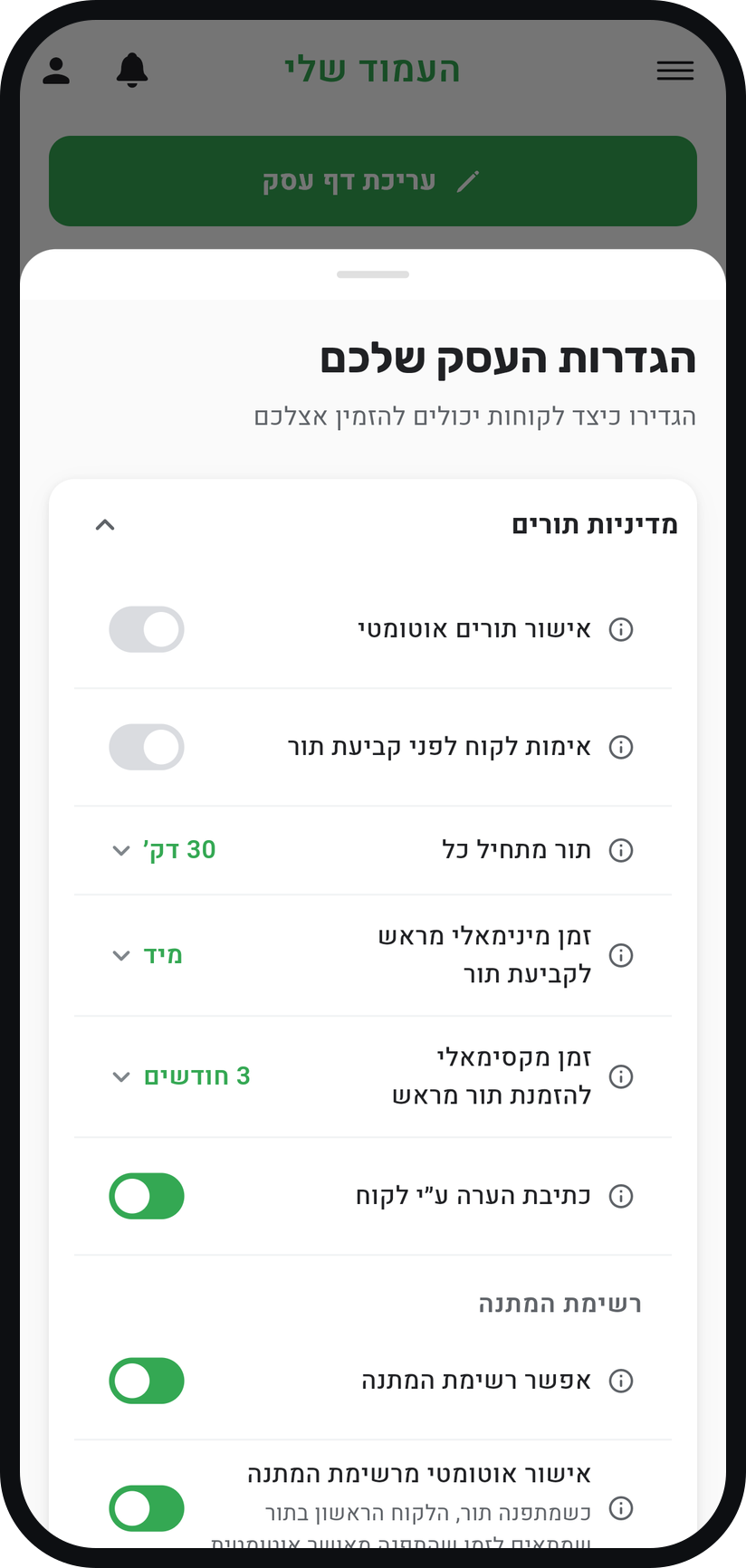
Open the "Booking policy" card and, under "Waiting List", switch on "Allow waiting list". From then on, your booking page also shows taken times under "Join waitlist", below the free ones.
Zoom
The "Allow waiting list" switch. Decide about automatic approval
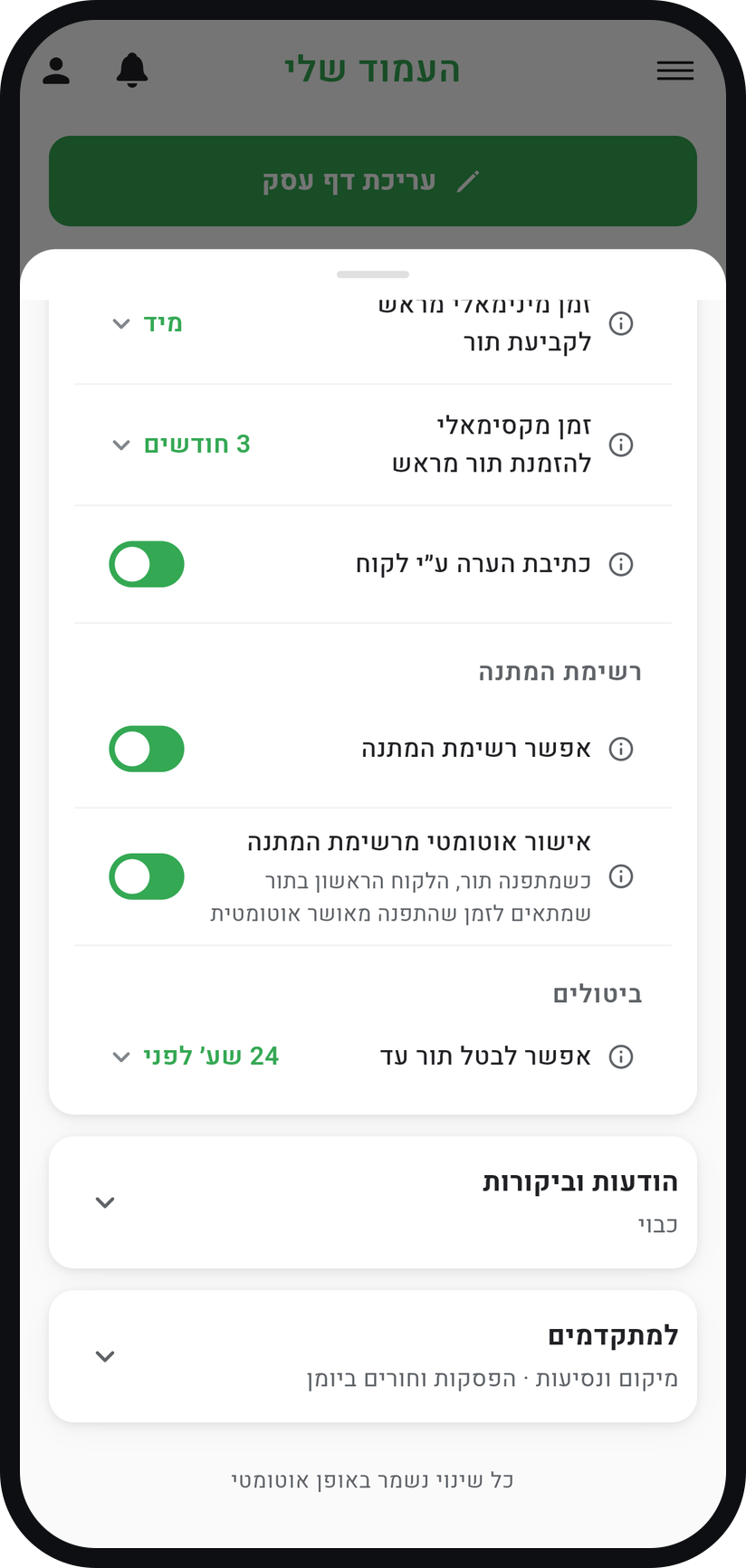
"Auto-approve from the waiting list" appears below it. On, when an appointment is cancelled the slot is confirmed right away for the first customer on the list whose appointment fits the freed time, and they get a WhatsApp message. Off, the slot is held for that customer and waits for your approval in the "Requests" tab.
Zoom
The "Auto-approve from the waiting list" switch. Watch the list in "Bookings"
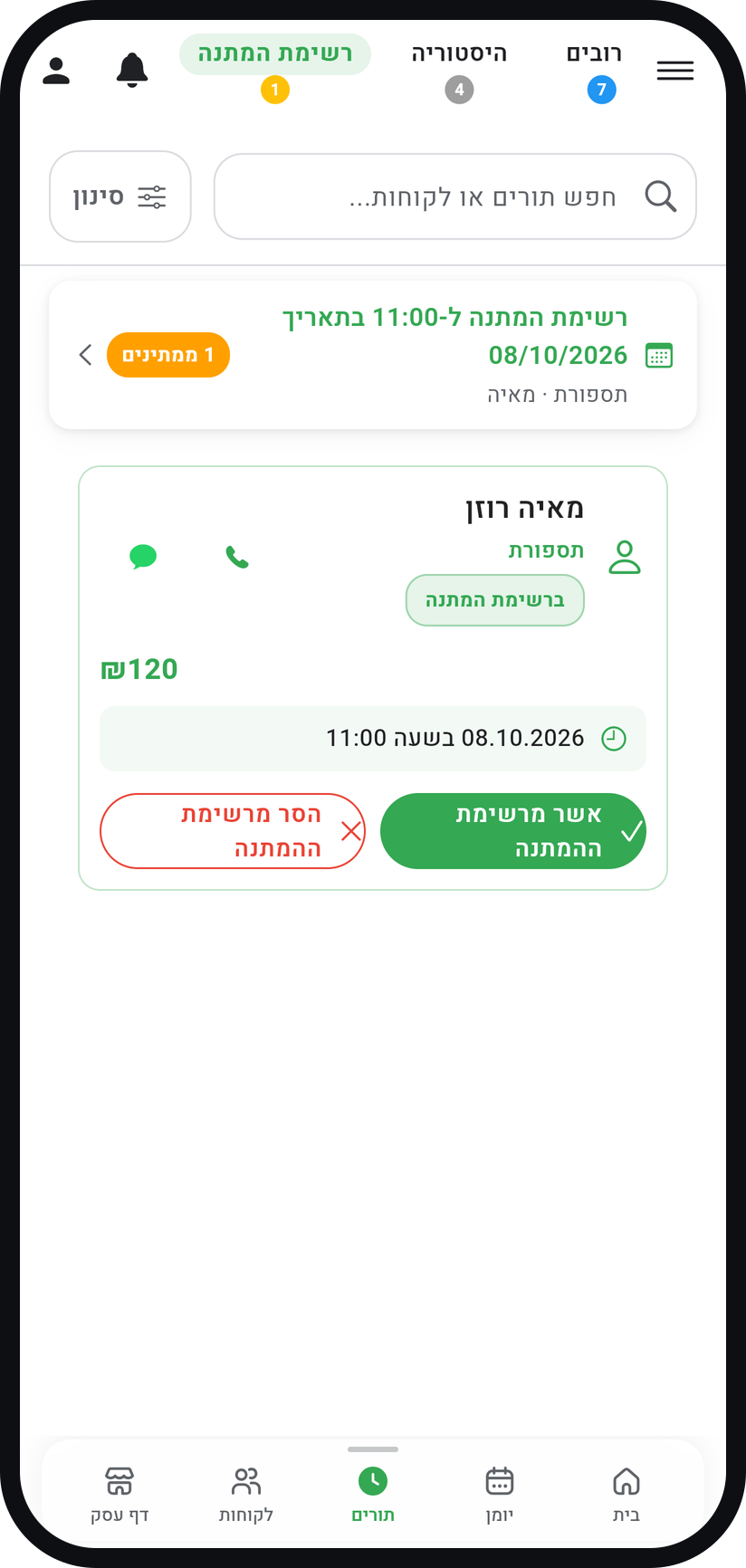
Once the waiting list is on, the "Bookings" screen gets an extra "Waiting List" tab with everyone who is waiting. Each card shows the requested time and the place in line, for example "#1 On Waiting List".
Zoom
The "Waiting List" tab. Approve or remove people waiting
Every card has "Approve from Waiting List" and "Remove from Waiting List". If the time is still booked, a warning says approving creates a double booking, and you can choose "Keep on waiting list".


Tips from the field
The waiting list is available on Professional and above.
A waiting list earns its keep at peak hours. Instead of walking to a competitor, the customer stays on your list.
A booking that came from the waiting list carries a "From waiting list" badge in your bookings list, so you know where it came from.
With automatic approval off, you get a notification that a slot opened up, and the call is yours: if you decline the request in the "Requests" tab, the slot is offered to the next person in line automatically.
Removing someone from the waiting list does not send them a message.
Common questions
Yes, once the slot is confirmed for them. With automatic approval that happens right away; with it off, the message goes out only after you approve. It is sent on WhatsApp, as long as "Send WhatsApp reminders to customers" is on in "Business settings".
There is no limit. Each time keeps the order people joined in, and anyone whose appointment does not fit the freed time keeps their place for the next opening.
The waiting list is included from the Professional plan. Tapping the locked row opens a window with the plan details.
Yes. When a session is full, more customers can join its waiting list. When a participant cancels or is removed, the next in line takes the spot, following the "Auto-approve from the waiting list" setting.
More on this topic: Waiting List
Related guides
Not using Timing yet?
Setting up in Timing takes a few minutes, and you can start free.