
How to turn on attendance confirmations
Attendance confirmations add buttons to the WhatsApp reminder, so the customer confirms or cancels in one tap. Your booking then shows "Arrival confirmed".
Where to start
The menu at the top of the screen, then "Business settings"
Tap "Business settings"
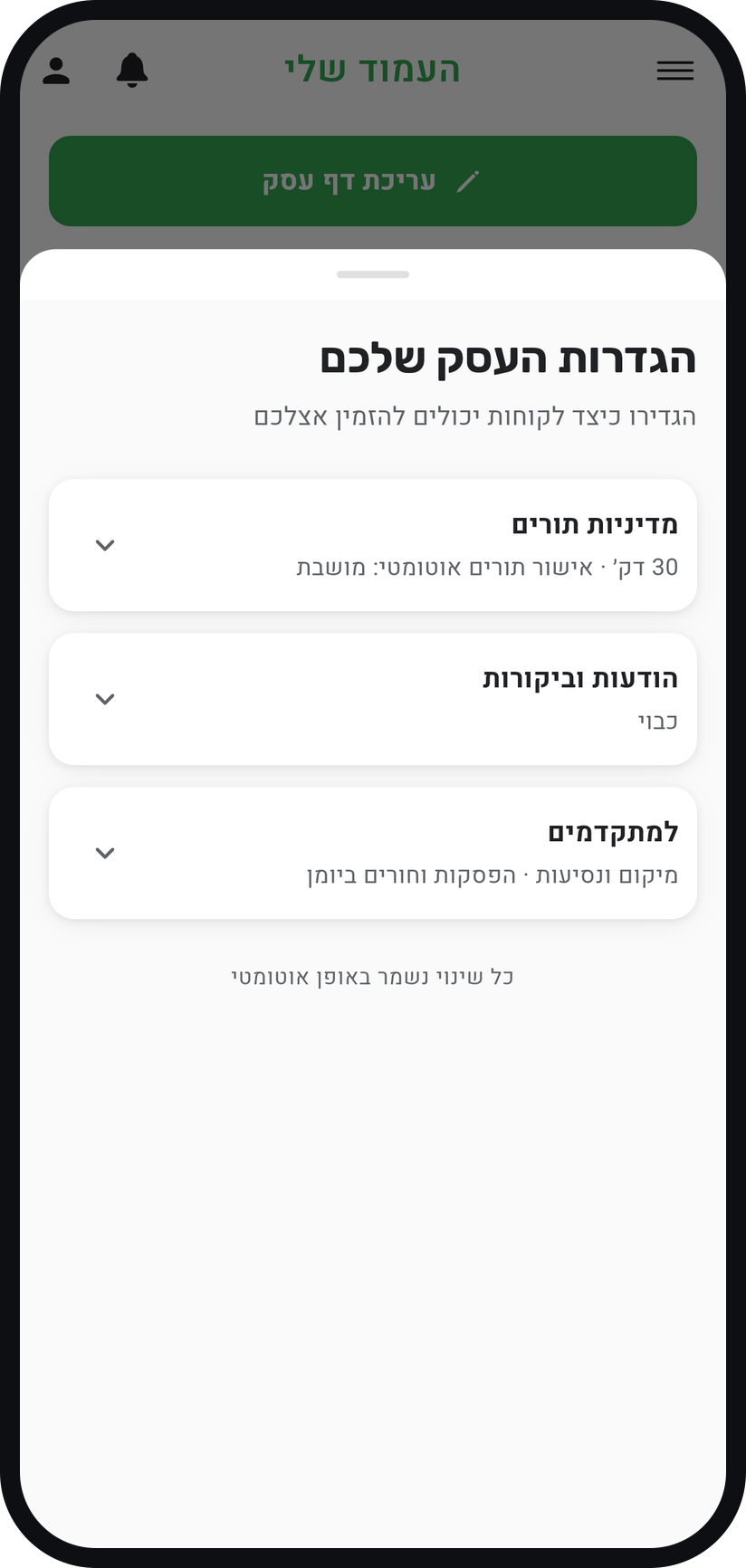
Tap the menu icon (three lines) at the top of the screen and tap "Business settings". In the window that opens, tap the "Messages & reviews" card to open it.
Zoom
The "Messages & reviews" card in "Your business settings". Turn on "Ask customers to confirm arrival"
The switch sits under "Updates & reminders" and is off by default. Once it is on, the WhatsApp reminder sent to the customer carries a confirm button and a cannot-make-it button.
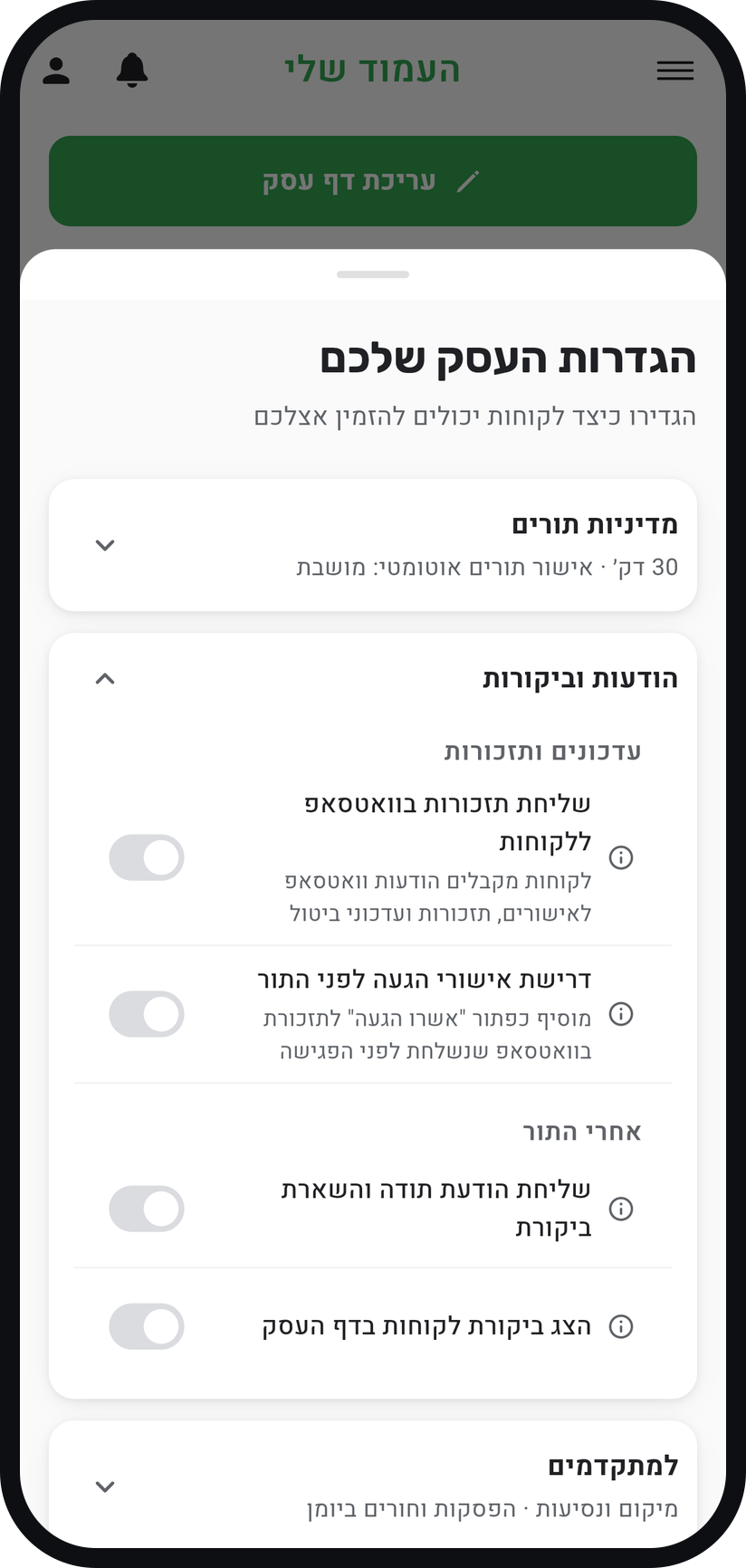
Zoom
The "Ask customers to confirm arrival" switch. Check the reminder timing
The buttons go out with the reminder, at the time picked under "When to send the reminder" (30 minutes before the appointment by default). If "No reminder" is picked there, or "Send WhatsApp reminders to customers" is off, no buttons go out either.
See who confirmed
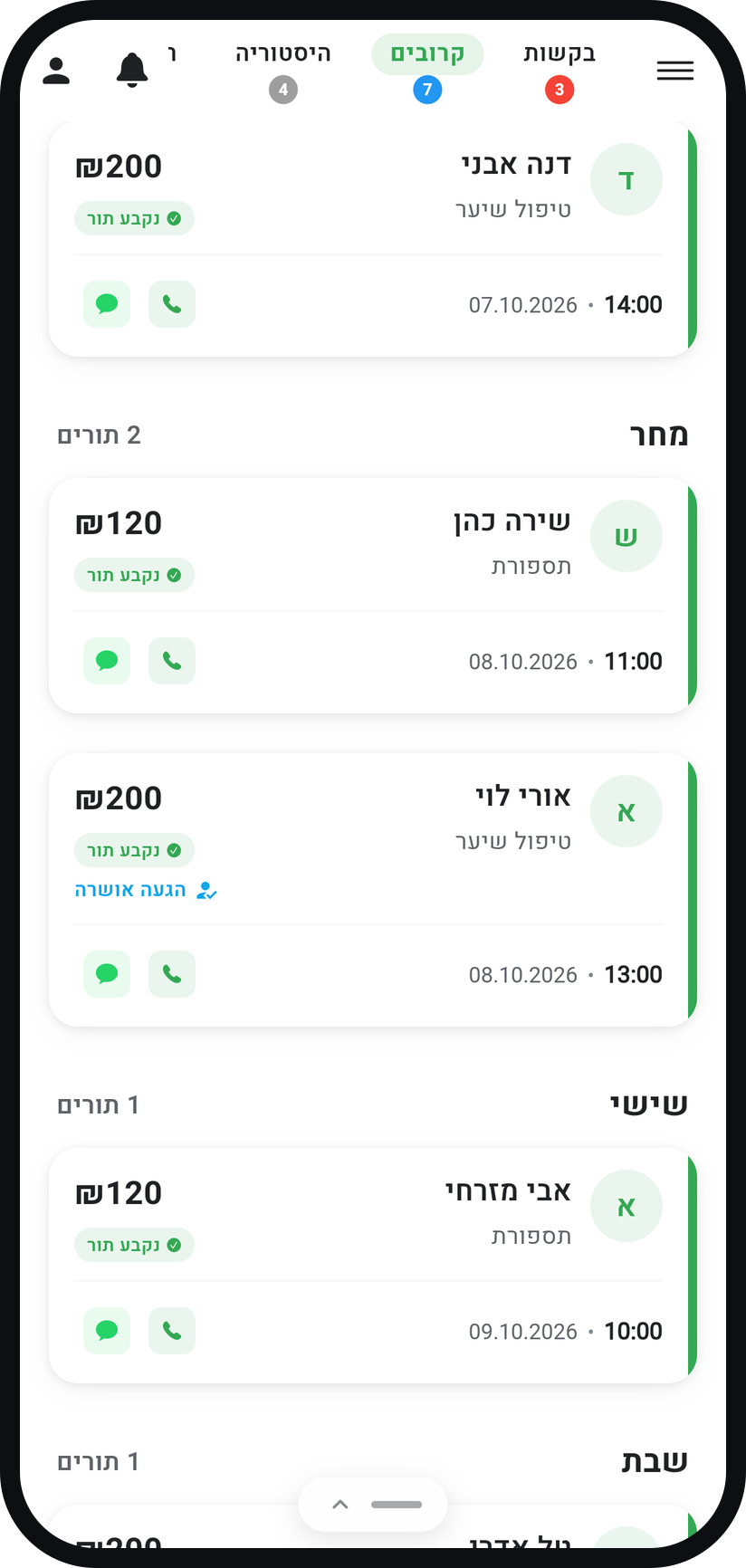
A customer who confirmed gets the "Arrival confirmed" badge on the appointment card in the "Bookings" tab and in the appointment window, and the calendar shows a thumbs-up icon on the appointment. You also get a notification when a customer confirms or cancels.
Zoom
The "Arrival confirmed" badge on the appointment card. Filter by "Confirmed by customer"
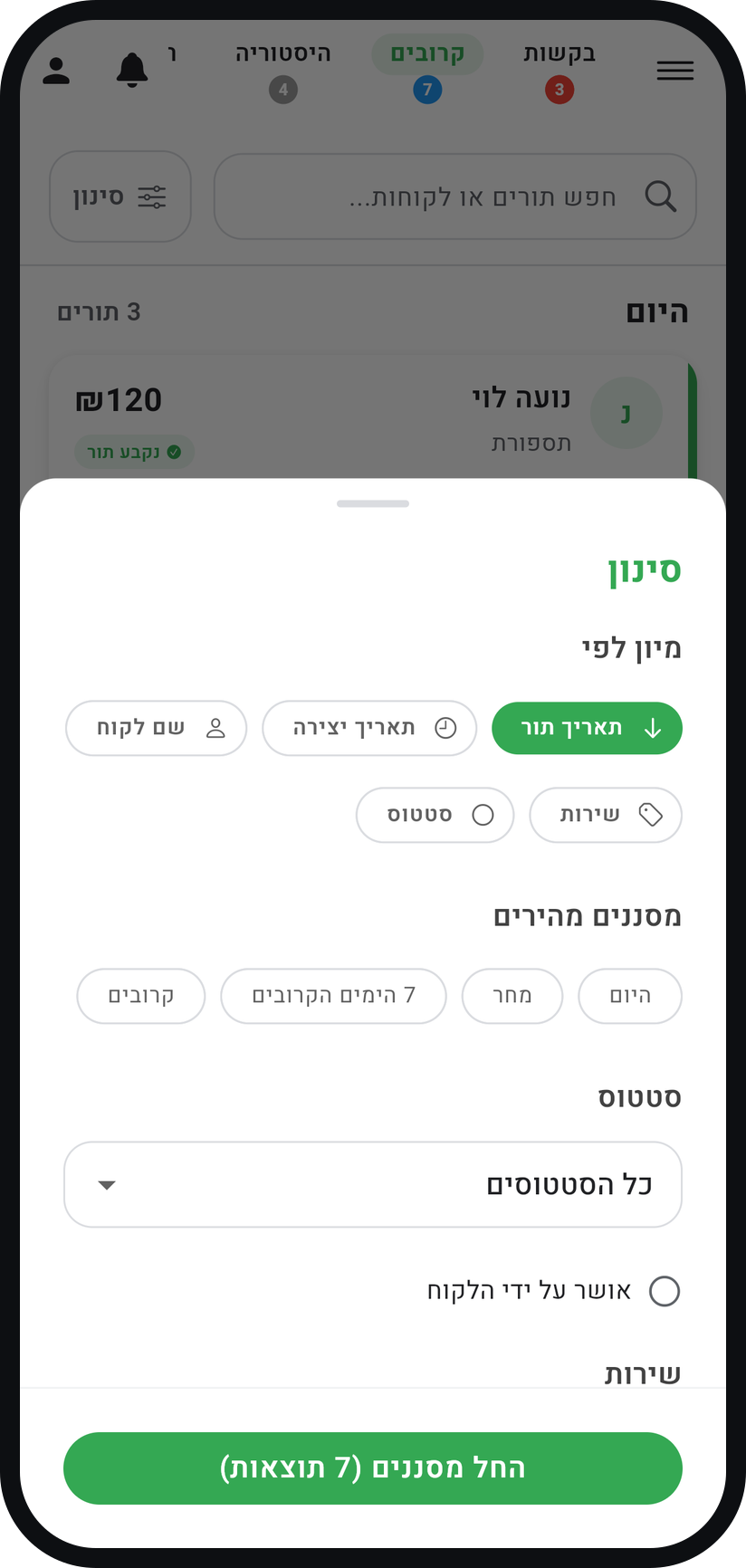
In the "Bookings" tab tap "Filter" and tick "Confirmed by customer". The list then shows only appointments your customers confirmed.
Zoom
The "Confirmed by customer" filter.


Tips from the field
Attendance confirmations are available on Professional and above, and the buttons are only sent for single-customer appointments.
A customer who taps the cannot-make-it button cancels the appointment, as long as they are still inside your cancellation window.
If the reminder goes out after your cancellation window has closed, the customer cannot cancel from it. A warning about this appears under "Cancellations" in the "Booking policy" card.
On Premium, with "Second reminder", a customer who already confirmed from the first reminder does not get the later one.
Common questions
The buttons are only sent for single-customer appointments. A group appointment gets an ordinary reminder.
Attendance confirmations are available on Professional and above.
Yes. A customer who opens their appointments in Timing sees the "I'll be there" button during the 48 hours before the appointment, and the confirmation shows on your side with the same badge.
More on this topic: Attendance Confirmation
Related guides
Not using Timing yet?
Setting up in Timing takes a few minutes, and you can start free.