
How to book an appointment yourself
A customer called or walked in? Book them yourself from the calendar. It is saved as confirmed, and you choose whether the customer gets a message about it.
Where to start
The "Add appointment" button on the "Calendar" tab, or "New Appointment" on the "Home" tab
Watch the video
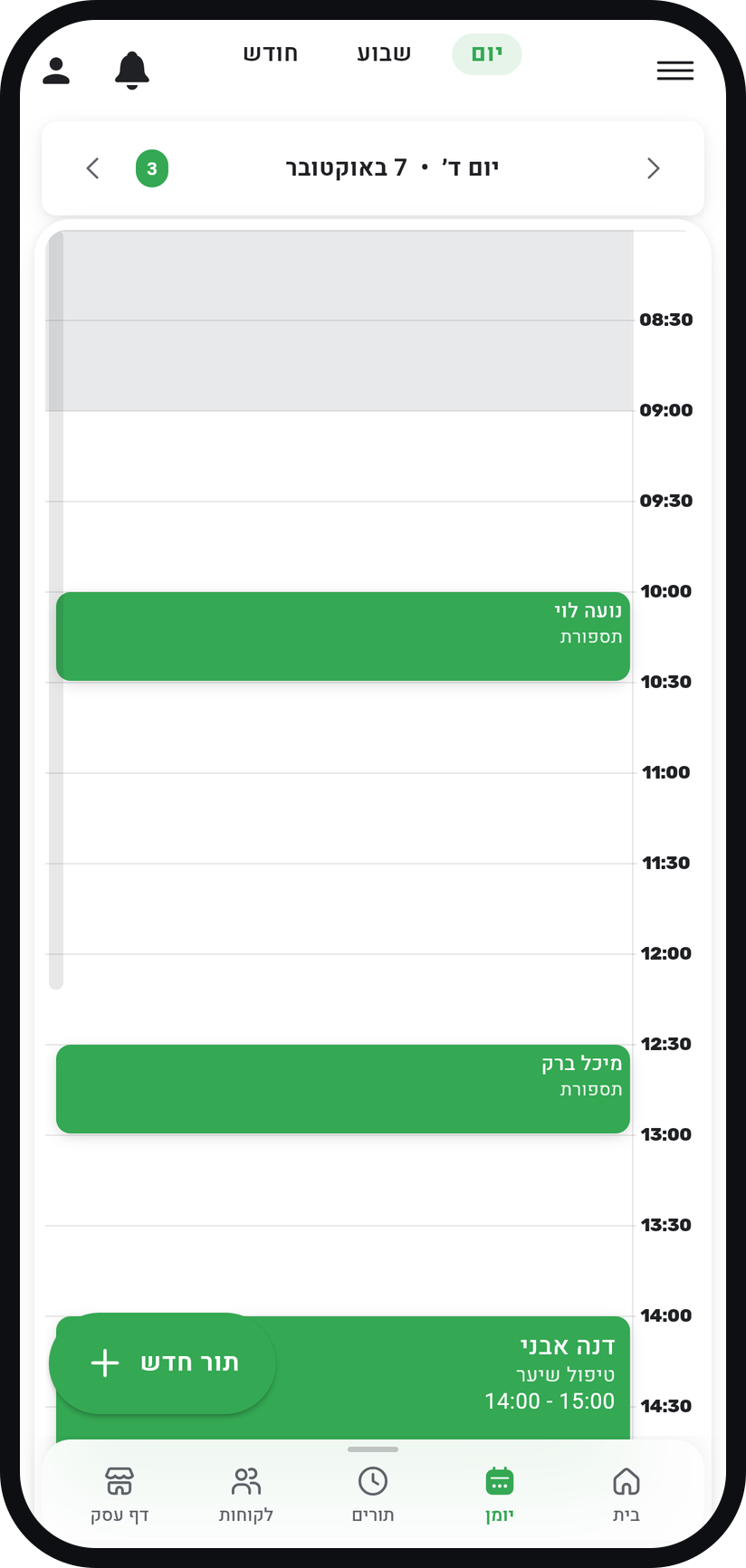
Open "Add appointment"
In the calendar, tap "Add appointment", or tap an empty slot at the time you want. You can also start from "New Appointment" in the quick actions on the "Home" tab.
Zoom
The "Add appointment" button in the calendar. Pick a customer or create one
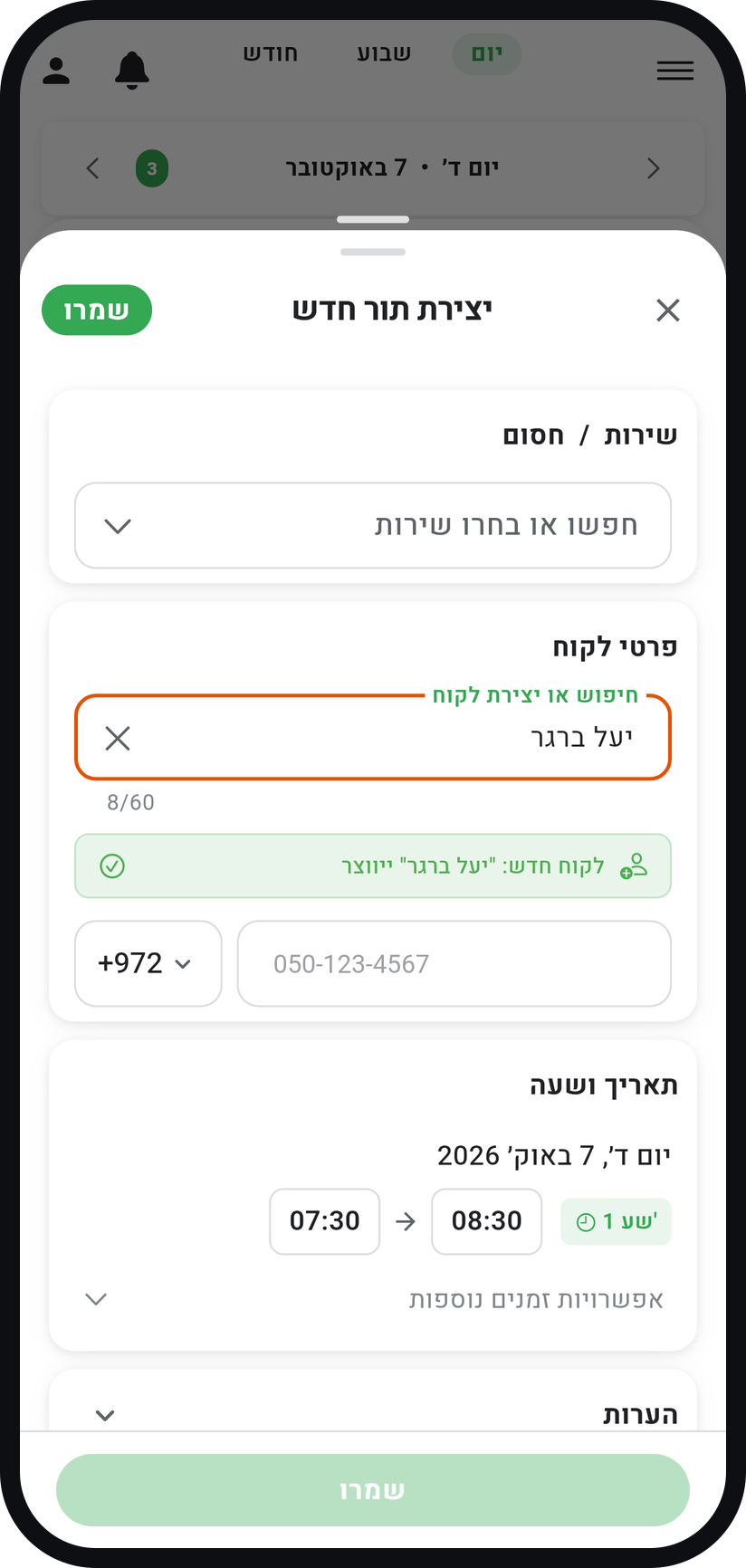
In "Search or create customer", start typing a name or phone number and pick from the list. Not a customer yet? Type their full name, and a green note says they will be created when you save. Add their phone in the field below.
Zoom
A new customer to be created on save, with the phone field under it. Choose a service
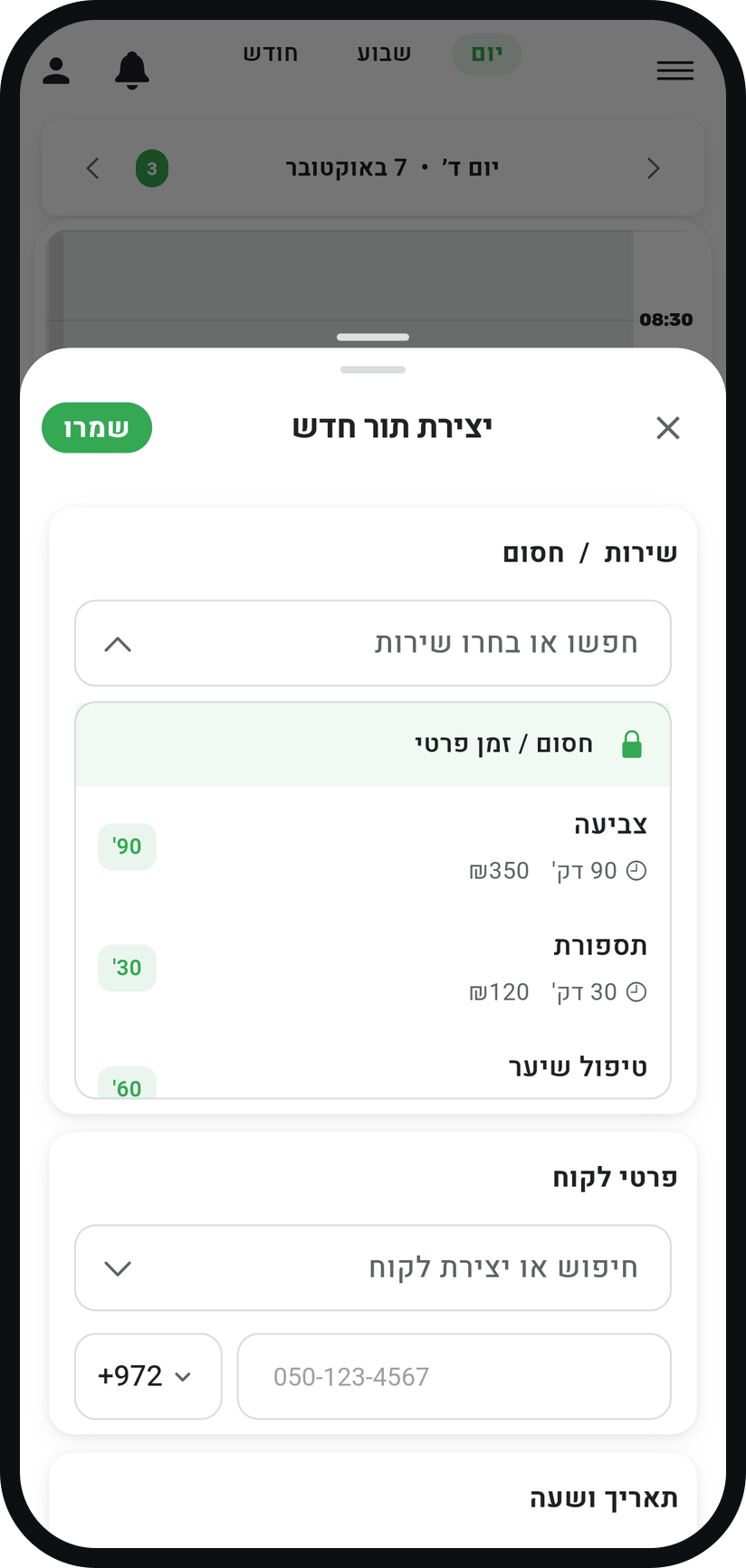
Tap "Search or select service" and pick from the list. The duration and price fill in on their own, and you can change them for this appointment only: the price with the pencil next to the service, the duration through the end time.
Zoom
The service list in the appointment window. Add another service (optional)
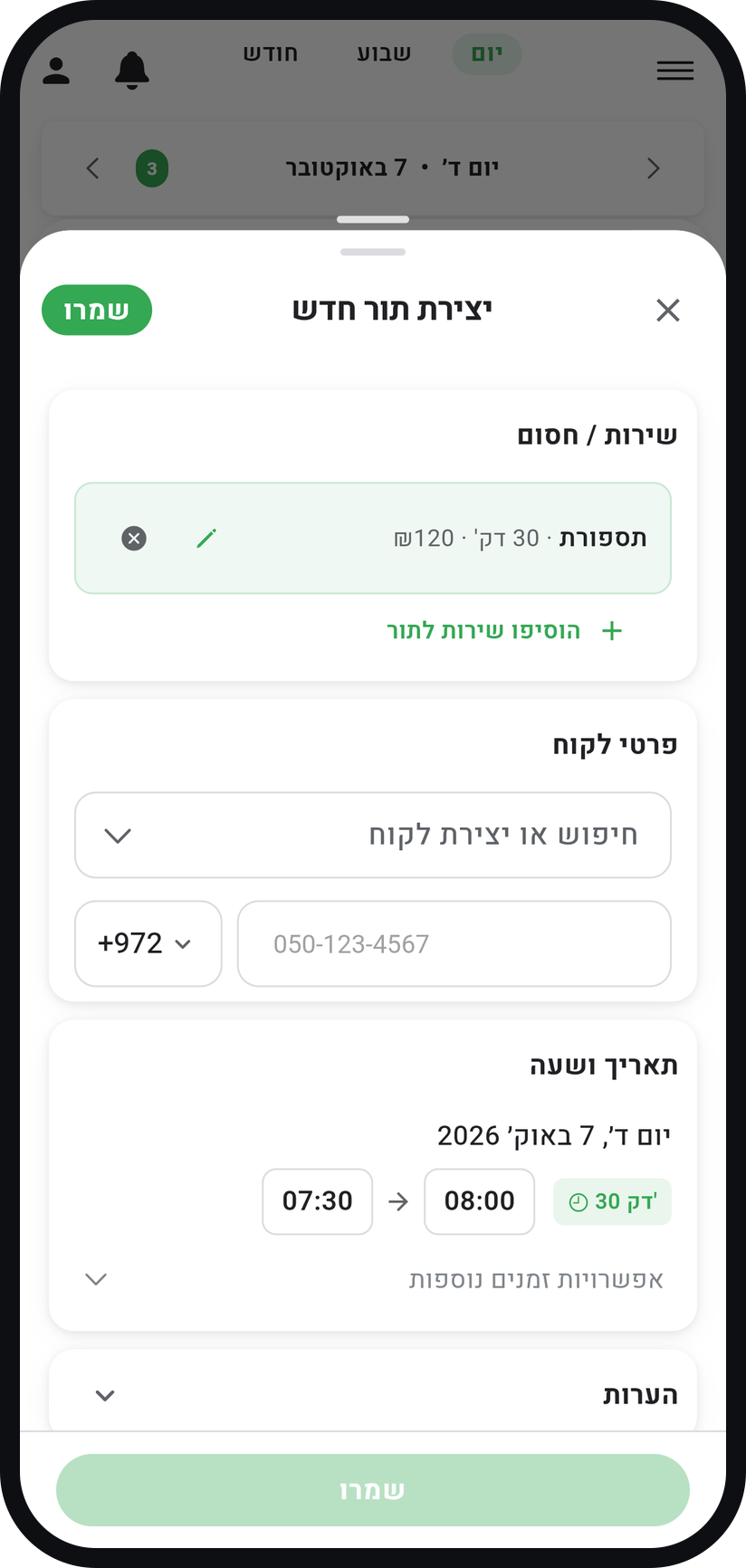
A customer who wants several services in one visit? Tap "Add another service" and pick another one. It all goes into one appointment, and the duration and price add up.
Zoom
The "Add another service" button under the chosen service. Set the date and time
If you opened this by tapping a calendar slot, they are already filled in. Otherwise tap the date and the times in the "Date & Time" card.
Assign a team member
When your business has more than one team member, open the "Assigned staff member" card and choose whose appointment this is, even several people. In a one-person business it is assigned automatically.
Decide whether to notify the customer
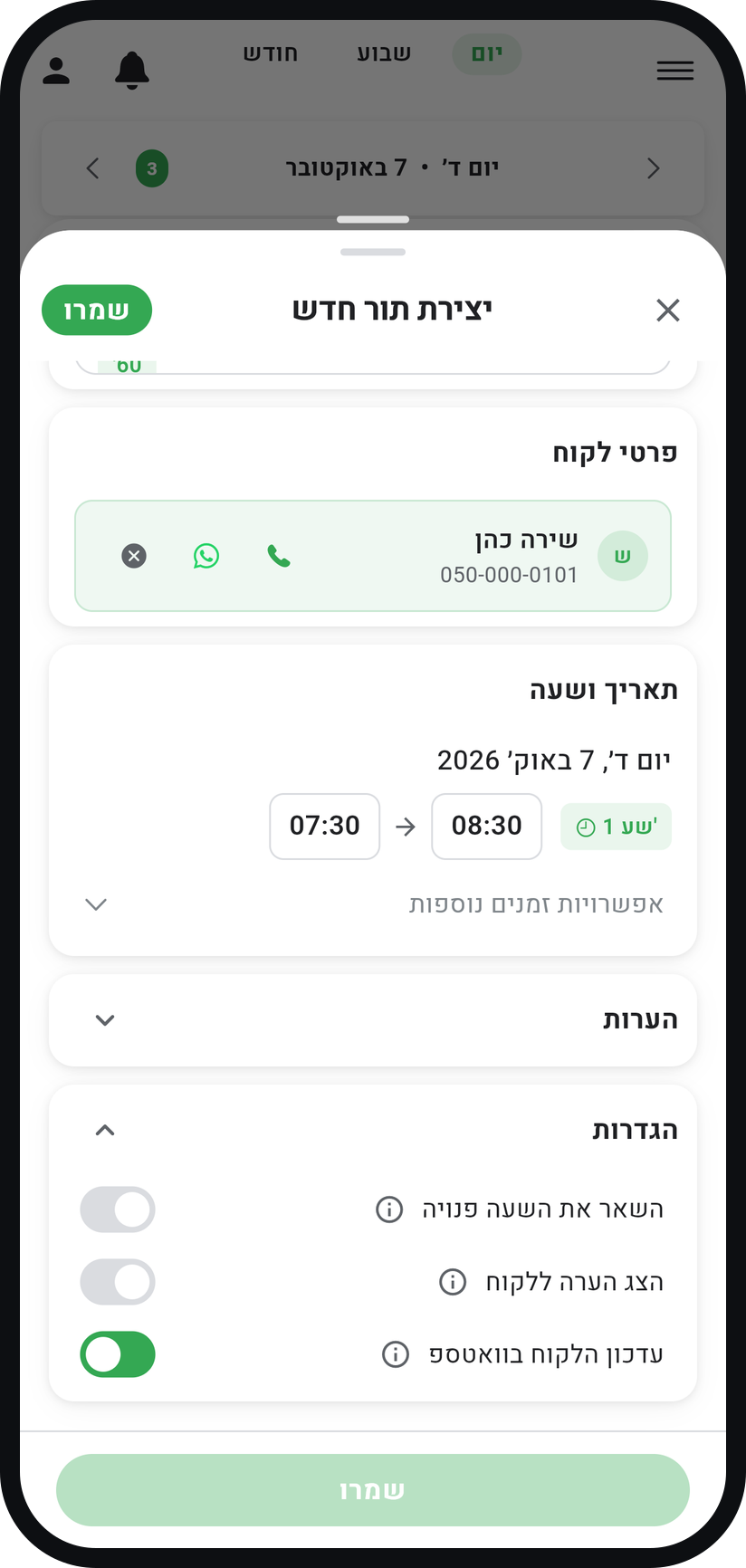
In the "Settings" card, while "Auto WhatsApp message" is on, the customer gets a message about the appointment (as long as "Send WhatsApp reminders to customers" is on in "Business settings"). The switch shows when the customer has a phone number, from the Basic plan up.
Zoom
The "Auto WhatsApp message" switch in the "Settings" card. Save the appointment
Tap "Save". The appointment goes into your calendar as confirmed, with no approval step.


Tips from the field
Need to move an appointment? Press and hold it in the calendar and drag it to another time. Dragging does not ask about messaging the customer, so to decide, open the appointment and change the time there.
Turning off "Auto WhatsApp message" skips only the message about the booking. A reminder before the appointment still goes out according to your reminder settings.
The "Auto WhatsApp message" switch starts out the way "Send WhatsApp reminders to customers" is set. Just arranged it on the phone and the customer already knows? Turn it off for this appointment only.
Common questions
Yes. A service is not required, and you can save an appointment with just the customer name. To mark time with no customer at all, choose "Blocked" in the "Service / Blocked" heading.
Pick the first one, then tap "Add another service" to add the second. Both go into the same appointment, and the duration and price add up.
Yes. In the "Date & Time" card open "More options" and tick "Recurring". It can repeat daily, weekly or monthly, up to an end you choose.
Related guides
Not using Timing yet?
Setting up in Timing takes a few minutes, and you can start free.