
How to add a customer
Your customer list is the real asset of the business. Every customer you add gets a card with their history, your notes and a quick way to reach them.
Where to start
The "Customers" tab in the bottom bar
Watch the video
Tap "Customers"
Tap "Customers" in the bottom bar.
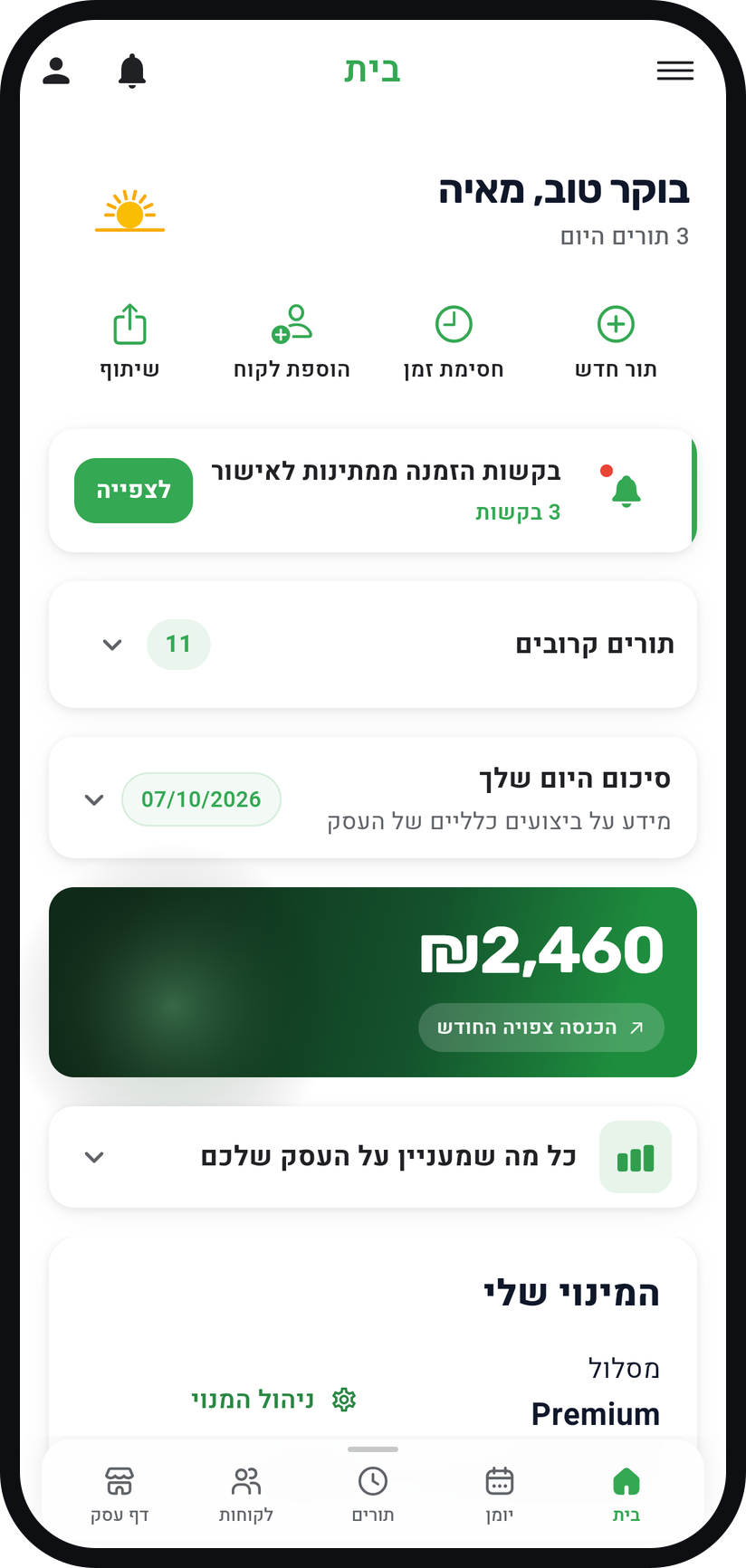
Zoom
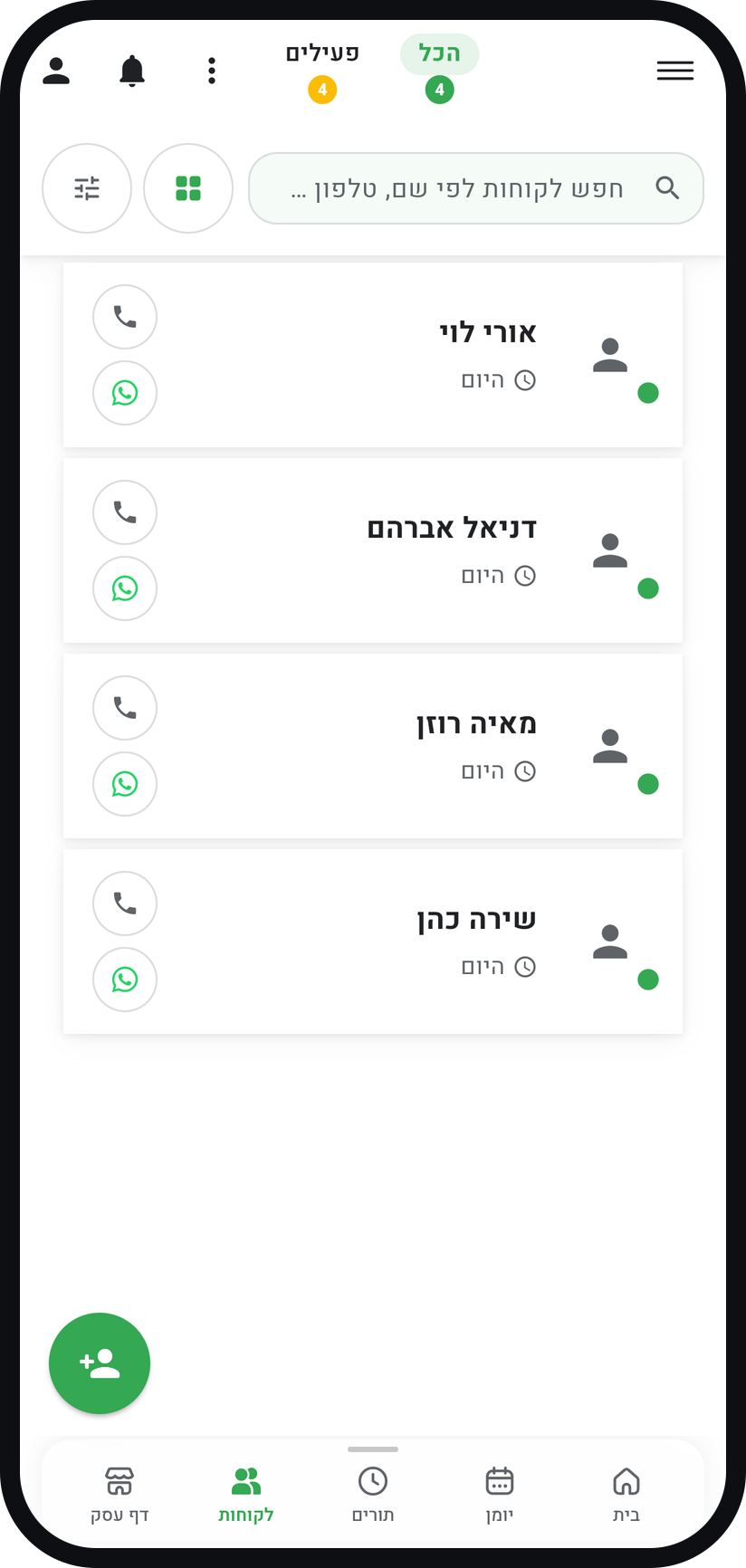
The "Customers" tab. Tap "Add Customer"
It is the round button with a person and a plus sign in the bottom corner. While your list is still empty, "Add Customer" sits in the middle of the screen.
Zoom
The "Add Customer" button. Fill in a name and phone number
"First Name" is the only required field. "Phone Number (optional)" is worth filling in: reminders and messages go to it, and it is how Timing recognises the customer when they book through your link.
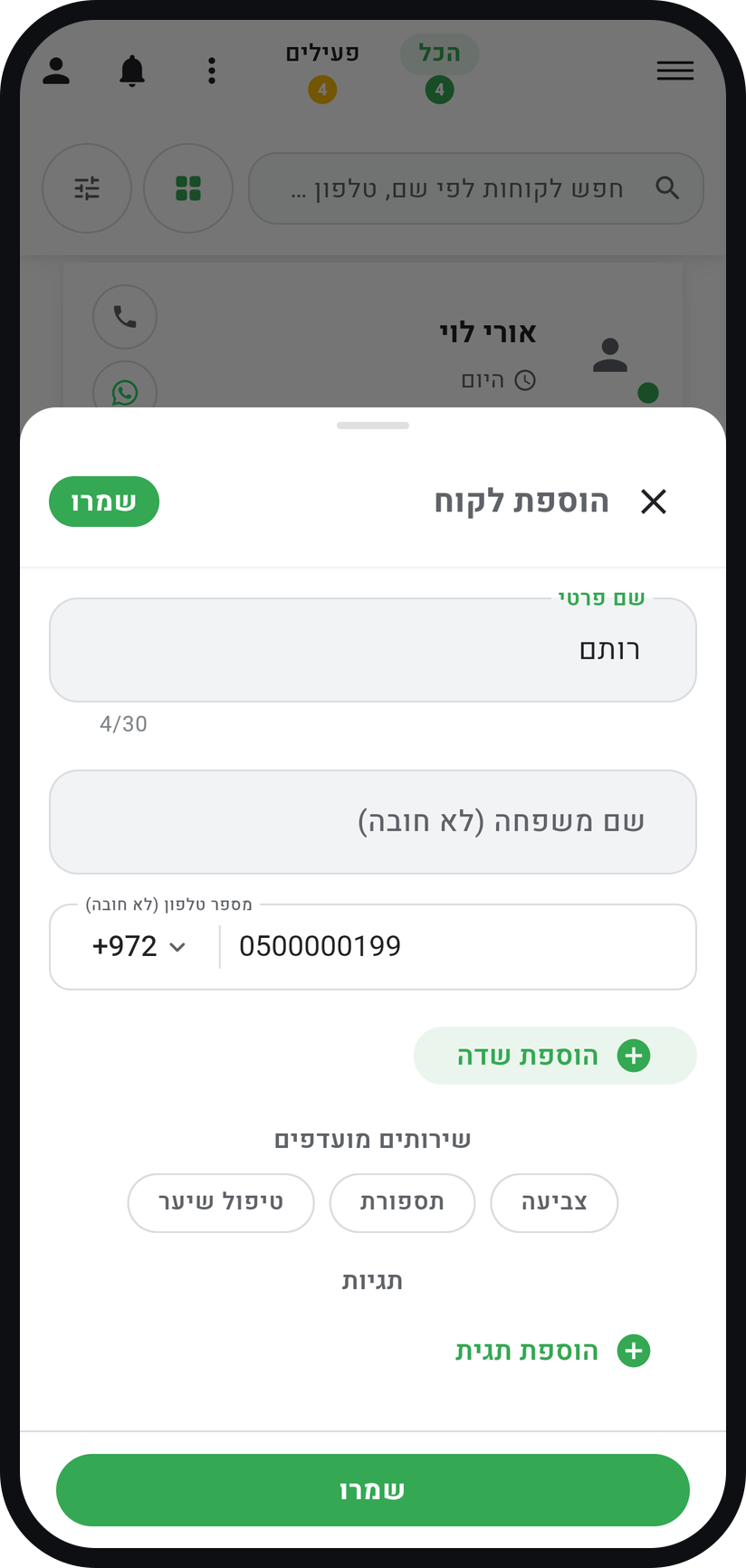
Zoom
The name and phone fields. Add more details if you need them
Tap "add field" to add an email, address, birthday, notes and your own custom fields. Below it you can tick "Preferred Services" and add "Tags".
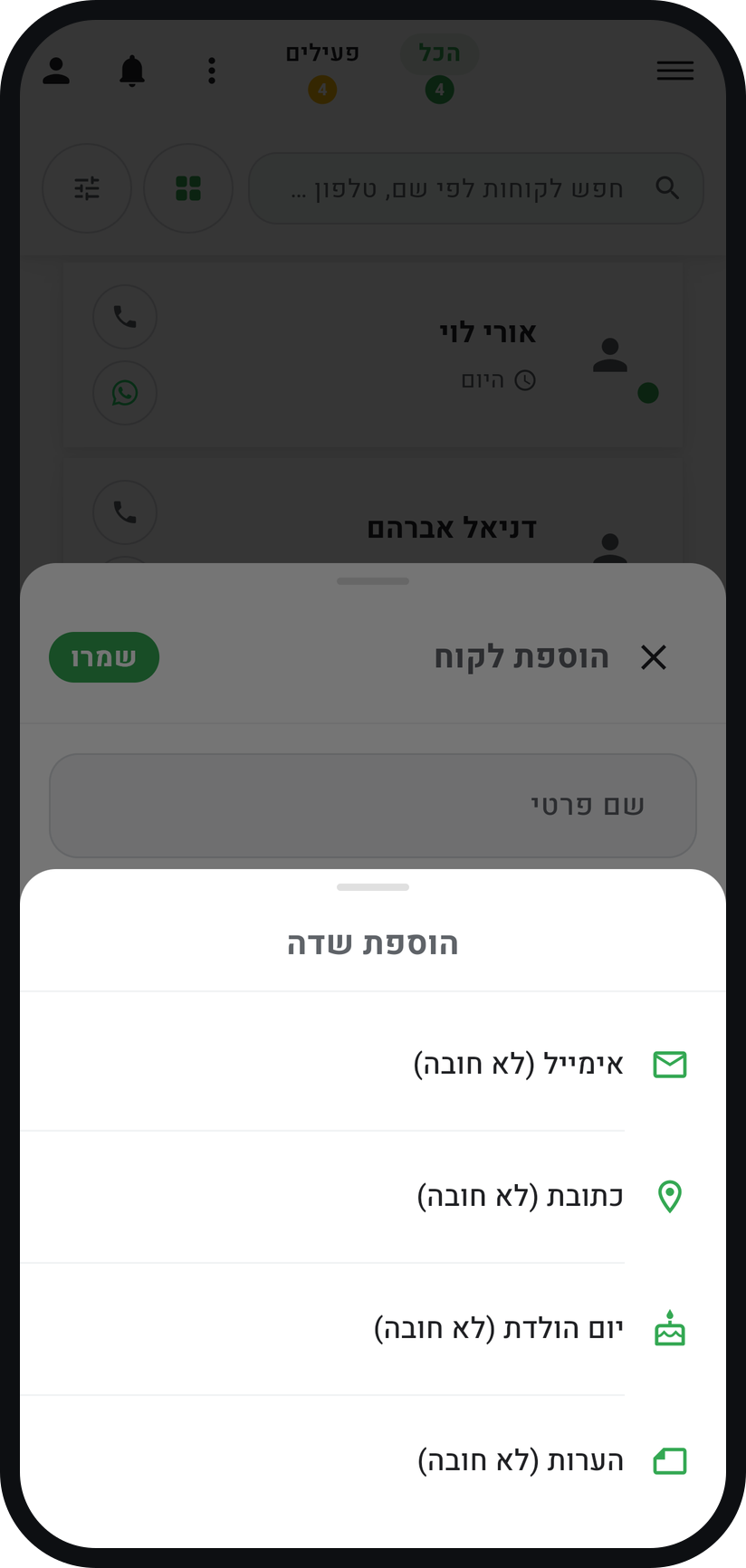
Zoom
The list that opens from "add field". Save
Tap "Save" at the top or bottom of the form. The customer appears in the list, ready to be booked.


Tips from the field
You do not have to add customers up front. When you book an appointment in the calendar you can type a new name, and the customer is created along with the appointment.
Tapping a customer in the list opens their card: appointment history, totals, notes, and buttons to call or message them on WhatsApp.
Add a note about what a customer prefers. Next time you will remember exactly.
Common questions
When you add a customer by hand, Timing does not check whether that number is already on your list, so search first. Bookings through your link and list imports do recognise an existing customer by phone number. If you still end up with two records, delete the extra one.
Yes, automatically. If their number is already on your list, the booking is linked to that customer.
Yes. In the menu at the top of the screen open "Tools", choose "Reports", and under "CSV Data Export" choose "Customers Data CSV".
Related guides
Not using Timing yet?
Setting up in Timing takes a few minutes, and you can start free.