
How to add your own field to the customer card
Custom fields are extra details you keep on each customer beyond what Timing stores: allergies, who referred them, a membership number or hair type.
Where to start
The "Customers" tab, the three dots at the top of the screen, "Custom fields"
Tap "Custom fields"
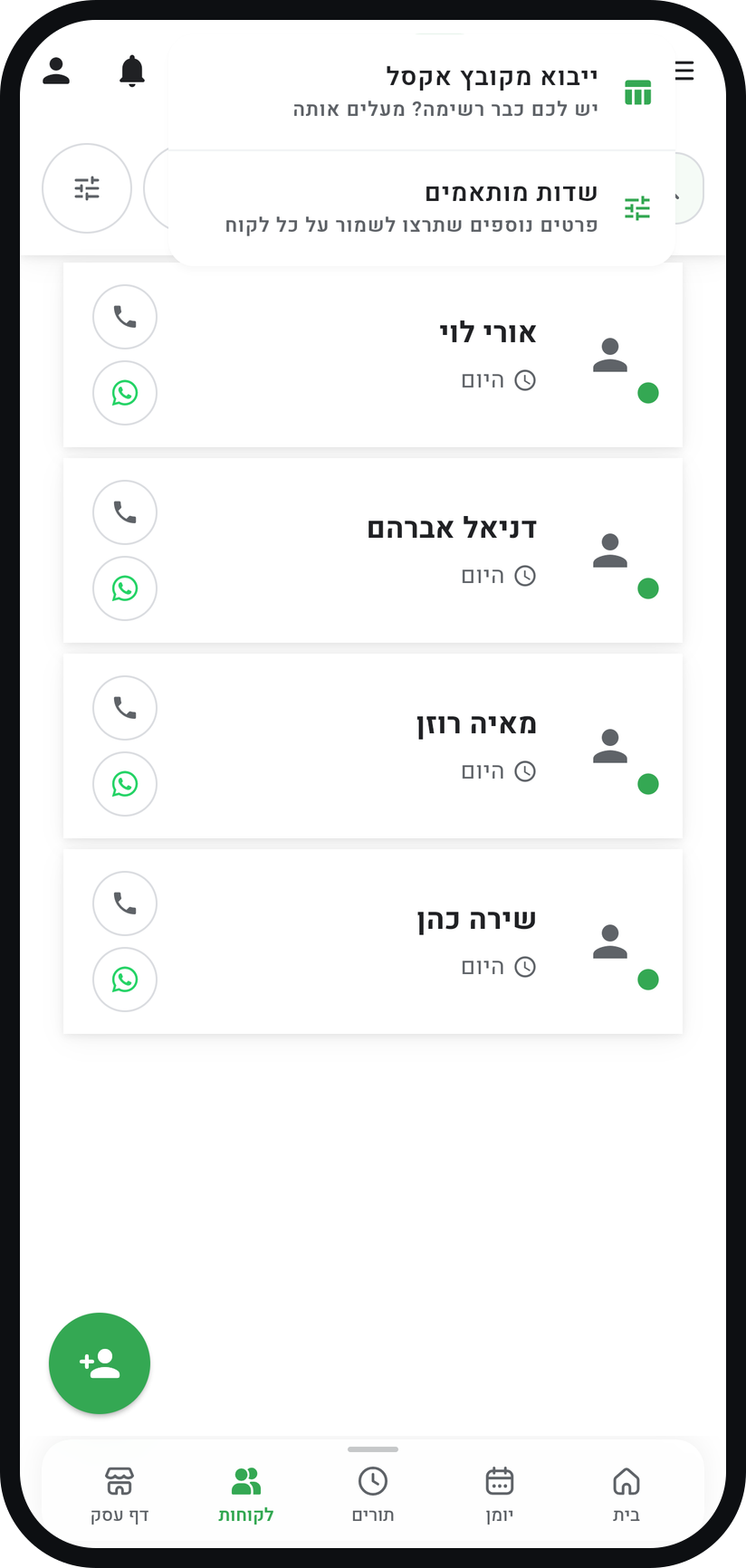
On the "Customers" tab tap the three dots at the top of the screen and choose "Custom fields".
Zoom
The "Custom fields" row in the customers screen menu. Tap "Add field"
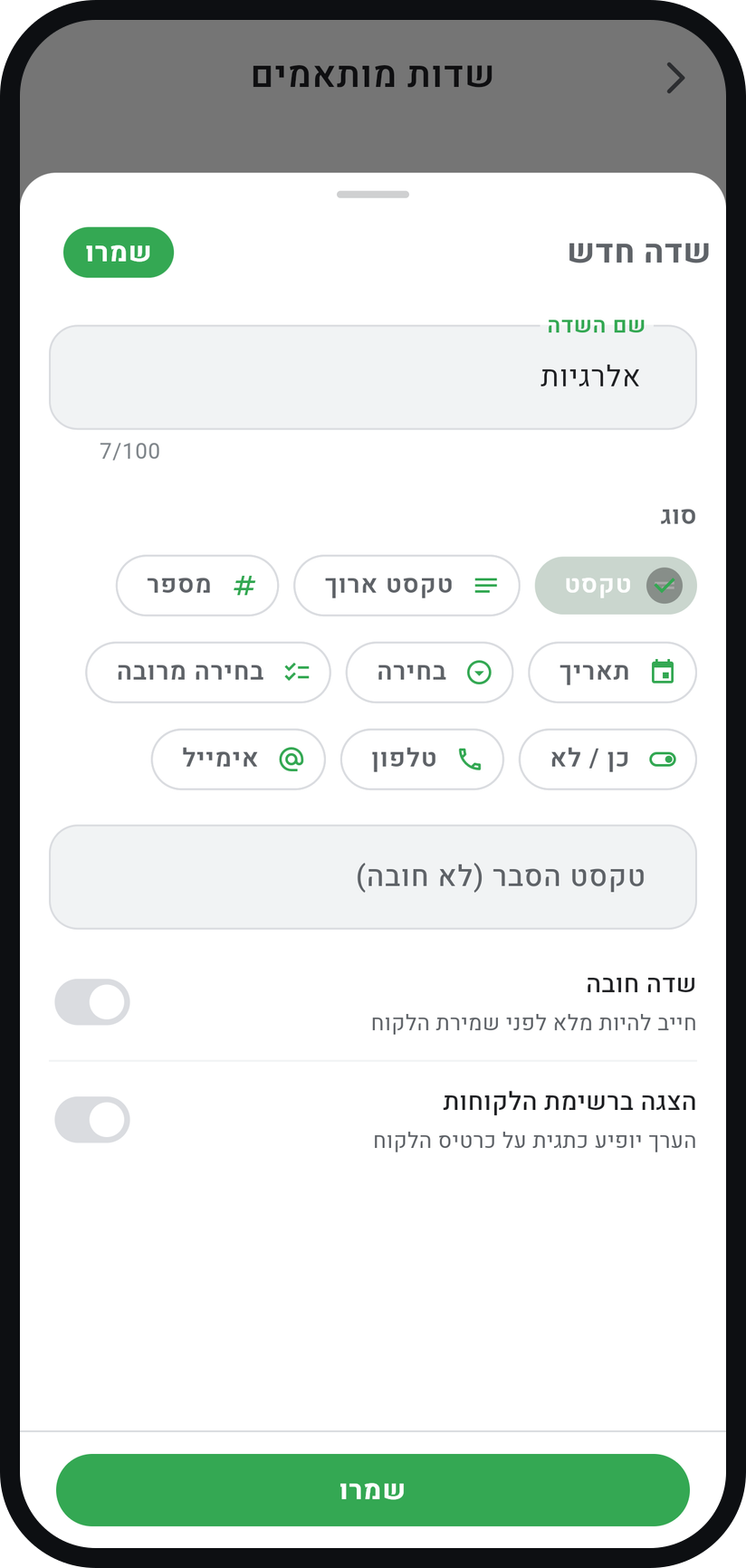
In the "New field" sheet, type a clear "Field name", for example "Allergies". That name is what you will see on every customer card.
Zoom
The "New field" sheet. Choose a type
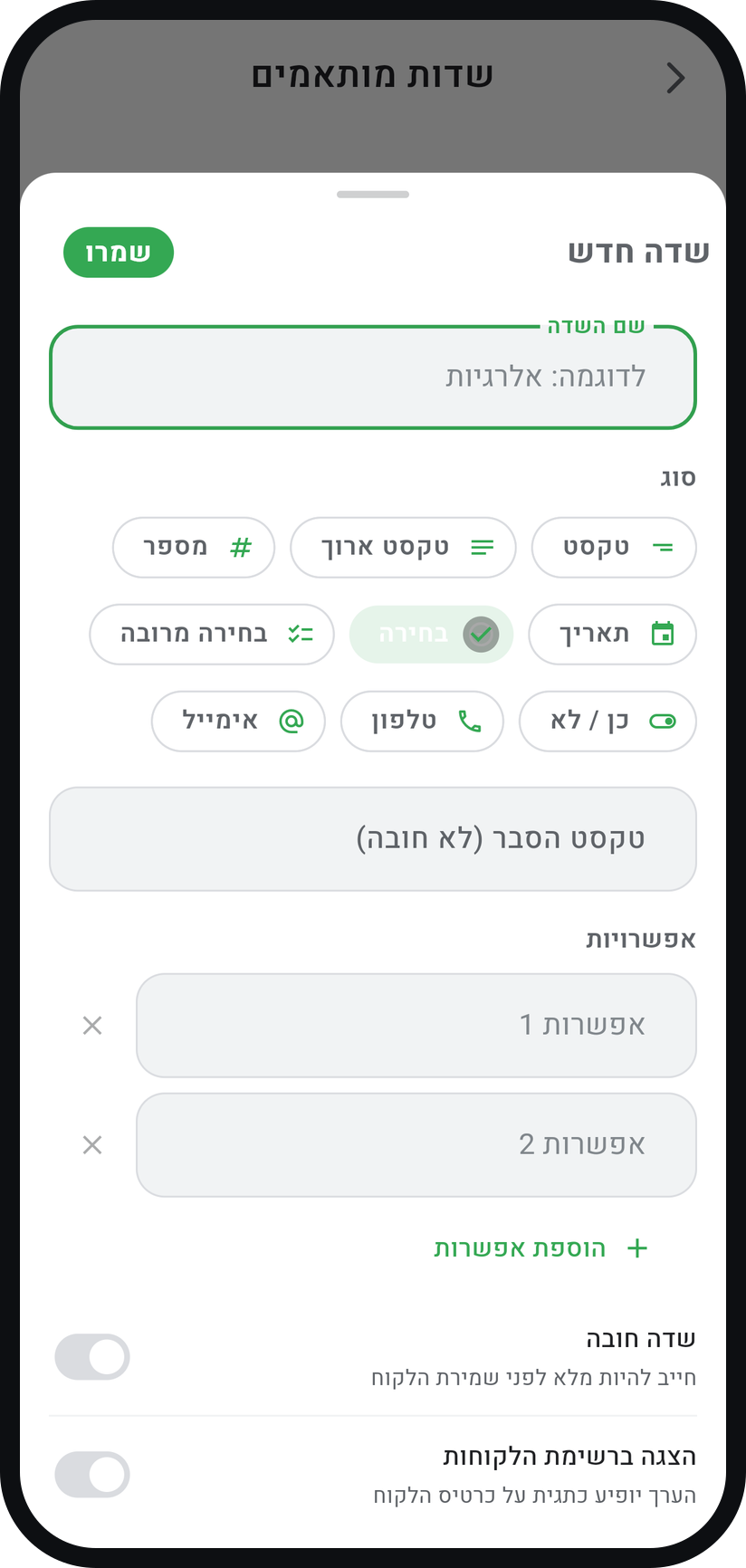
There are nine types: "Text", "Long text", "Number", "Date", "Choice", "Multiple choice", "Yes / No", "Phone" and "Email". For a choice field, list between 2 and 20 entries under "Options".
Zoom
The field types, with a choice field's options. Decide how it behaves
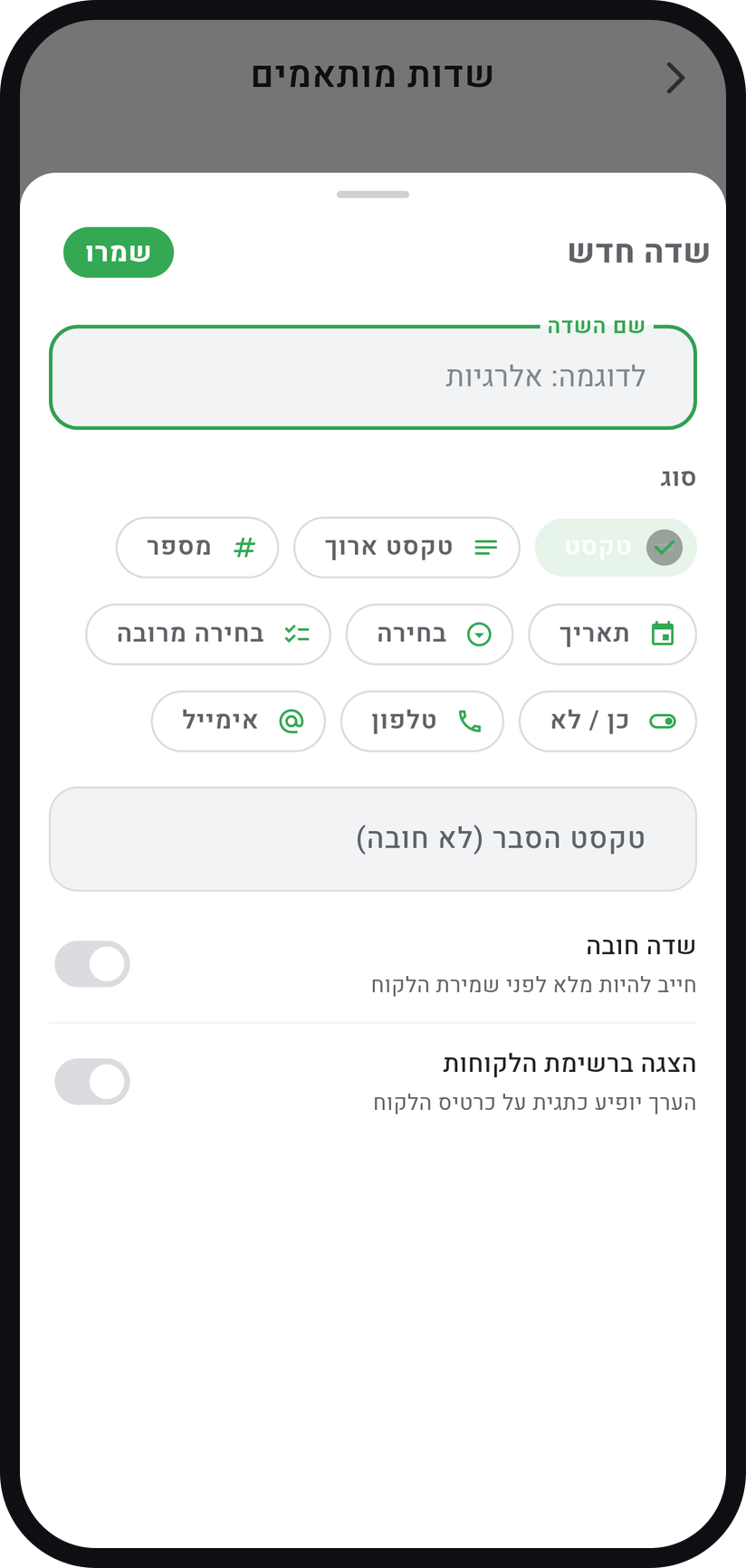
"Required" stops a customer being saved without this value, and "Show on customer list" shows the value as a chip on their card in the list. Finish with "Save".
Zoom
The "Required" and "Show on customer list" switches. Fill it in on a customer
In the add or edit customer form, required fields always show and the others are added with "add field". The values appear on the customer card under "Additional details".


Tips from the field
Custom fields are available on Professional and above.
Do not mark everything required. One required field you forgot blocks saving a customer in the middle of a busy day.
You can also add free-form tags to a customer and filter the list by them.
A field you no longer need can be hidden with the eye icon ("Hide field"). It disappears from forms and cards, and its values come back when you show it again.
When you import customers from a file, a column can go straight into a custom field, or become a new one, in "Match your columns".
Common questions
Professional allows up to 10, Premium up to 50. Free and Basic do not include custom fields, and a hidden field still counts toward the limit.
It disappears from every customer form, and the values already saved are kept. They are erased only if you tick "Also erase the saved values" when deleting, and that cannot be undone.
Related guides
Not using Timing yet?
Setting up in Timing takes a few minutes, and you can start free.