
How to import your customer list
If your customers are in a spreadsheet, another app or your phone contacts, you can bring them all across at once instead of typing them in one by one.
Where to start
The "Customers" tab, the three dots at the top of the screen
Open the import options
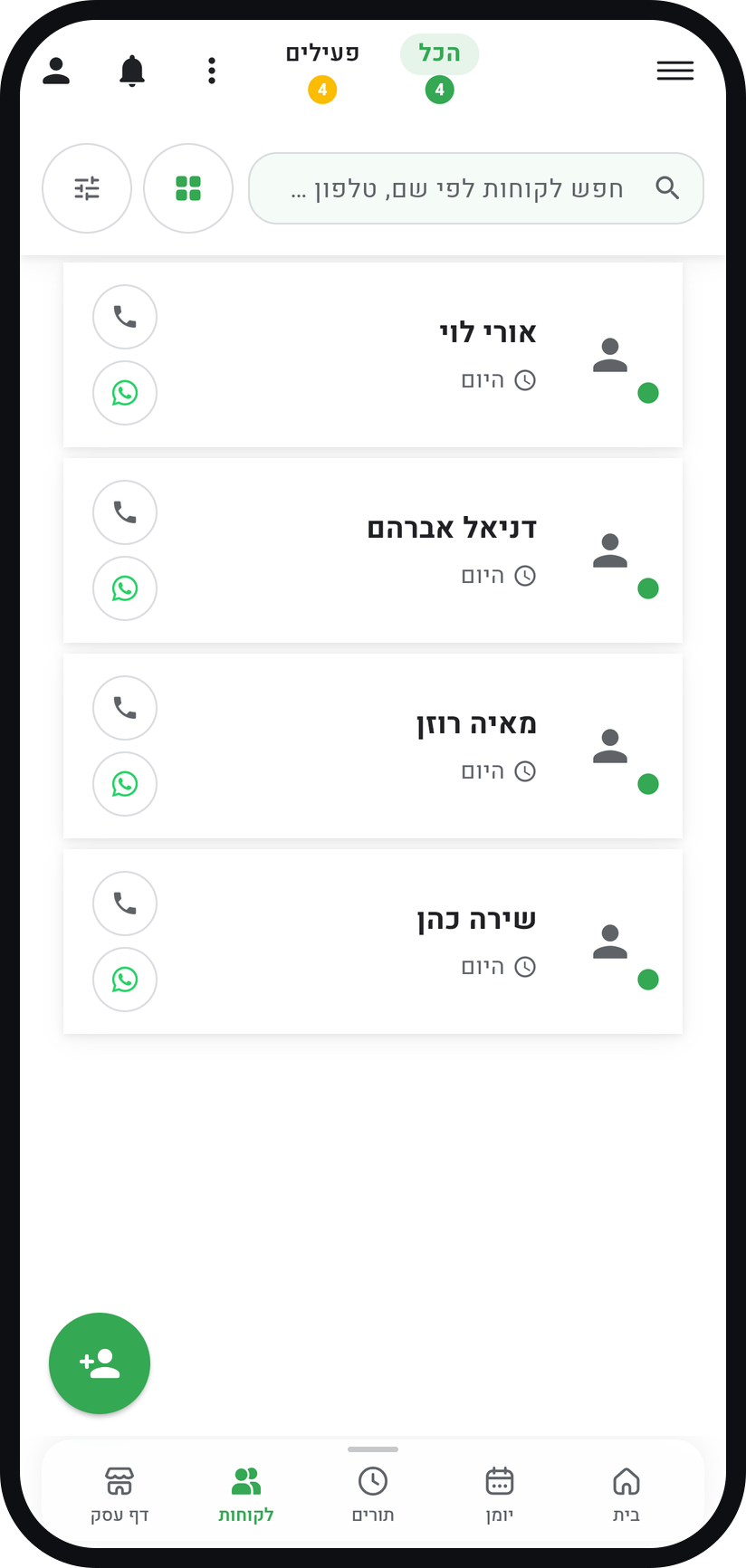
On the "Customers" tab tap the three dots at the top of the screen. While your list is still empty, the import options also appear in the middle of the screen under "Switching from another app?".
Zoom
The three dots at the top of the customers screen. Choose a source
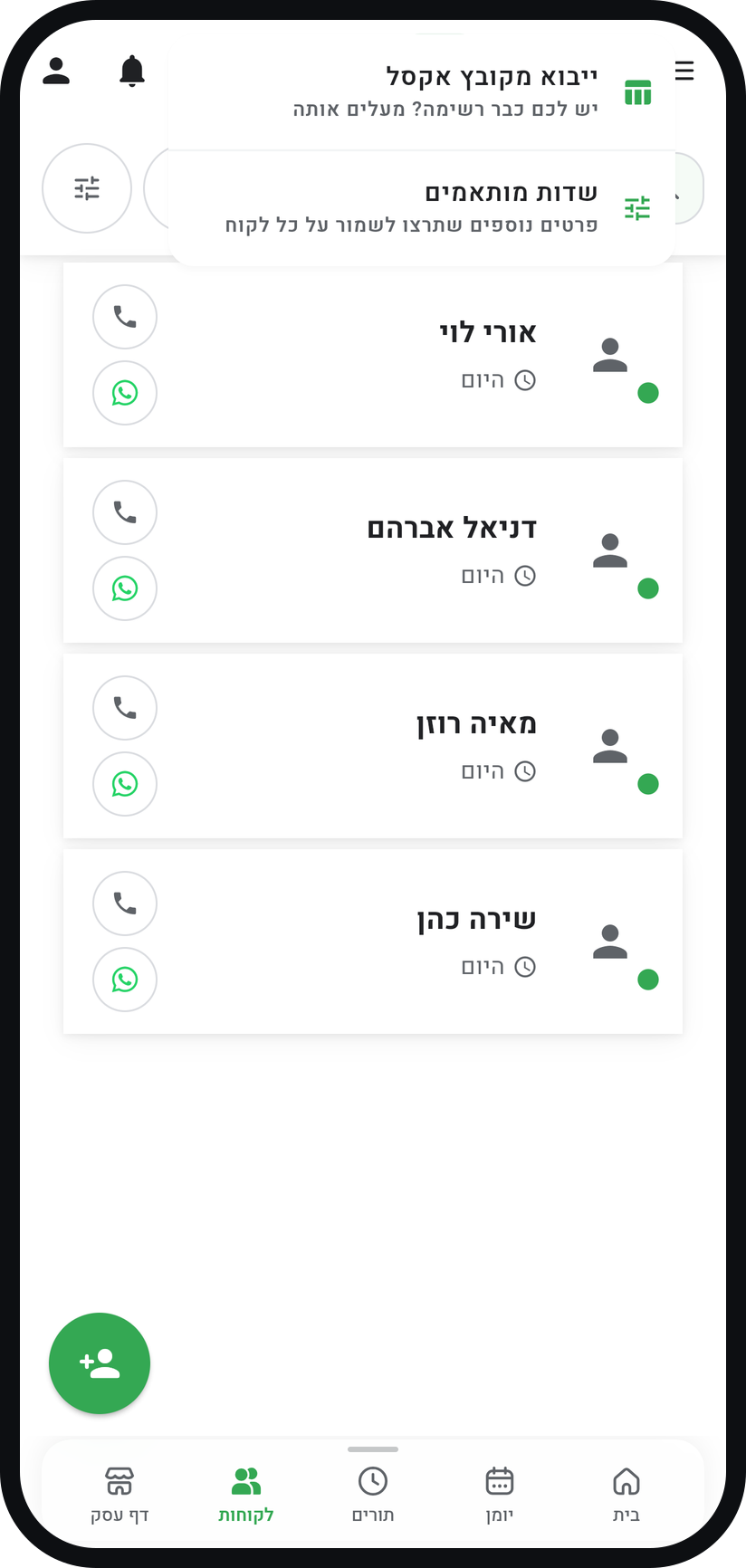
"Import from a spreadsheet" suits a list from Excel or another app. "Import from phone contacts" only appears in the Timing app on your phone, not in the browser.
Zoom
The menu with "Import from a spreadsheet". Pick the file
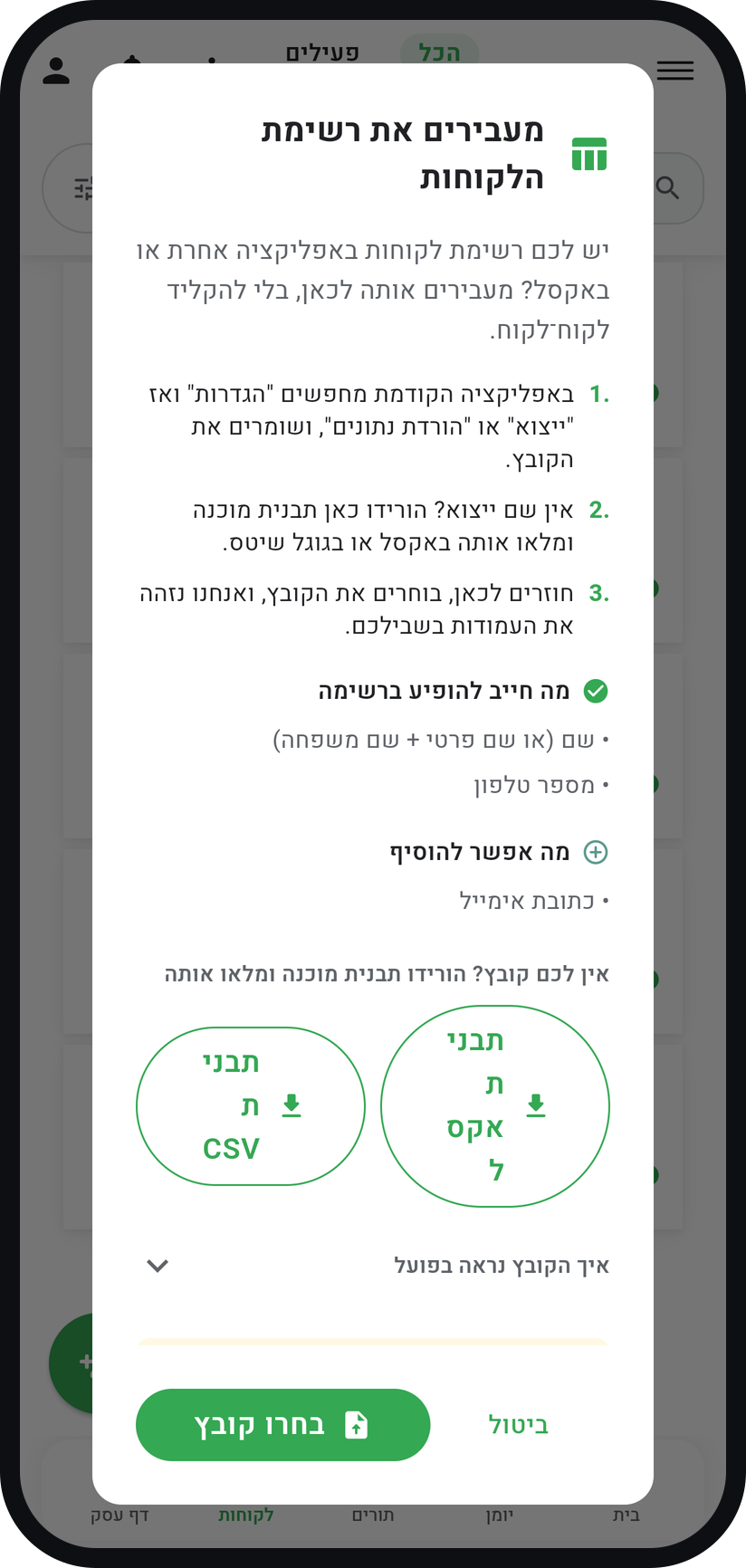
The "Bring your customer list over" window explains what the file needs: a name column and a phone column, with the column names in the first row. Tap "Select File" and choose an Excel or CSV file.
Zoom
The "Bring your customer list over" window. Check the columns were recognised
Timing recognises columns by their headers, Hebrew ones included, and also brings in email, birthday, address, notes, tags and custom fields. If it cannot find a name or a phone column, "Match your columns" opens and you choose what each column is, or "Don't import".
Check the preview and confirm
In "Import Preview", rows with no name or an invalid phone are skipped, and customers already on your list are marked "Duplicate?" and left unticked. Confirm with the import button, which shows how many customers are selected.
From contacts: tick your customers
In the phone app, after allowing access to your contacts, tick only your customers and tap the import button. Anyone already on your list is marked "Existing" and is not added again.


Tips from the field
No file yet? The "Bring your customer list over" window lets you download an "Excel template" or a "CSV template" to fill in and upload.
Moving from another app? Look there for an export or download data option and save the file. Headers like name, phone or mobile are recognised on their own.
Phone numbers can be written with a leading zero or with an international prefix. Timing normalises them, but a consistent list always imports cleaner.
After the import, skim the list. A contact that came in as "Mum" or "Garage" is better fixed now.
Common questions
No. Importing is silent, and it does not send your customers anything.
In a file import they are marked "Duplicate?" and left unticked, so they are not created again unless you tick them. In a contacts import they are marked "Existing" and skipped.
No. The import brings in customer details only. History builds up from here on.
An Excel file or a CSV file of up to 5MB, with the column names in the first row.
More on this topic: Small Business Scheduling
Related guides
Not using Timing yet?
Setting up in Timing takes a few minutes, and you can start free.