
How to cancel or move an appointment
Move or cancel an appointment from your calendar and choose whether the customer is told. Customers can cancel or reschedule on their own, up to your limit.
Where to start
The "Calendar" tab or the "Bookings" tab in the bottom bar
Open the appointment
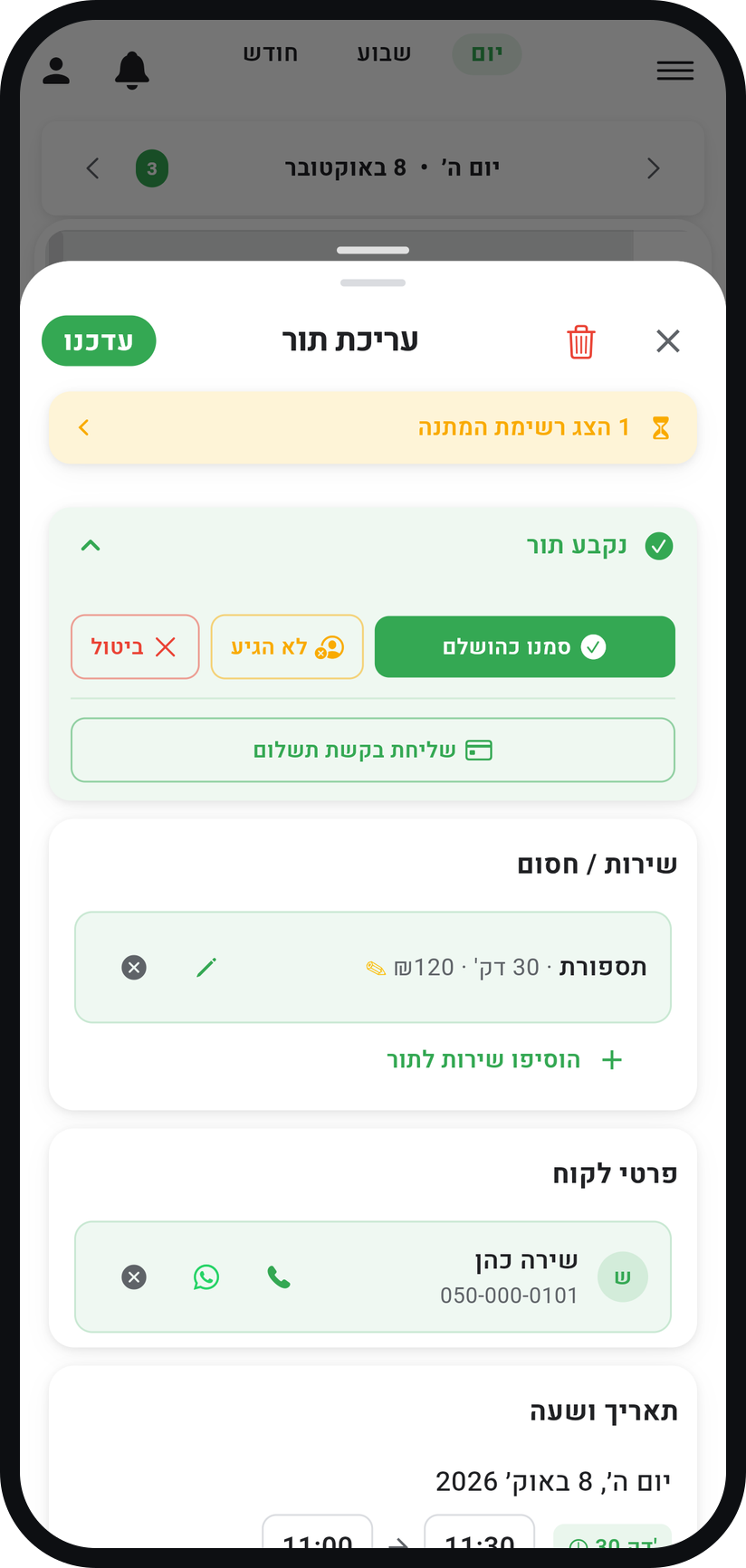
Tap the appointment in the calendar. The "Edit Appointment" window opens, with its status and actions at the top.
Zoom
The "Edit Appointment" window with its actions at the top. To move it: change the date or time
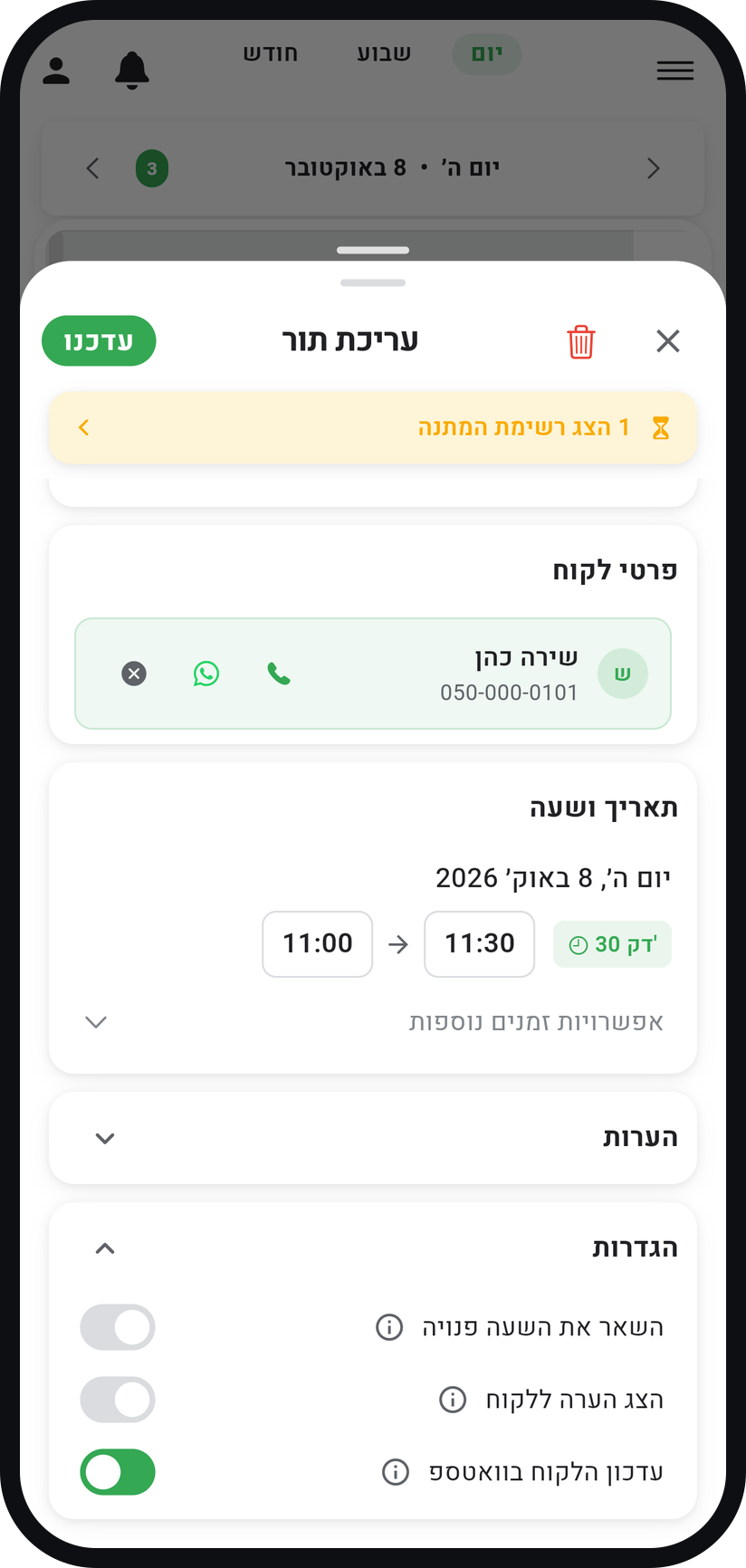
In the "Date & Time" card, tap the date or the times, pick the new ones and tap "Update". For the customer to be told, keep "Auto WhatsApp message" on in the "Settings" card.
Zoom
The "Date & Time" card and the "Auto WhatsApp message" switch. Or drag it in the calendar
Press and hold the appointment in the calendar and drag it to another time to move it quickly. Dragging does not ask about messaging the customer, so when that matters, change the time from the window instead.
To cancel: tap "Cancel"
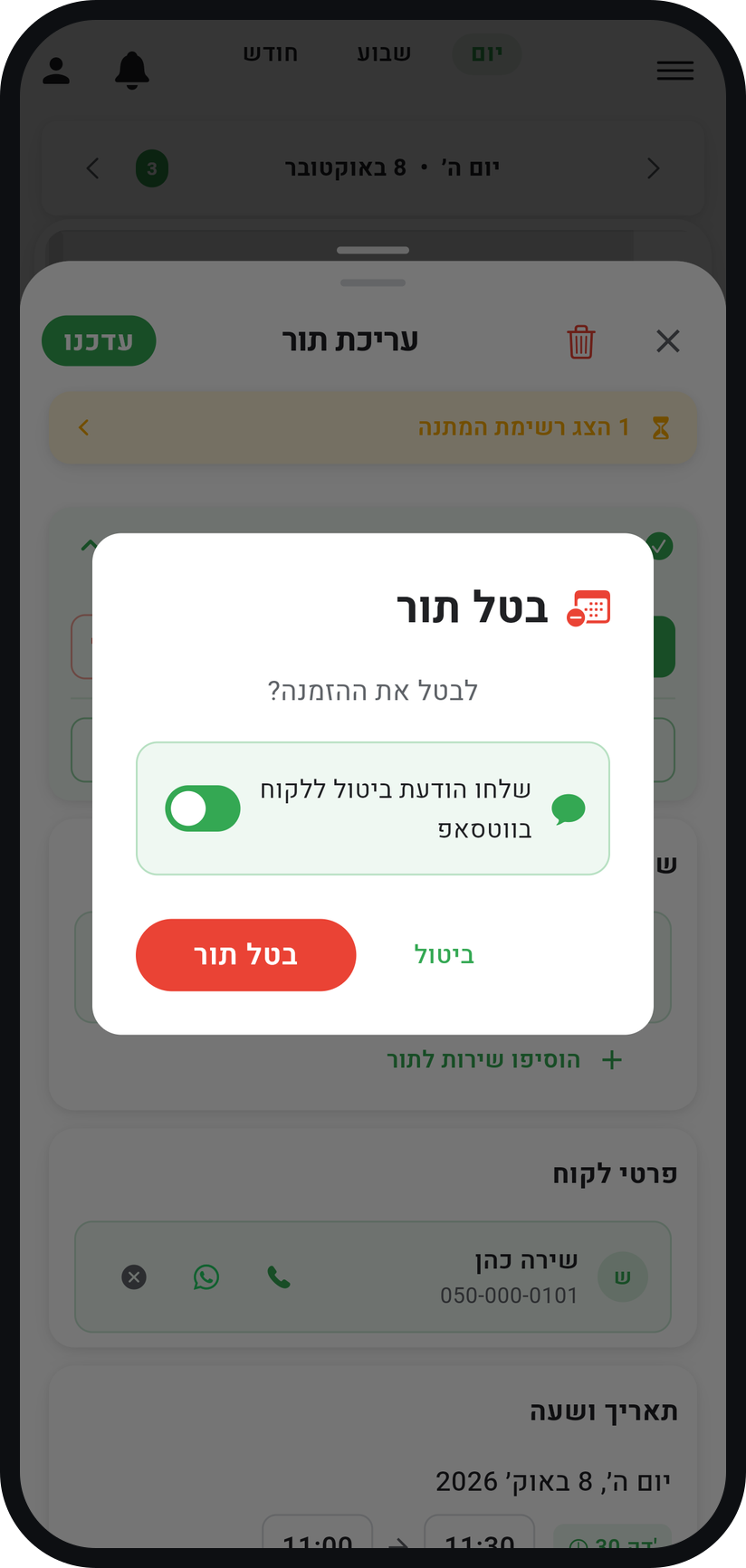
At the top of the window tap "Cancel". In the "Cancel Appointment" window decide whether to keep "Send cancellation message to customer via WhatsApp" on, then confirm with "Cancel Appointment".
Zoom
The "Cancel Appointment" window and the cancellation message switch. The time opens up
The appointment is marked as cancelled and stays on record, and the time is open for booking again. If you use a waiting list, someone waiting for that time can get it.
If the customer did not turn up
Instead of cancelling, tap "No-show". That way the customer history shows what really happened.


Tips from the field
You can also cancel from the "Bookings" tab: tap the appointment in the list, then "Cancel Appointment". There you also pick a reason, and for a series you are asked which dates to cancel.
The customer can cancel, or choose "Reschedule" to move to a free time, on their "My Bookings" page. That works up to the limit you set in "Business settings" > "Booking policy", in the "Customers can cancel up to" row. The limit applies to them only, not to you.
A customer who moves an appointment you already approved sends it back for your approval, and you get a notification.
Who cancelled? Open the appointment: its header reads "Appointment cancelled by customer" or "Appointment cancelled by business". On the customer card, under "History", it says "Cancelled by customer" or "Cancelled by business".
Common questions
Your "Customers can cancel up to" limit has probably passed. Cancel for them, or shorten it in "Business settings" > "Booking policy" if it happens often.
Cancelling keeps the appointment on record, marked as cancelled. Deleting with the trash icon ("Delete Permanently") removes it from your calendar and your history, so cancelling is usually better.
An appointment you already approved goes back to waiting for your approval, and in the "Requests" tab it is marked "Time changed by customer". Approve the new time there, or from the appointment in the calendar with "Confirm Appointment".
More on this topic: Online Self-Booking · Appointment Booking App
Related guides
Not using Timing yet?
Setting up in Timing takes a few minutes, and you can start free.