
How to plan a day of travel
For a business that goes to its customers: "Plan my day" lists your off-site appointments in order, the drive between them, and an order that saves driving.
Where to start
The "Calendar" tab, "Day" view, the map icon at the top of the screen
Make sure appointments have an address
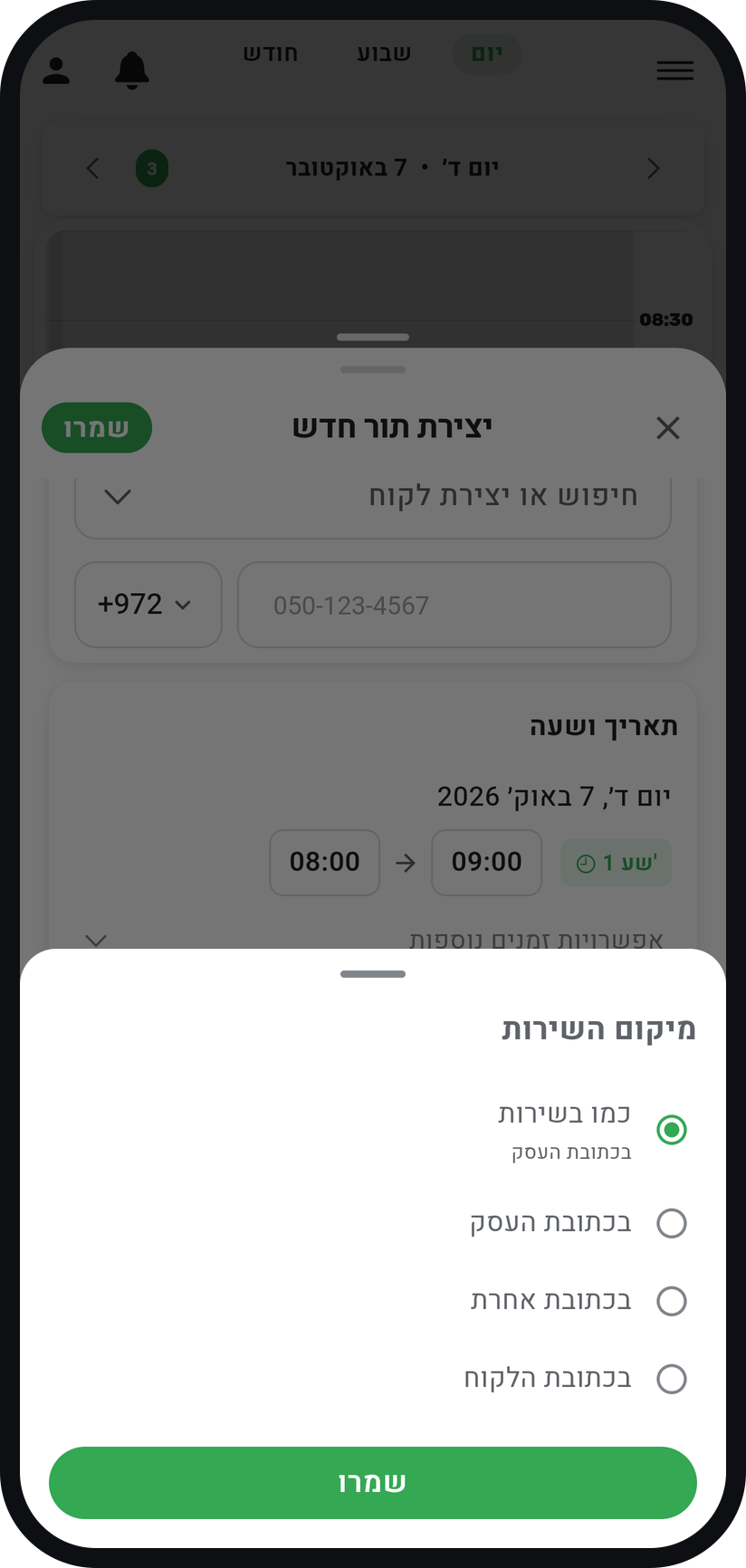
In "Service location", on the service or on the appointment itself, choose "At the customer's address" or "At another address". With the customer's address, the customer types it when booking; on an appointment you create, use "At another address" and pick the address from the suggestions that appear as you type.
Zoom
"Service location" on a new appointment, with "At the customer's address" and "At another address". Open "Plan my day"
In the calendar switch to the "Day" view and pick a date. The map icon at the top of the screen ("Plan my day") appears only on a day with at least one appointment outside your business.
Review the route
The screen lists the appointments in time order, the driving minutes between each pair and the total drive. With real drive times, when a drive is longer than the gap between two appointments, a warning estimates how late you would be.
Review the suggested order
If a shorter order exists, the screen says how many minutes it saves. "Show suggested order" shows the time each appointment would move to, and nothing has moved yet.
Apply the new order
"Apply this order" and a confirmation move the appointments, and every customer whose time changes is messaged, unless you switched off "Message this customer" for them or "Send WhatsApp reminders to customers" is off. If any appointment that day is not confirmed yet, approve it first.
Hit the road
"Open route in Google Maps" opens the whole day as one route, and "Navigate" next to each appointment starts navigation to it. "Start from my current location" starts the route from where you are instead of from the business address.

Tips from the field
Real drive times and automatic locating of addresses customers type are Premium features with a daily lookup quota, and on other plans drive times are straight-line estimates.
A drive time marked "Estimated" is a straight-line estimate rather than a real route, so the real drive may take longer.
Set "Travel time" in "Business settings", in the "Advanced" card, under "Location & travel". When two back-to-back appointments are at different addresses, that much time stays free between them, including in the times customers can book.
Apply a new order as early as you can, so customers have time to adjust to their new time.
Common questions
It only appears in the "Day" view, and only on a day with at least one appointment outside your business, meaning "At the customer's address" or "At another address".
Yes. It is only shown to you, and nothing moves until you tap "Apply this order" and confirm.
Usually because an appointment that day is not confirmed yet, and moving it would tell nobody. Approve it or move it yourself, then try again. If the day changed while the screen was open, reopen the plan.
Its address could not be located, and "We could not locate this address" shows next to it. On an appointment you create, pick the address from the suggestions. A customer booking online can attach their exact location, and on Premium an address a customer typed is located automatically.
More on this topic: Smart Scheduling · Appointment Calendar
Related guides
Not using Timing yet?
Setting up in Timing takes a few minutes, and you can start free.