
How to edit your business page
Your business page is what a customer sees when they tap your link. You edit it on the page itself: tap a section and it opens for editing.
Where to start
The "Business page" tab at the bottom, or in the menu: "Business page" group, "My business page"
Open your business page
Tap "Business page" in the bottom bar, or "My business page" in the menu's "Business page" group. The page opens the way customers see it.
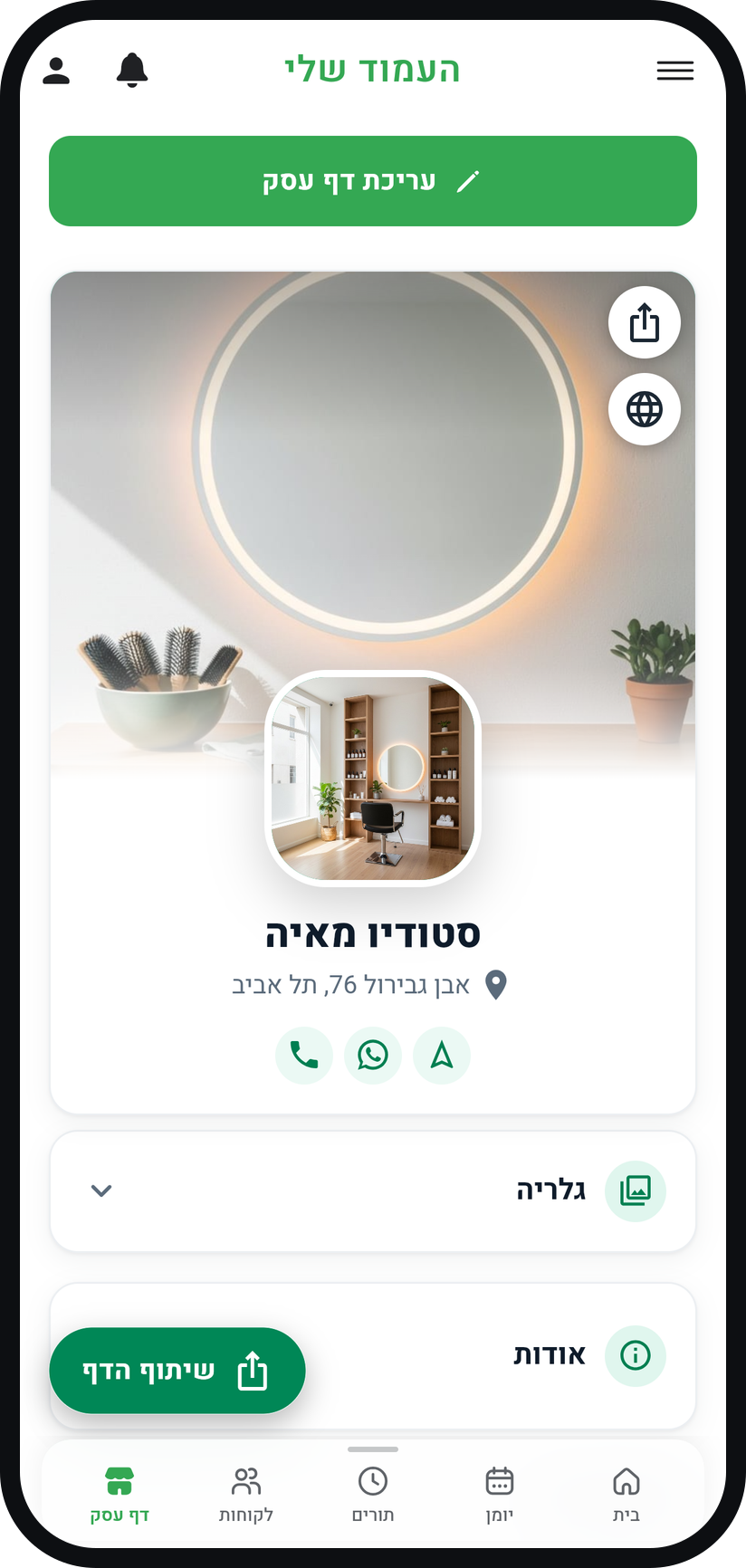
Tap "Edit business page"
The button sits at the top of the page. In editing mode every area of the page is outlined and can be tapped.
Zoom
The "Edit business page" button at the top of the page. Choose the area you want to change
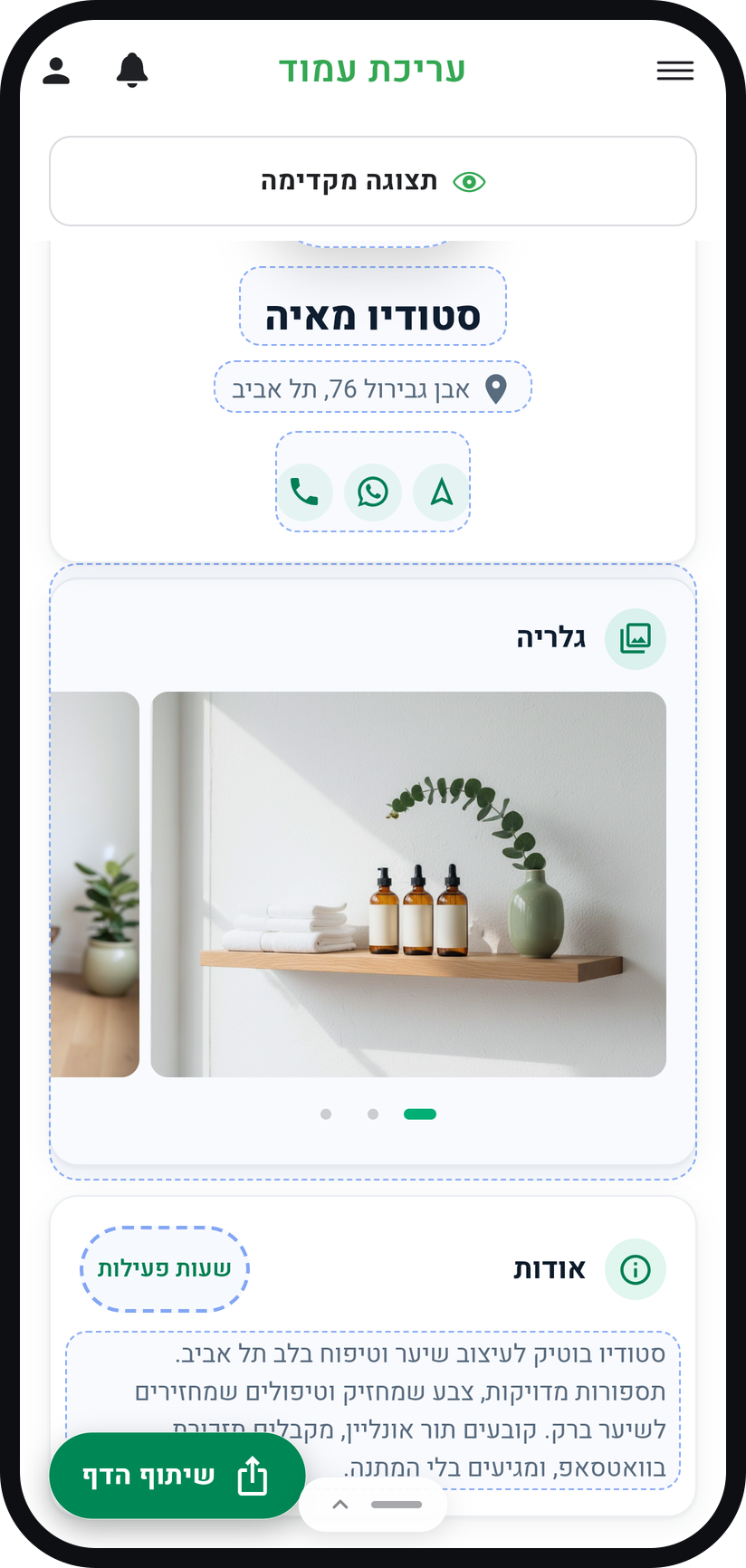
Tapping an area opens an editor for that area only: the cover photo, logo, name, address and contact details, gallery, About and hours, services, team, and reviews. Below the content there are also cards only you see, such as "Brand color" and "Business settings".
Zoom
The page in editing mode, with its areas outlined. Start with the main photo
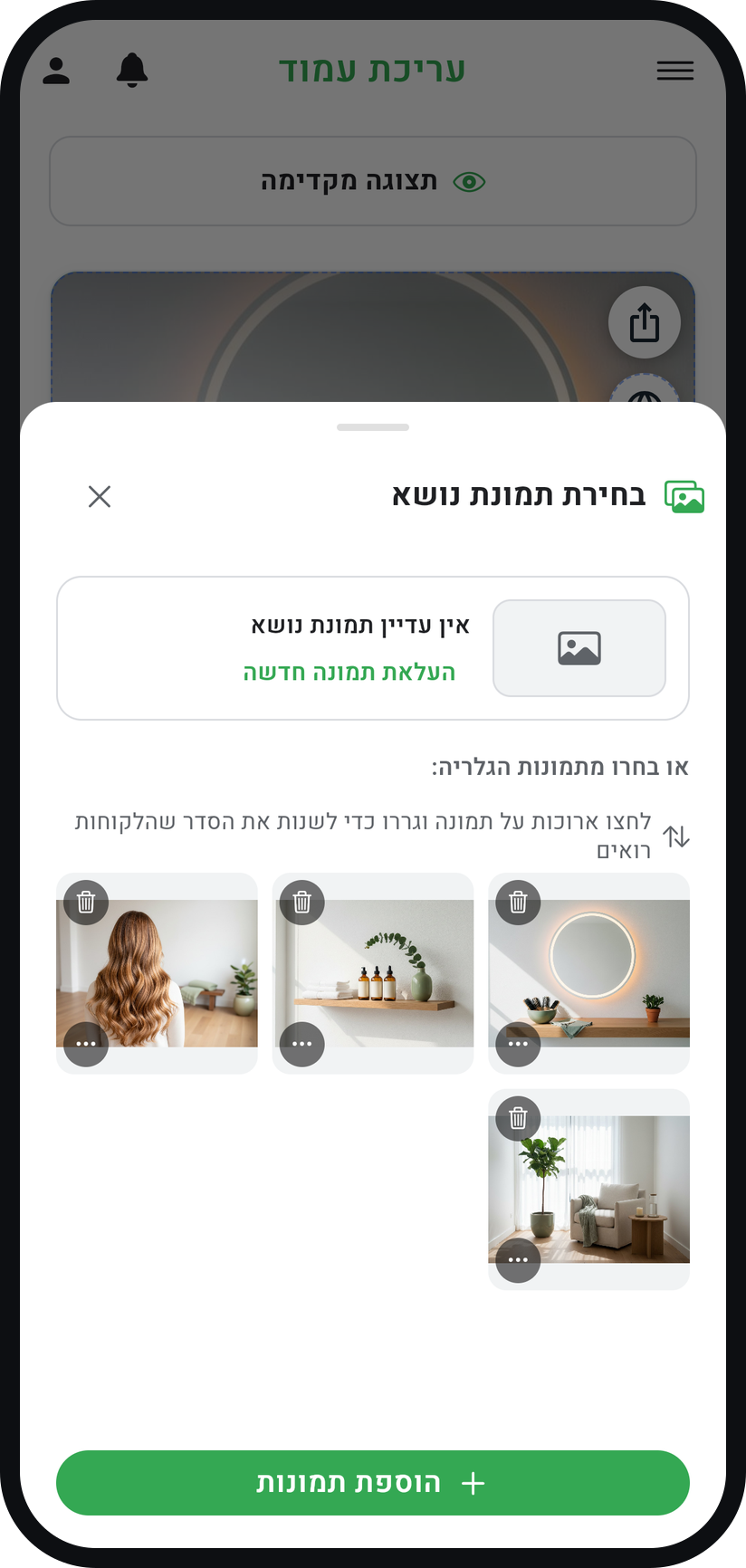
It is the first thing a customer sees. Tap the cover photo, and in "Choose a Cover Photo" upload one ("Upload new") or pick one from your gallery.
Zoom
The "Choose a Cover Photo" window. Write a short description
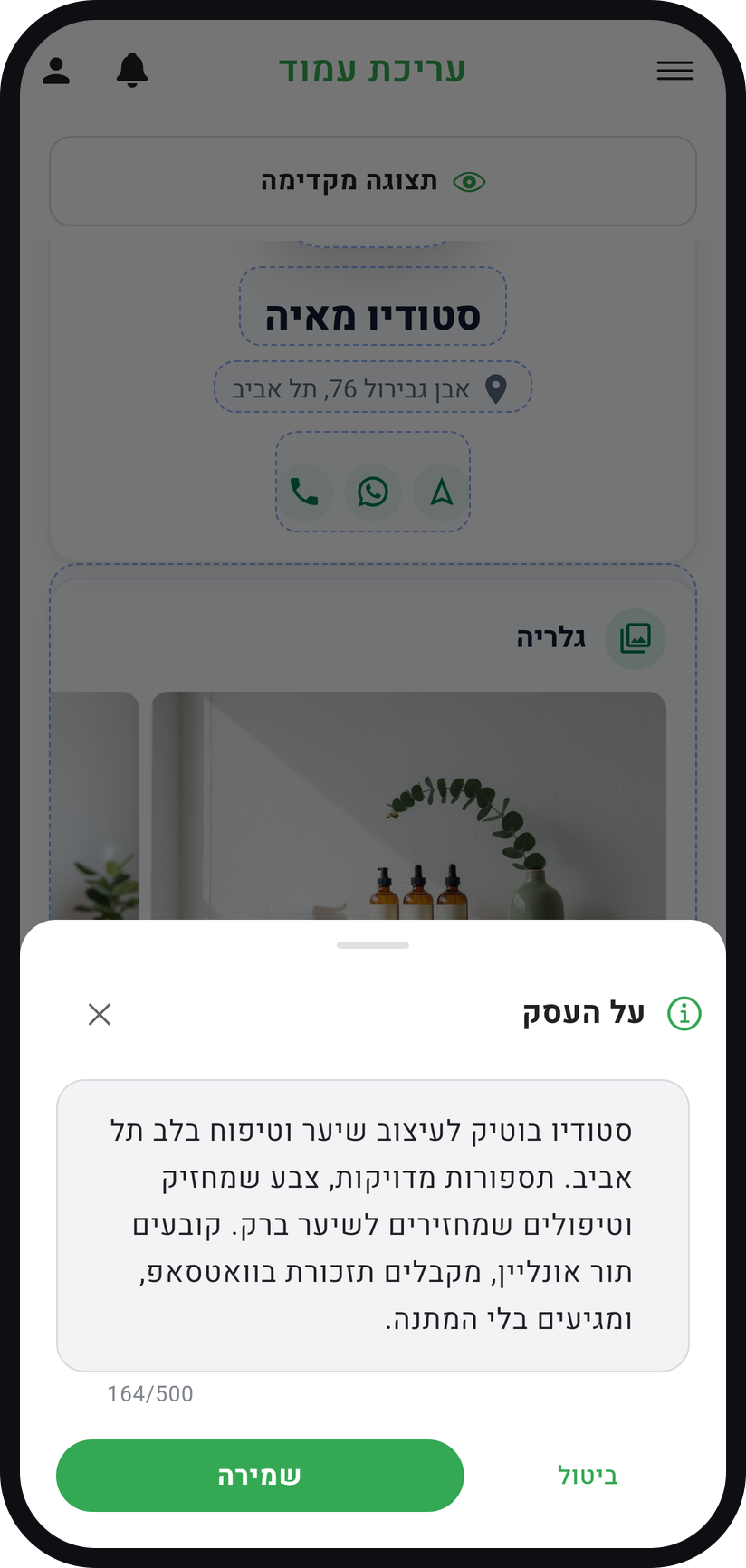
Tap the About area, and in "About Your Business" write two or three lines on what you do and who for, then tap "Save". No marketing slogans needed: write it the way you explain it to a new customer on the phone.
Zoom
The "About Your Business" window for your description. Switch to "Preview"
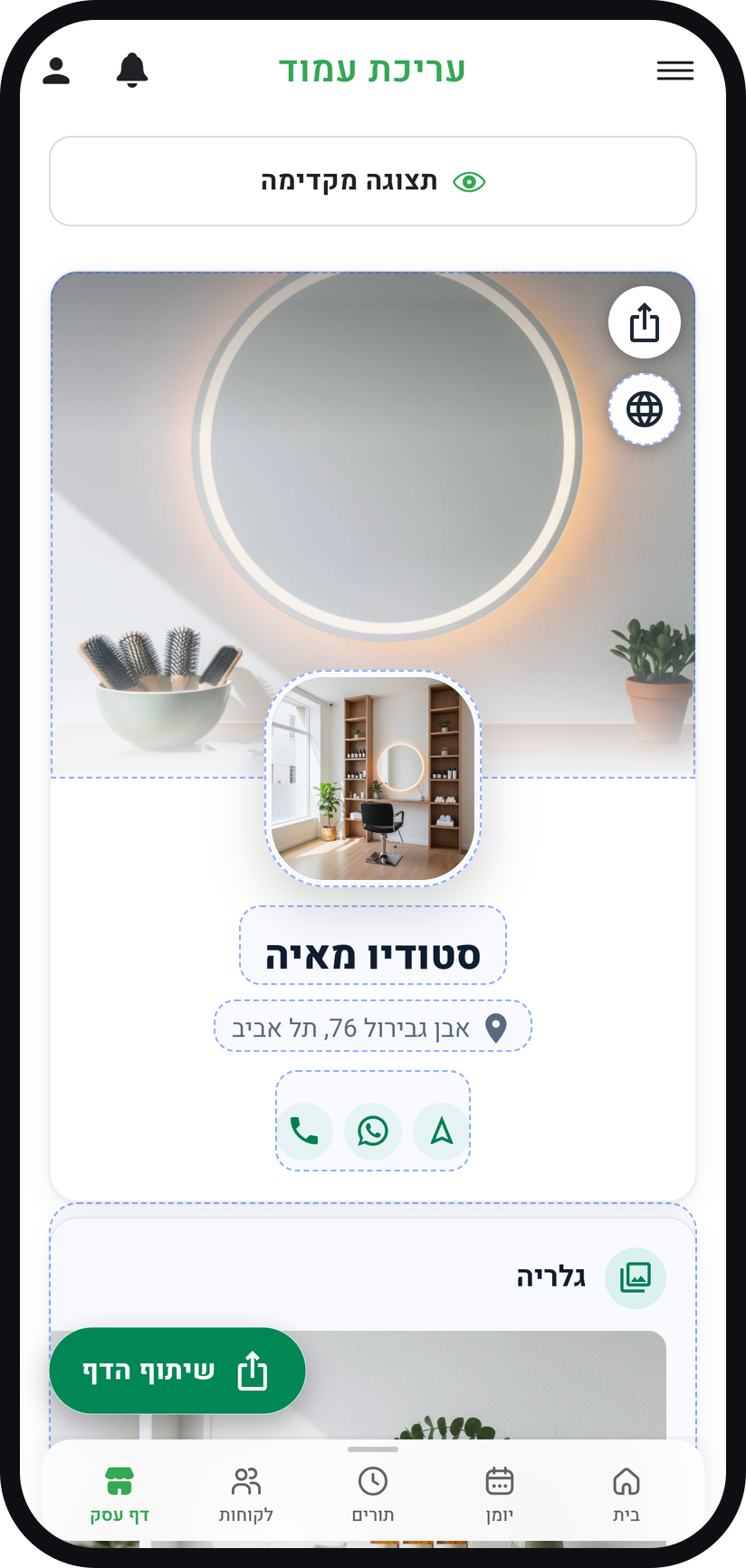
Tap "Preview" to see the page as a customer does, without the editing markers. The floating share button at the bottom of the page shares it.
Zoom
The "Preview" button in editing mode.


Tips from the field
In editing mode, areas you have not filled in yet carry a number, and a card at the bottom of the page sums up what is left, with a "Walk me through" button.
Your cover photo also appears in the link preview when you share your page. In the gallery you can make any photo the cover with "Set as cover".
Upload ordinary photos from your phone. If the cover photo is cropped badly, "Position" in its window sets which part of it shows.
Common questions
Yes. What you save in an editor updates the page, and photos and hours save the moment you change them. There is no separate publish step.
A section with no content is not shown to customers. If you have no gallery photos or no reviews, that section simply does not appear for them. In editing mode you see an empty card you can tap in its place, and only you see it.
Yes. The page adapts to the screen. Most of your customers will see the phone version.
More on this topic: Online Self-Booking
Related guides
Not using Timing yet?
Setting up in Timing takes a few minutes, and you can start free.