
How to create a split service
A split service has work phases with a wait between them, like color that sets before a rinse. You can see another customer in the wait, without a longer day.
Where to start
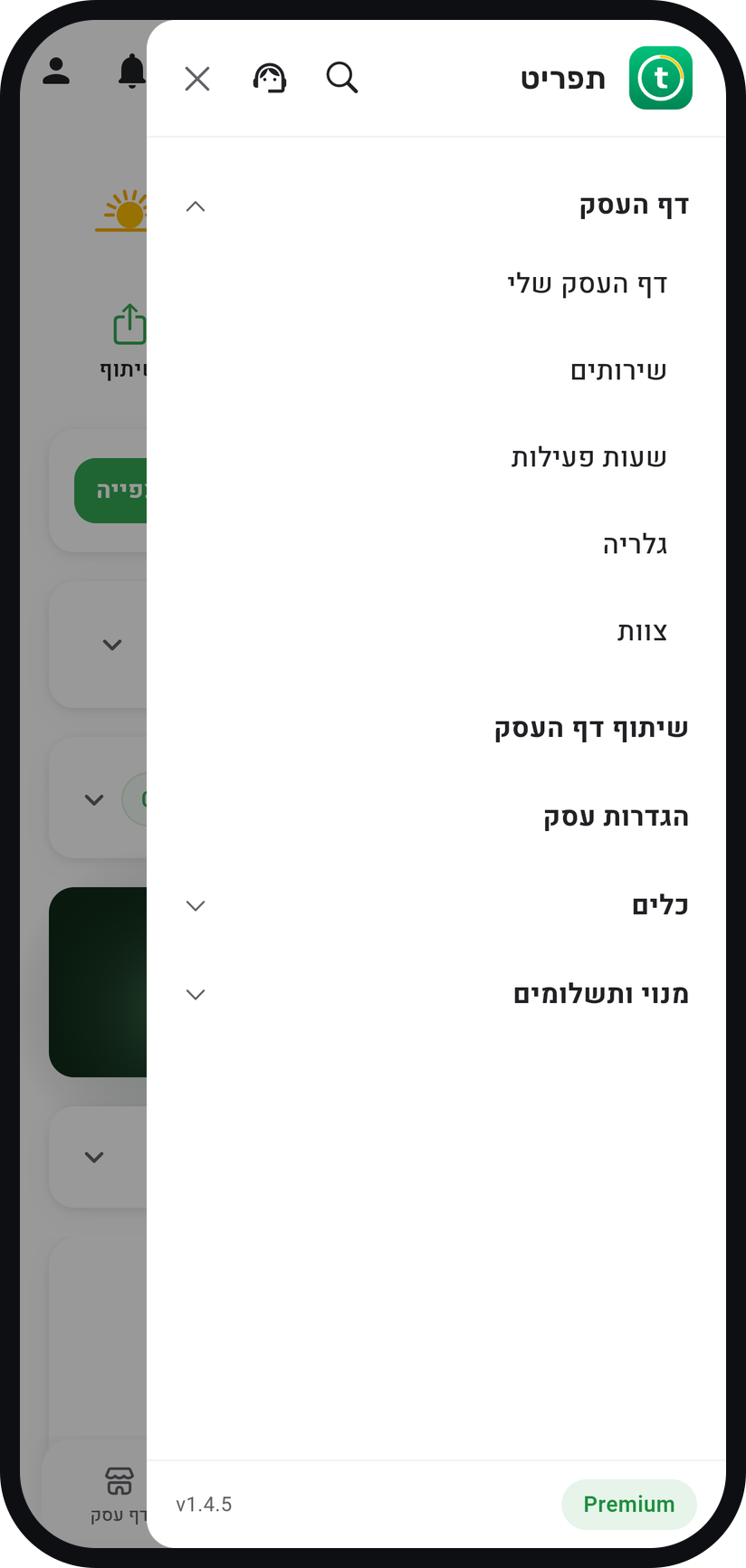
The menu at the top of the screen, "Business page" group, "Services"
Watch the video
Tap "Services"
Tap the menu icon (three lines) at the top of the screen, open the "Business page" group, then tap "Services".
Zoom
The "Business page" group in the menu, with the "Services" row. Open an existing service or create a new one
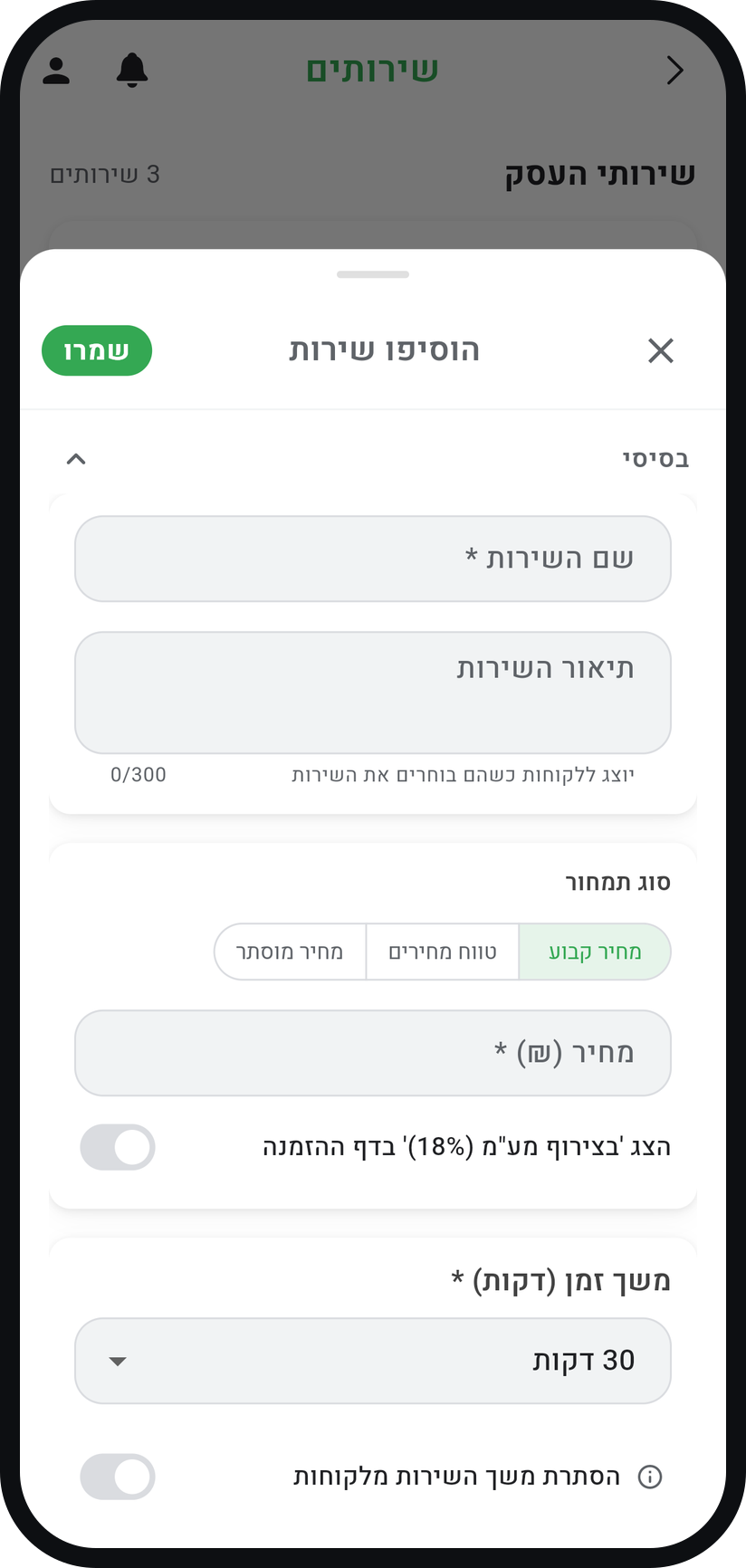
Tap a service that has waiting time in the middle, or the plus button to create a new one. Fill in name, price and duration as usual: the duration you pick becomes the first work phase.
Zoom
The "Add service" form: name, price and duration. Turn on "Split service"
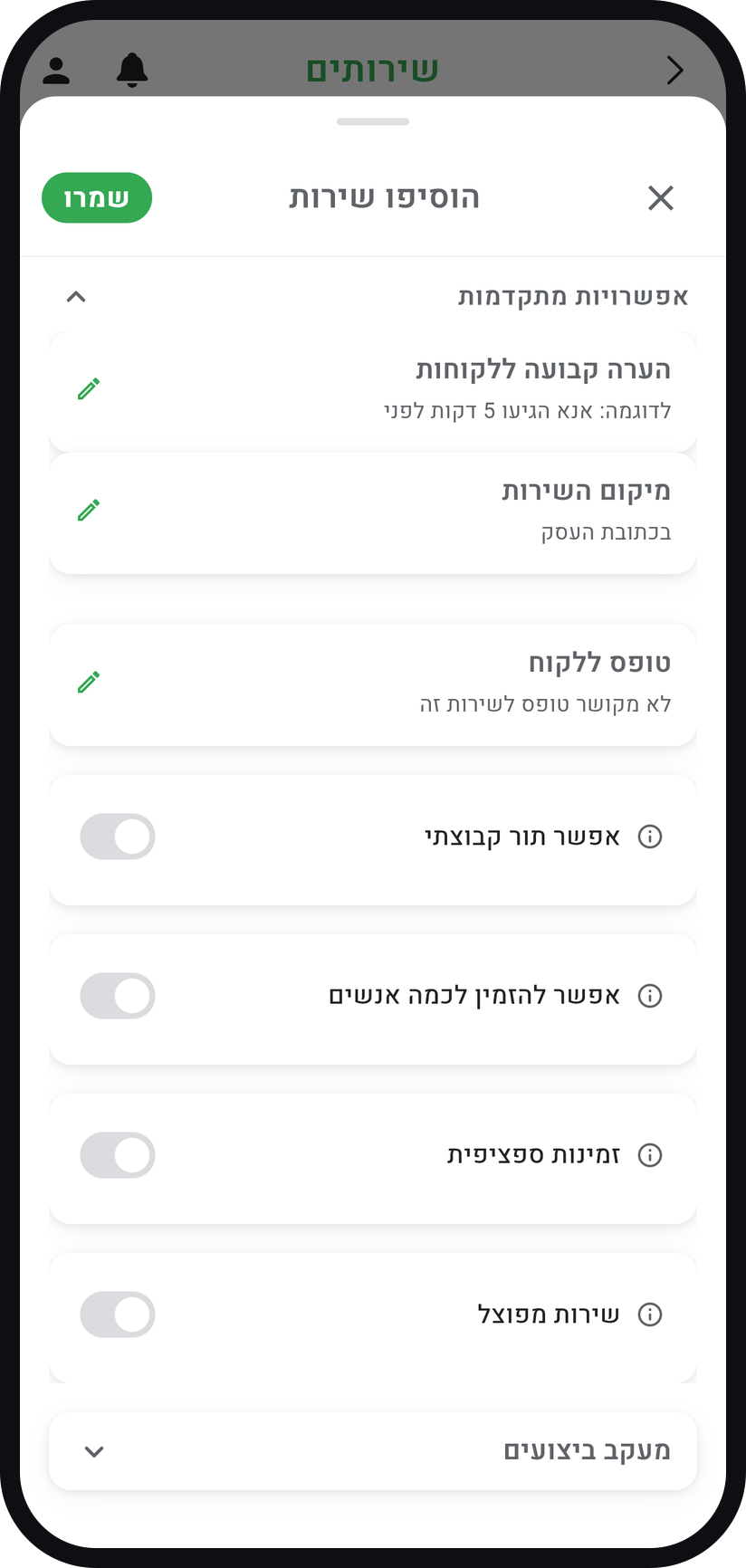
At the bottom of the form, open the "Advanced options" group and switch on "Split service". The phase editor opens right away.
Zoom
The "Split service" switch inside "Advanced options". Set up the phases
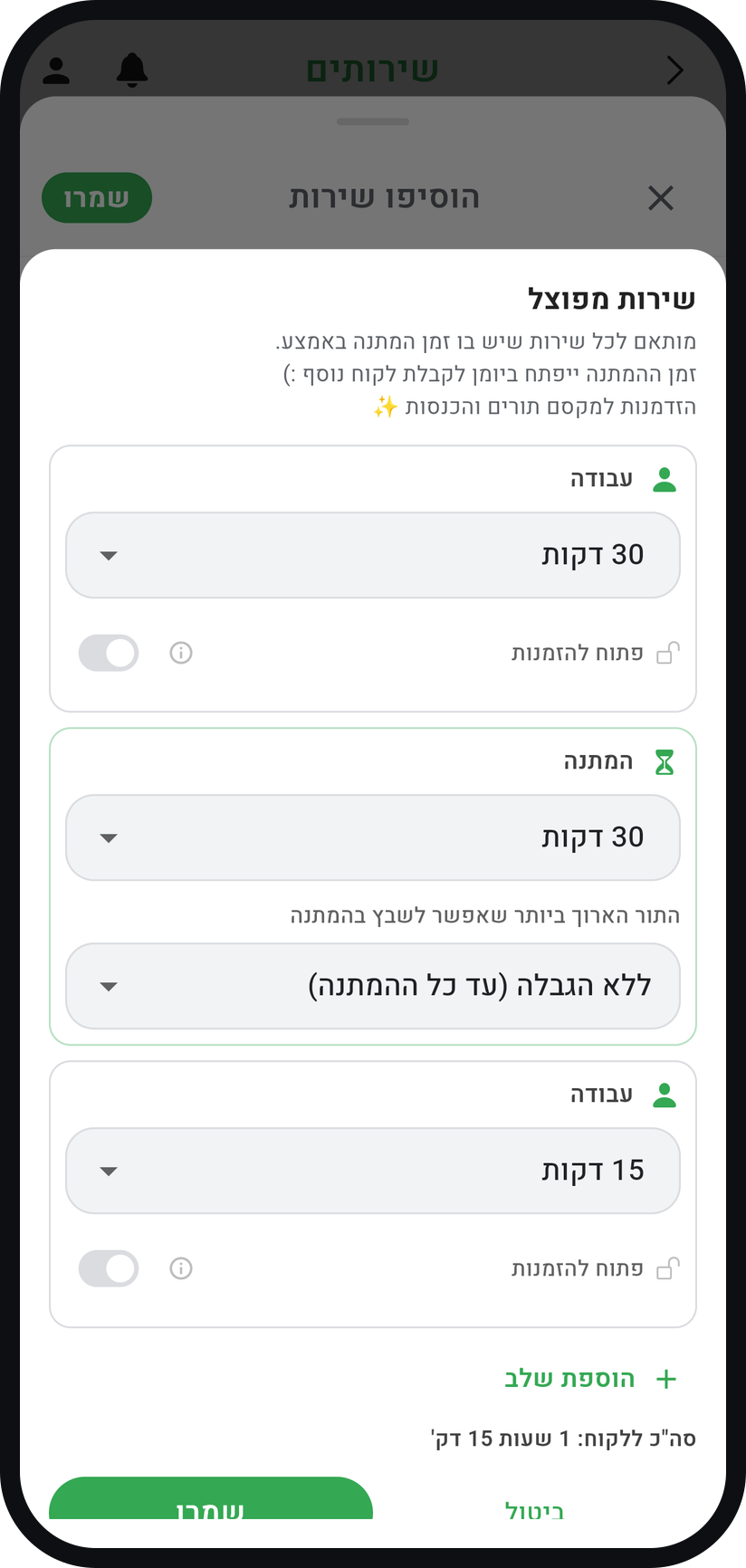
Choose how many minutes each phase lasts: "Work", "Waiting", then "Work" again. "Add phase" adds another wait and work, up to four waits in one service, and below the phases you see "Total for the customer", the full length of the booking.
Zoom
The phase editor: work, waiting, work. Optional: limit what fits in the wait
The "Waiting" card has a "Longest appointment that can fill this gap" field. Longer bookings are not offered during the wait, and "No limit (up to the full wait)" offers anything that fits.
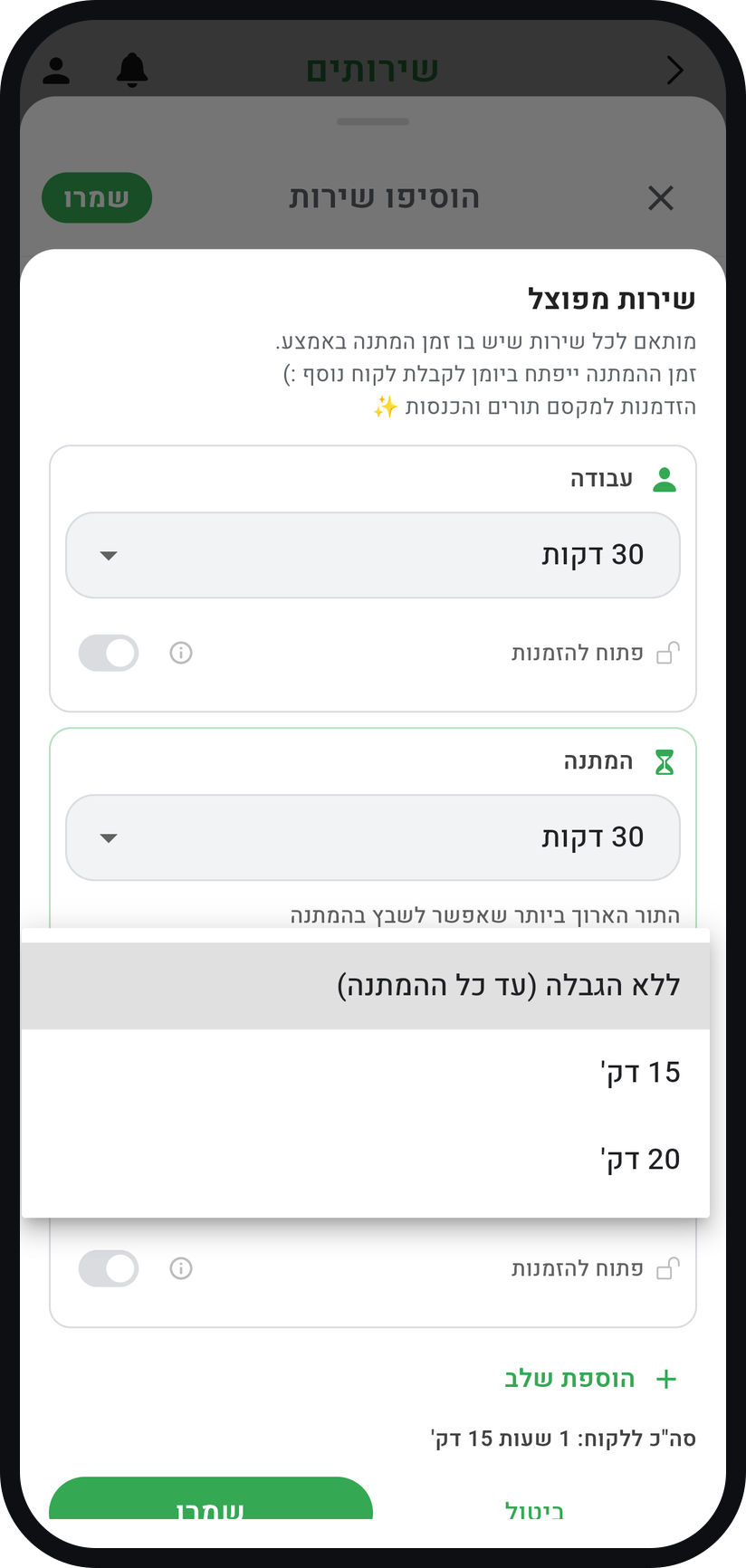
Zoom
The options of "Longest appointment that can fill this gap". Save the service
Tap "Save" in the phase editor, then "Save" on the service form. From then on, the wait in a booking for this service shows on your calendar as a hatched band, for example "30 min wait", and other customers can book into it.


Tips from the field
Split services are available on Professional and above.
The key difference: "waiting" in a split service frees your calendar, while "Break time" in "Business settings" always blocks. They are two different tools.
Great for color that develops, gel that dries, treatments with a pause, or any service where the customer waits in the middle.
You can change the phases for one appointment only: in the appointment on your calendar, tap the hourglass badge next to its duration. The change applies to that appointment, not to the service.
When the appointment is shown wide enough, for example in a one-day view, tapping the empty part next to the waiting band opens a new appointment right in the wait.
"Split service" is not available together with "Allow multiple participants" or "Special availability".
Common questions
Existing appointments keep the phases they were booked with. The change applies to new bookings only.
Split services are included from the Professional plan. On other plans the "Split service" row shows a lock with the plan name, and tapping it opens a window with the plan details.
Yes. In the phase editor every "Work" phase has an "Open for booking" switch, for those who work with two customers in parallel. At least one work phase must stay closed.
Related guides
Not using Timing yet?
Setting up in Timing takes a few minutes, and you can start free.