
How to manage your subscription
See which plan you are on and what you have used, compare plans, check your charges and cancel. All from one screen.
Where to start
The menu at the top of the screen, "Subscription & payments" group, "My subscription"
Open "My subscription"
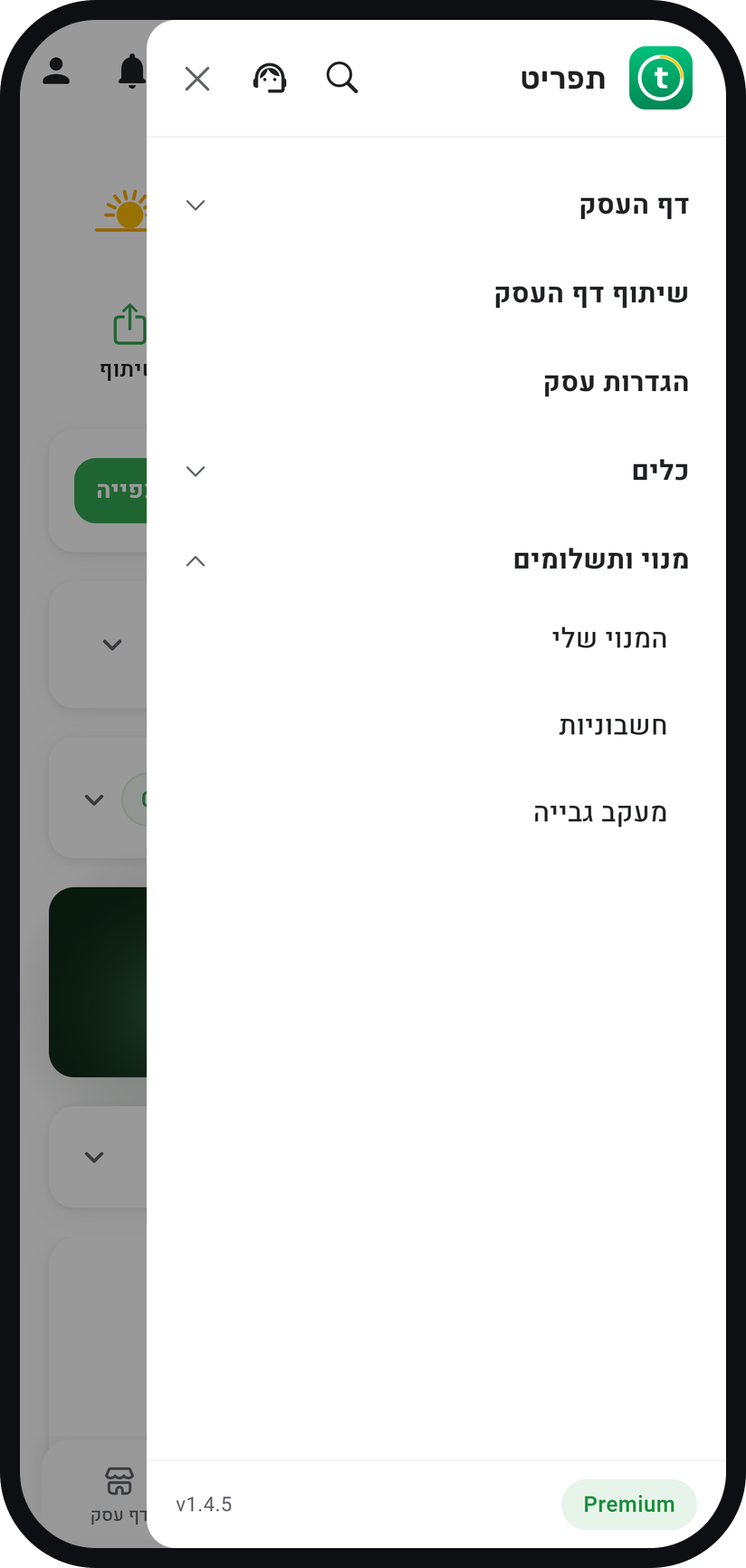
Tap the menu icon (three lines) at the top of the screen, open the "Subscription & payments" group, then tap "My subscription". The subscription screen opens.
Zoom
The "My subscription" row in the menu. Check where you stand
The top card shows your plan and its state, for example the price and renewal date, or the days left in a trial. Below it, "Plan Limits & Usage" shows what you have used this month.
Compare plans
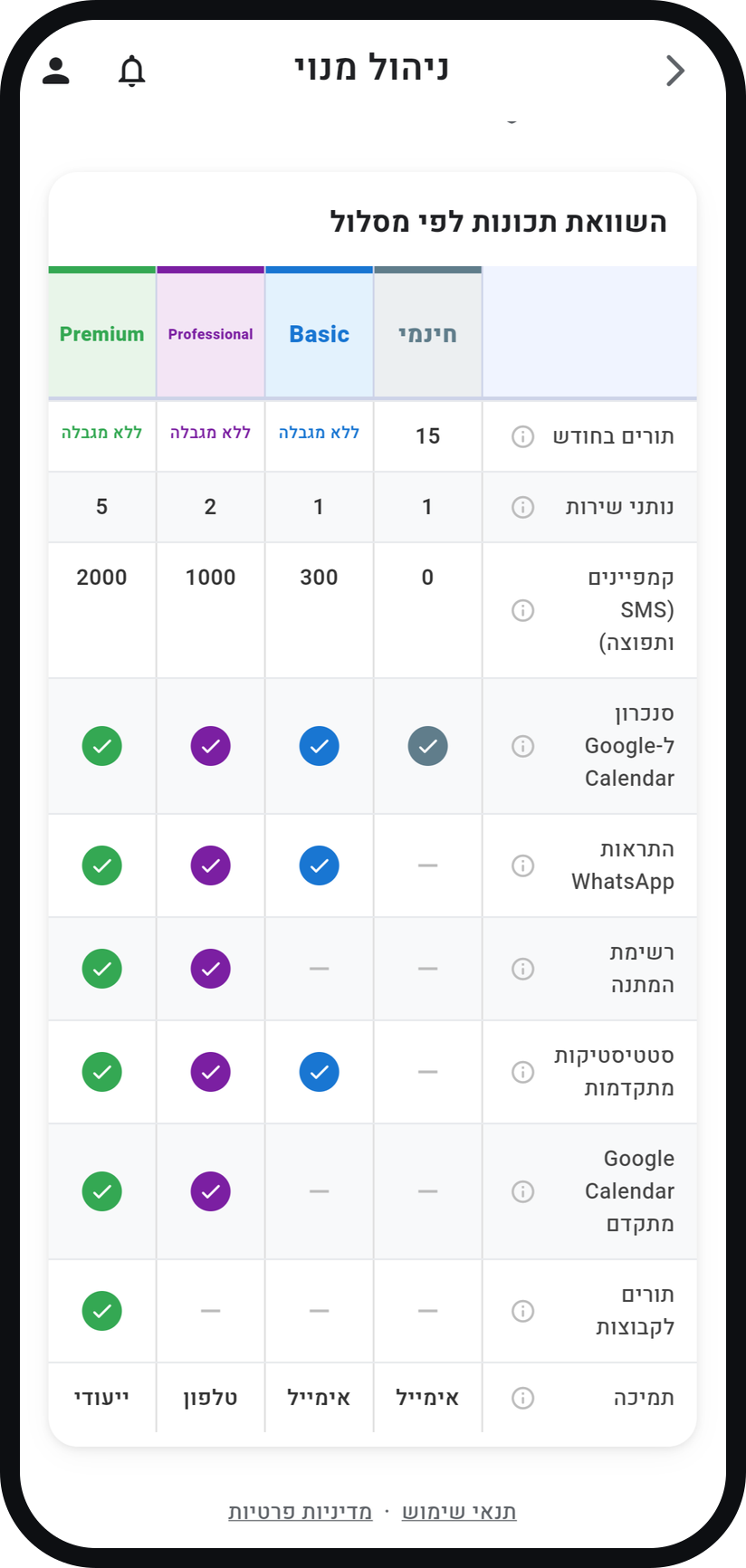
"Feature Comparison by Plan" lists what each plan includes. When you can switch, pick the plan under "Choose a plan", and before any charge a confirmation shows the amount and when the change applies.
Zoom
The "Feature Comparison by Plan" table. See your billing history
After your first charge, a "Billing History" tab appears at the top of the screen. Tap a charge to see its details, and if an invoice is attached, open it with "Download Invoice".


Tips from the field
Hit a locked feature? A short window explains what it unlocks, and its button, for example "Continue to Professional", brings you here with the right plan highlighted.
An upgrade takes effect right away.
Match your plan to your team size: how many team members you can add depends on the plan.
Common questions
Yes. With a paid subscription, "Cancel Subscription" is at the bottom of the screen. Before you confirm you see until when your plan stays active, and after that date the account moves to the free plan.
Nothing is deleted. Your data, customers and history are kept, and capabilities not included in the new plan simply stop being available.
Your subscription details show here, but changes, cancellation and receipts for an App Store or Google Play subscription live in the store, and the screen sends you there.
There is no payment-method screen in the app. For an App Store or Google Play subscription, update it in the store; otherwise contact Timing support.
When the Premium trial ends the account moves to the free plan, and everything you set up stays. Choose a plan to bring back what you used.
Related guides
Not using Timing yet?
Setting up in Timing takes a few minutes, and you can start free.