
How customers book on your page
What your customer sees and does on the booking page: service, team member, date and time, a quick sign-in and confirming. And how blocked hours stay hidden.
Where to start
Your public booking link (shared via "Share business page")
Watch the video
The customer opens your page
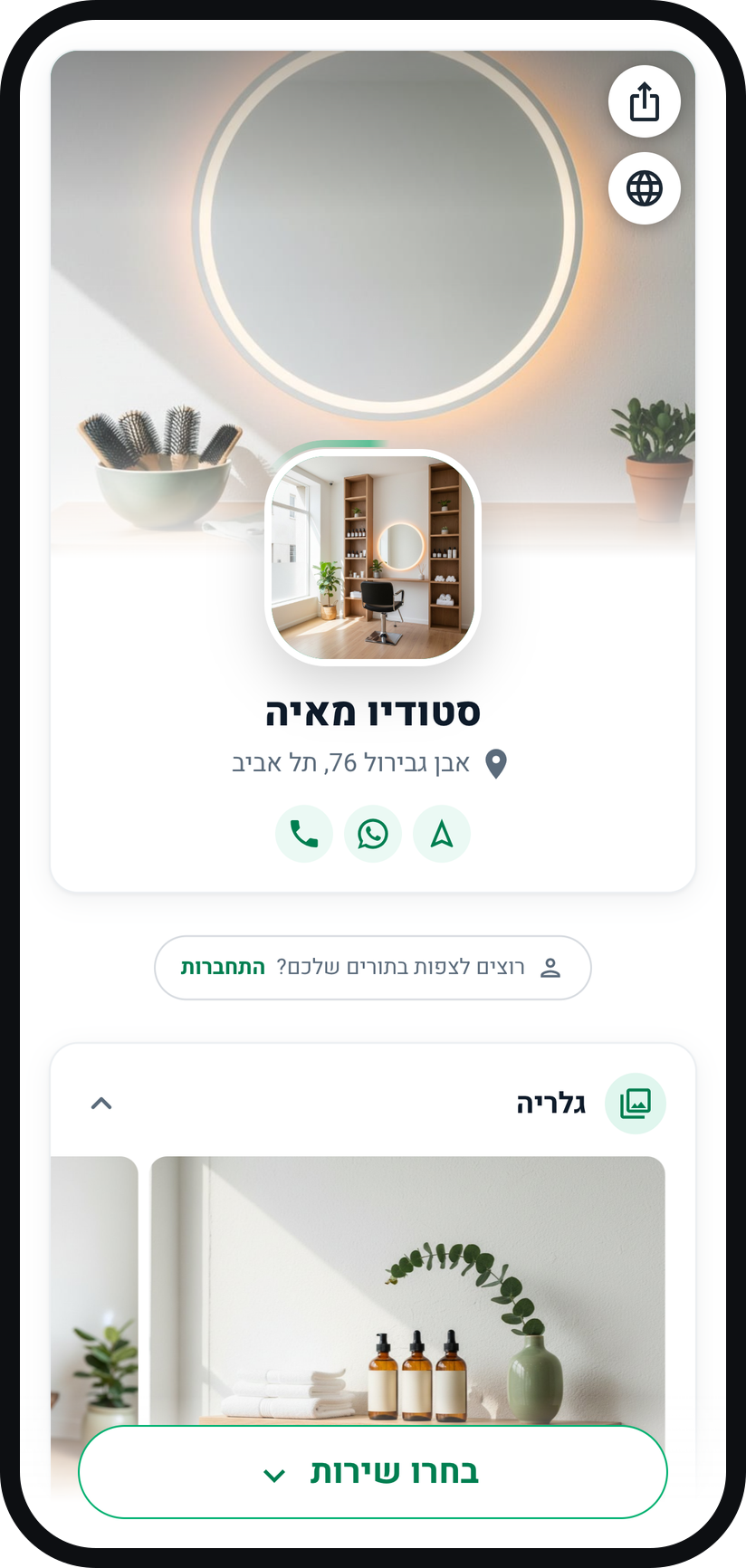
The booking page opens in any browser, with no app to install, and shows your business name, photos and the services you set up.
Zoom
The top of the booking page, with the business name and "Choose a service". Picks a service
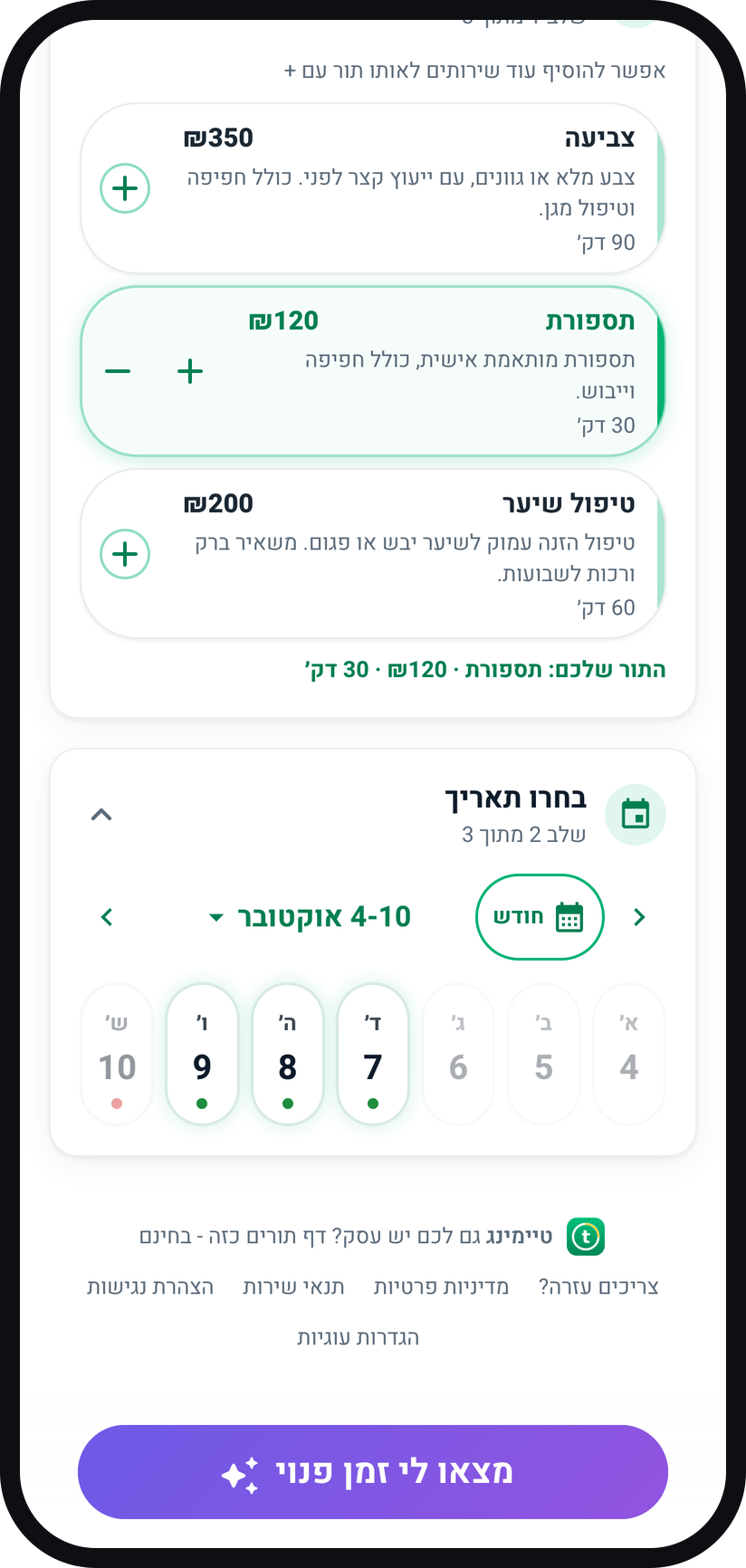
Tapping a service selects it. After that, more services can be added to the same visit with the +, and on a service you marked "Can be booked for several people" a "How many people?" row appears too.
Zoom
A selected service and the hint "Add more services to the same visit with +". Picks a team member and a date
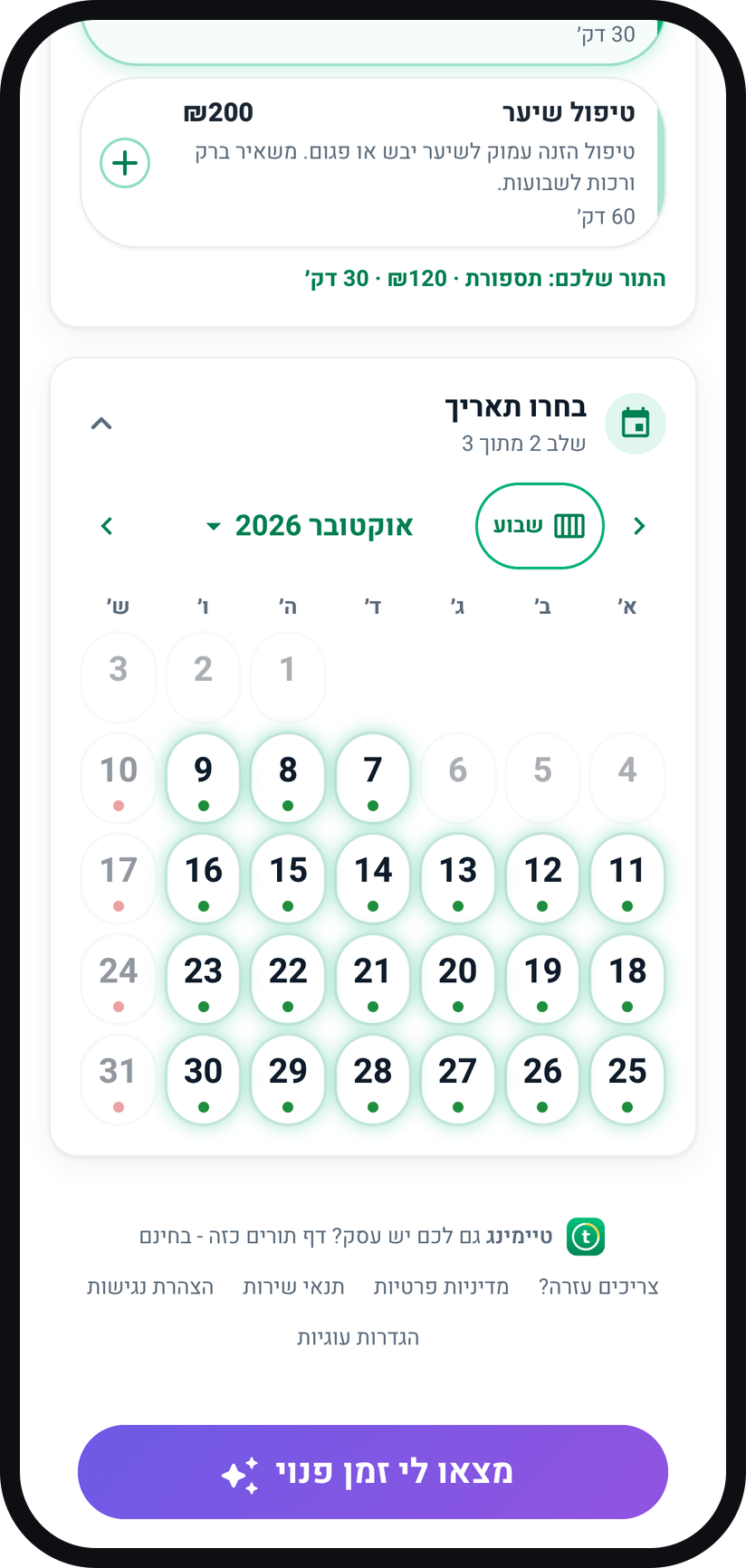
When you have more than one team member, the customer chooses who under "Choose a team member". On the dates, a green dot marks a day with open times and a red dot a day with no time left, full or closed. Past days are dimmed, and "Month" opens the whole month.
Zoom
The month view: a green dot for a day with open times, a red one for a day with none. Sees only truly available times
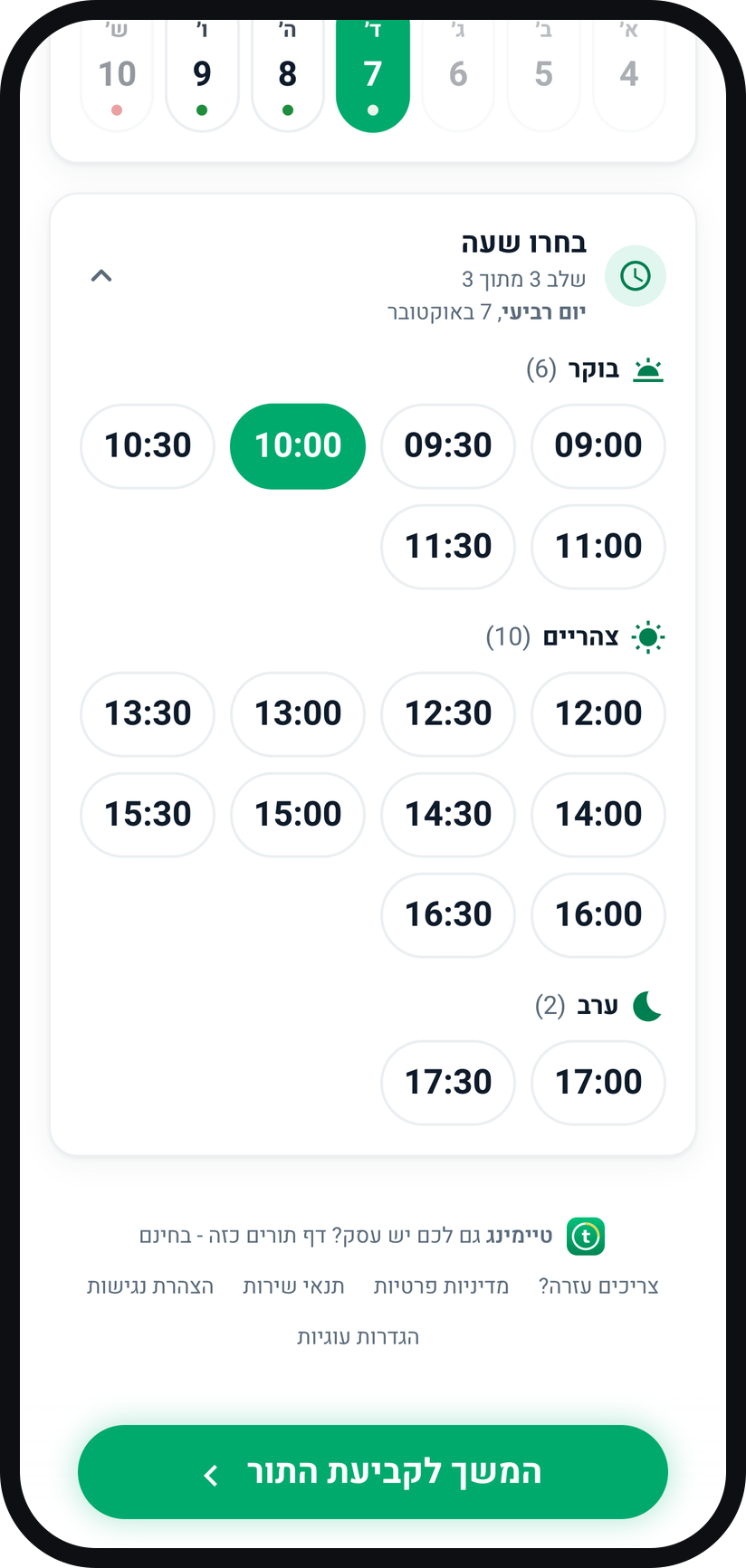
Times are worked out from your working hours, existing appointments and blocks, so an hour you blocked in the calendar never appears. "Find me an open time" jumps to the nearest free time, and if you turned on "Allow waiting list", taken times appear under "Join waitlist".
Zoom
The open times for the chosen day, and the "Continue to booking" button. Signs in to verify
After "Continue to booking" the customer signs in with an SMS code, Google or Apple, and a customer who is already signed in skips this. You can turn this step off with the "Verify customers before booking" switch in "Business settings".
Fills in details and confirms
The customer fills in "Full name" and "Phone", an address when the service takes place at their place, and "Notes (optional)" if you turned on "Customers can add a note". "Confirm booking" sends the booking.
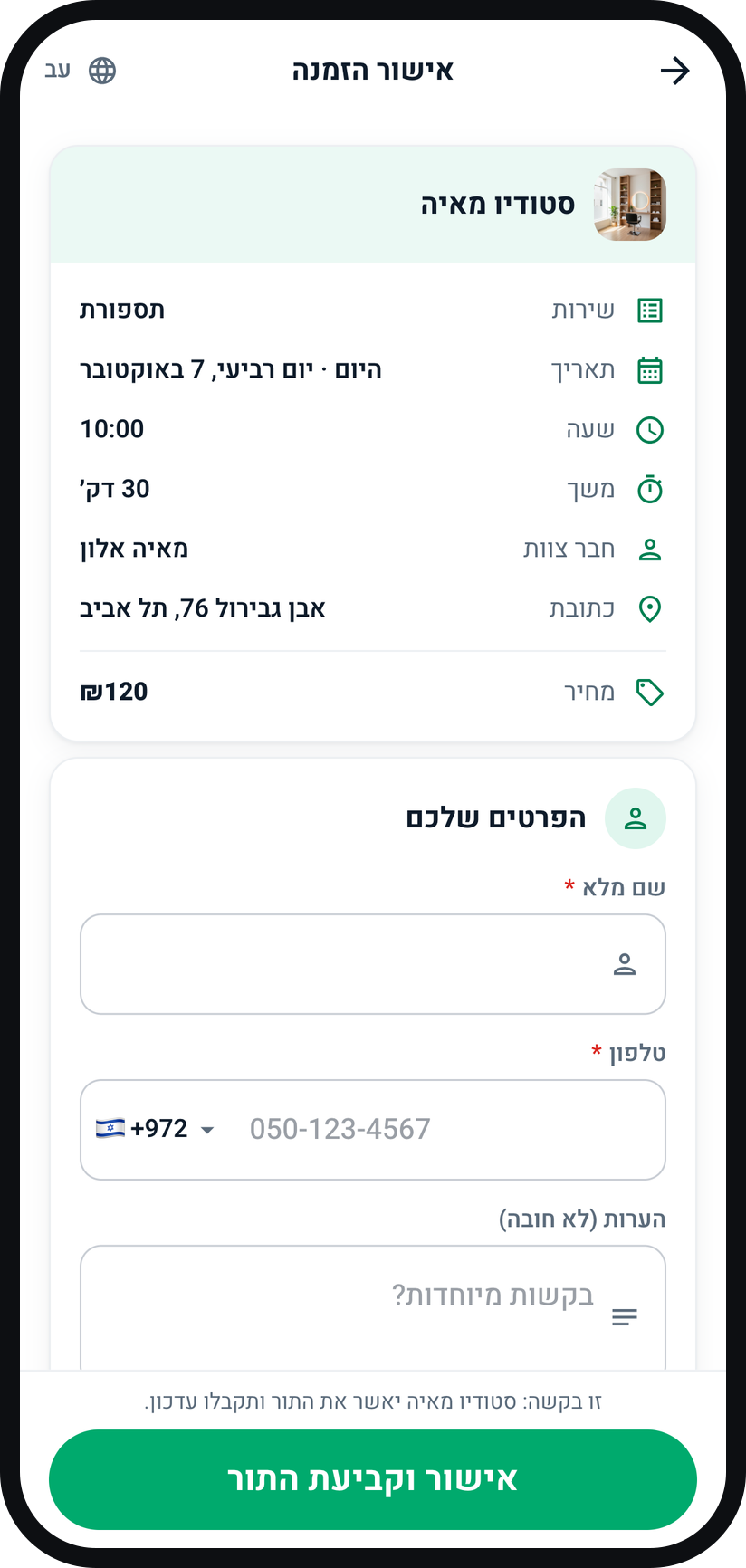
Zoom
The details screen before "Confirm booking". The booking lands with you
By default every booking waits for your approval in the "Requests" tab, and the customer sees "Request sent". With the "Automatic booking approval" switch on in "Business settings", the appointment goes straight into your calendar.


Tips from the field
Want to see the page as a new customer would? Open your link in an incognito window.
An hour you block in the calendar disappears from the booking page within a minute or two.
You set how far ahead customers can book in "Business settings", in the "How far ahead customers can book" row.
Common questions
No. The booking page opens in any browser, on any device. By default the customer only signs in with an SMS code, Google or Apple before filling in their details.
You share it through the "Share business page" row in the app menu, then on WhatsApp, your Instagram bio or anywhere else.
Yes, and that is the default. As long as "Automatic booking approval" is off in "Business settings", every request waits for you in the "Requests" tab.
SMS codes currently go to Israeli numbers only. A customer with a foreign number can sign in with Google or Apple.
More on this topic: Online Self-Booking · Appointment Booking App
Related guides
Not using Timing yet?
Setting up in Timing takes a few minutes, and you can start free.